
Preview: this manual is being updated to cover Shimmer3R. Notes marked TODO are open questions our team is still confirming.
1. Shimmer Dock
TODO(S3R): Confirm whether the Shimmer Dock works with Shimmer3R for charging, SD card access and firmware update, then add a Shimmer3R: note to each of sections 1.2 to 1.5, or say which dock or cable Shimmer3R uses instead. A Shimmer3R also has its own USB connection, which presents a serial port and the SD card to a PC directly; see Shimmer3R hardware in the Shimmer User Manual.
The Shimmer Dock (referred to as the Dock from here on) is a multi-purpose device which can provide three primary functions, as described in more detail throughout this section:
Charging the Shimmer
microSD Card access
Programming the Shimmer
Whilst there have been several Dock design iterations, the current Dock is the Shimmer Dock v3, which is best identified by a square white enclosure, with a power/reset1 button containing an LED for power indication, a black user button and an LED indicator (see Figure 1‑1).
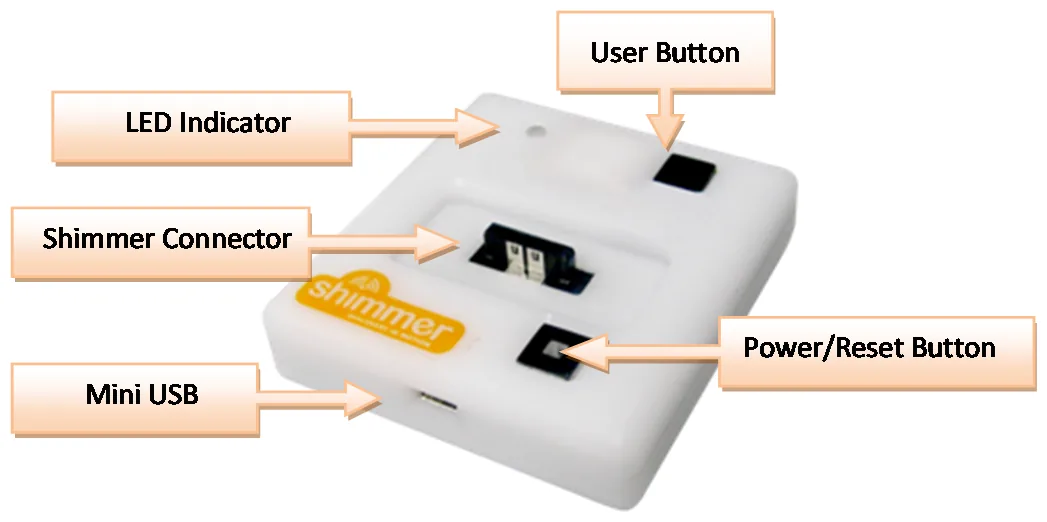
Figure 1‑1 Shimmer Dock – enclosure view
The different features of the Dock are summarised in Table 1‑1.
| Item | Shimmer2/2r | Shimmer3 |
|---|---|---|
| Power/Reset Button1 | Power-ON/Reset (quick press) or Power-OFF (hold for 8s) | Reset (quick press) |
| Power/Reset Button Indicator | Solid Green when Shimmer is powered on | |
| User Button | Application specific signal to Shimmer | |
| Charge Indicator | Solid Yellow during primary charging state | |
| MicroSD Indicator | Blinks Blue with host PC access to Shimmer microSD | |
| UART Indicator | Blinks Orange during programming (BSL) or UART activity | |
Internally, the Dock also contains a DIP switch, which is used to ensure compatibility with legacy devices. Your Dock will ship in the appropriate configuration for the version of Shimmer hardware that you have ordered. However, if you want to change the configuration to use it with a different hardware version, you may do so by opening the Dock enclosure. This involves removing the black rubber feet from the underside of the Dock to reveal four screws which should be removed before opening the plastic.
The valid DIP switch configuration options are listed in Table 1‑2 and illustrated in Figure 1‑2. Users of Shimmer3 should not change the configuration from that recommended below. Users of Shimmer2/2r should use the “legacy configuration” for most purposes (e.g. programming firmware and SD card access). In the event that problems are encountered accessing the SD card for Shimmer2/2r, which can occasionally occur due to driver incompatibility issues on certain PCs, the “SD card access only” configuration should be used. Note that in this configuration, programming of the Shimmer is not possible.
| Function | Switch 1 | Switch 2 | Switch 3 | Switch 4 |
|---|---|---|---|---|
| Shimmer3 recommended configuration | 1 | 1 | 1 | 0 |
| Shimmer2/2r legacy configuration | 1 | 1 | 0 | 1 |
| Shimmer2/2r SD card access only | 0 | 0 | 0 | 1 |
Table 1‑2 Shimmer Dock DIP switch configuration options
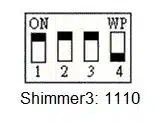
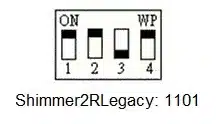
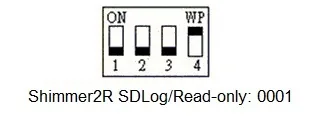
Figure 1‑2 DIP switch configuration: Shimmer3 (left), Shimmer2/2r legacy (centre), Shimmer2/2r SD card access only (right)
The Dock connects to a PC via a USB cable. Whilst drivers for the microSD Card Access should already exist on your PC, you will need to manually install USB Serial Converter drivers to use the Dock for programming the Shimmer. You should perform the installation of these drivers before you first connect your Dock to the PC.
Warning: If you connect the Dock to a PC do not allow windows to install the driver automatically.
1.1. USB Serial Converter Driver Installation
- The USB Serial Converter drivers for the Programming Dock can be downloaded from the FTDI Chip Drivers webpage (see Figure 1‑3). Download and install the driver to match your operating system.
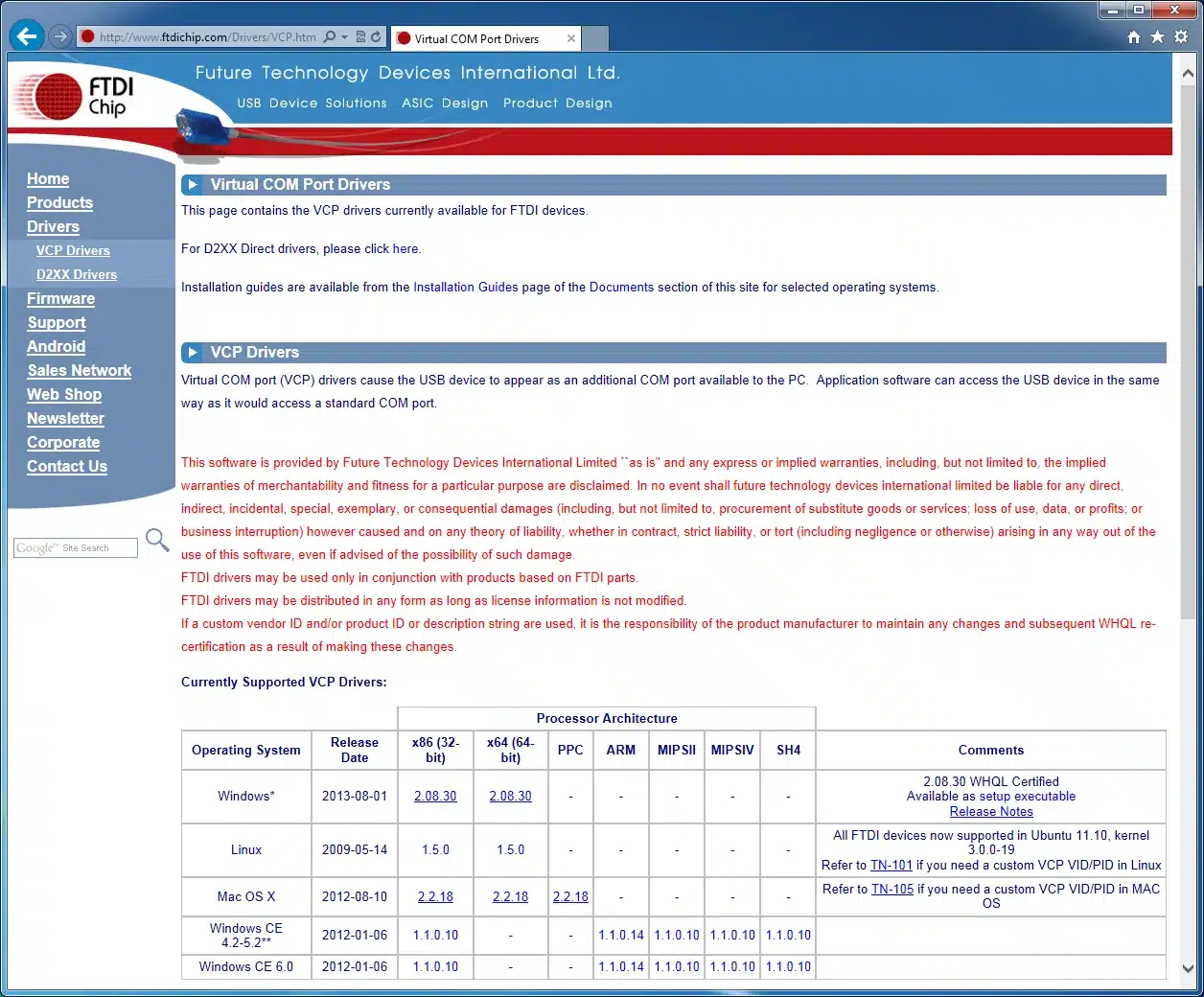
Figure 1‑3 USB Serial Converter Driver Download
Connect the Dock with a powered USB Port of your PC.
Verify your system settings:
From the Control Panel, select Device Manager (in Windows this is found from Control Panel → System → Hardware → Device Manager or by typing devmgmt.msc in the Start menu) and expand the Universal Serial Bus controllers entry as shown in Figure 1‑4.
You should see at least two entries for USB Serial Converter (the other entries will vary with system configuration and may not match the image above exactly).
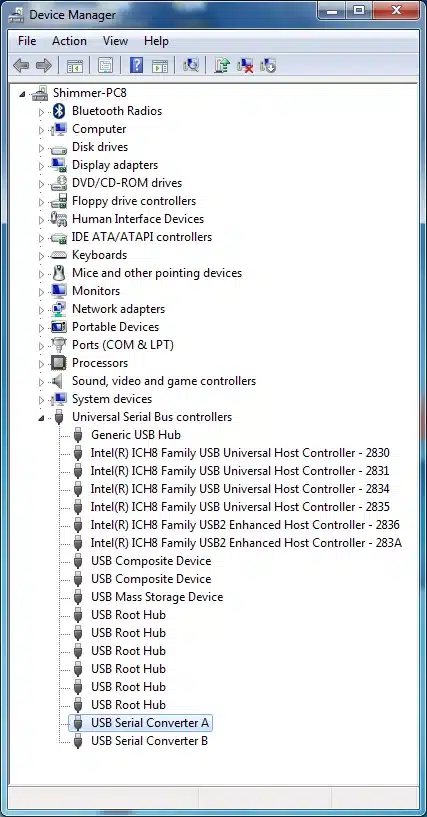
Figure 1‑4 Device Manager showing USB Serial Converter A and B
- Double-click on each USB Serial Converter entry and under the General tab, confirm that the manufacturer is FTDI. Then, under the Advanced tab, make sure the Load VCP checkbox is ticked (see Figure 1‑5). If the checkbox isn’t ticked, you will need to tick for each Serial converter and then unplug and re-insert the Dock.
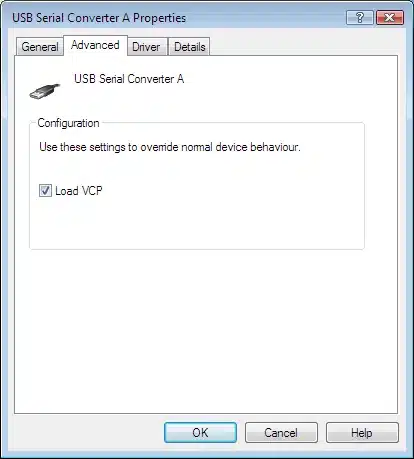
Figure 1‑5 USB Serial Converter Properties
- Next, under the Ports (COM & LPT) entry in the Device Manager, you should see two new USB Serial Port entries, each with an associated COM port number, as shown in Figure 1‑6.
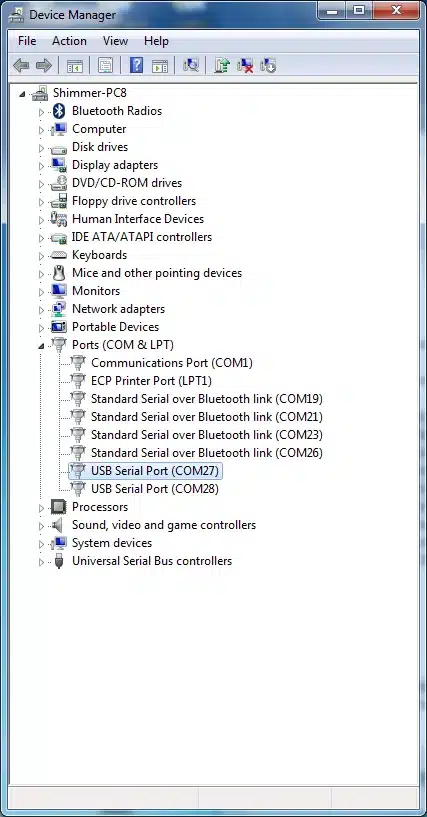
Figure 1‑6 Device Manager showing Dock USB Serial Ports
- Double-click on each of these USB Serial Port entries and, under the Port Settings tab, click on *Advanced…*in the Miscellaneous Options at the bottom right-hand side of the window, ensure that Set RTS On Close is ticked, as shown in Figure 1‑7.
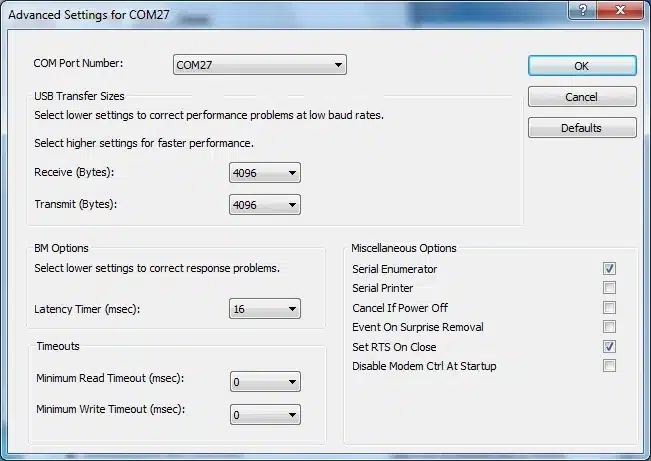
Figure 1‑7 Advanced Port Settings: Select Set RTS On Close
1.2. Placing a Shimmer in the Shimmer Dock
The Dock connects to the Shimmer via the External Connector. The External Connector is keyed and does not require force to insert. Insert the Shimmer with the Bluetooth ID label facing away from the USB cable.
Warning: Forcing the connector may cause permanent damage to your Shimmer.
When the Shimmer is placed in the Dock, the green LED on the Power/Reset button on the dock will light up green if the Shimmer is powered on. If it does not light up then one of the following may have occurred:
Shimmer unit may be powered off.
Shimmer unit may not be inserted properly.
The Dock may not be powered via the USB cable.
Ensure that the Shimmer unit is inserted properly and that the programming dock is powered via the USB cable. For the Shimmer2/2r, pressing the Power/Reset button on the dock or the reset button on the Shimmer unit will power on the device. For Shimmer3, use the slide-switch on the side of the device to ensure that it is powered on.
1.3. Charging the Shimmer
In order to use the Dock as a charging device, simply connect the USB cable of the Dock to a powered USB socket and insert the Shimmer unit into the Dock.
Note: You should make sure your Dock is powered when a Shimmer is docked as the Shimmer battery will discharge if it is left idle in a Dock that is not powered.
The state of the charge indicator LED is an indication of charge phase for the battery. There are three phases to Shimmer battery charging, illustrated in Figure 1‑8. The background colour on the graph in Figure 1‑8 indicates the colour of the charge indicator LED on the Dock during each phase.
Phase 1 is a Preconditioning Phase and is only required when the battery voltage has dropped below a minimum threshold. The battery voltage should not drop below this minimum threshold with normal everyday use however if a Shimmer is left idle for a long period of time the battery may self-discharge to a voltage below the minimum threshold. During the Preconditioning Phase a low current (12.5mA) is applied to bring the voltage to the Minimum Charge Voltage. The length of pre-conditioning will depend on the extent to which battery is discharged. For example a Shimmer that has been unused for months and was stored discharged may have a lengthy pre-conditioning phase. For the most efficient recharging after a deep discharge, it is recommended to program the Shimmer unit with the Sleep firmware image. During the Preconditioning Phase the charge indicator LED on the Dock will be off.
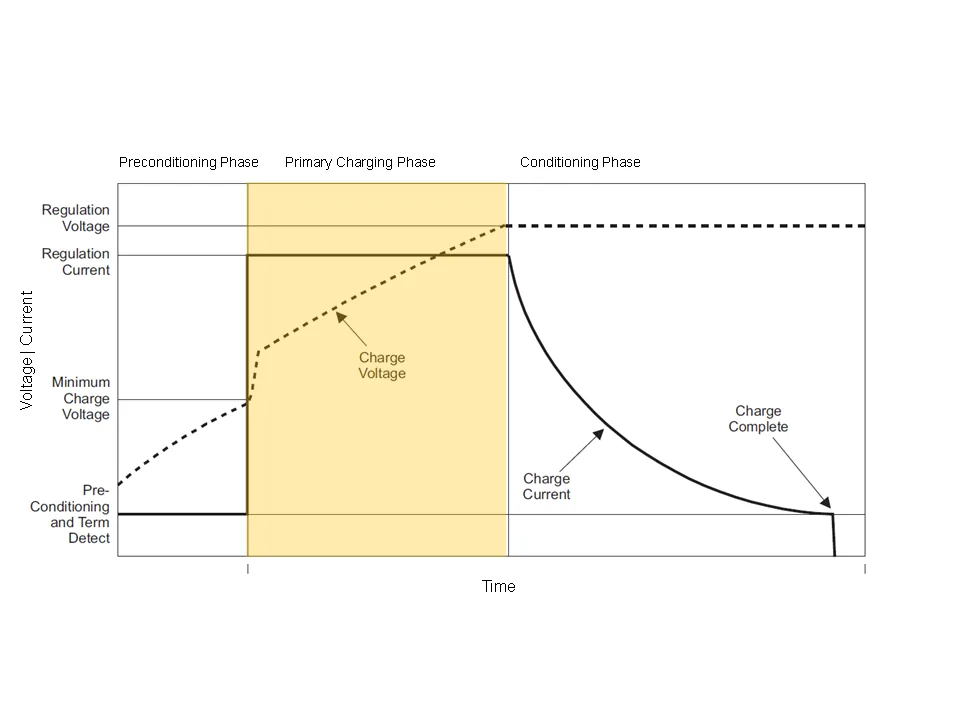
Figure 1‑8 Shimmer Battery Charging Phases. The background colour on the graph indicates the colour of the charge indicator LED on the Dock during this phase.
Phase 2 is the Primary Charging Phase. This phase is the standard charging phase and involves the application of a constant current (125mA) to bring the battery voltage to the Regulation Voltage level. During this phase the charge indicator LED on the Dock will illuminate yellow.
Phase 3 is the Conditioning Phase. The charger will continue to condition the battery while the Shimmer remains inserted in the charger. For maximum operating life allow as much conditioning time as your needs allow. During this Phase the charge indicator LED on the Dock will mostly be off. Depending on the firmware image that is programmed on the device, the charge indicator LED may intermittently light up. This is because a heavy load may momentarily bring the battery voltage below the threshold for the Conditioning Phase, causing the Primary Charging Phase to be re-entered.
The duration of primary charging for a standard Shimmer battery (3.7V – 450mAh) is typically 4.5 hours. As the Shimmer charges at 125mA/hr and conditions at 12.5mA/hr it is possible to estimate charge times for larger or smaller batteries. The charger has a 7hr time-out. Users using >800mAh capacity rechargeable batteries need to increase the charge rate on the Shimmer mainboard to ensure a full charge, please contact support@shimmersensing.com for further details.
1.4. microSD Card Access
When a Shimmer with microSD card is inserted into a Dock that is connected to a PC, the standard drivers on the host system should mount the microSD card as though it were a USB flash key. Depending on the specifics of your system, a few things may happen:
A window may open to display the contents of the Shimmer’s flash
A prompt window may pop-up and ask you what you want to do
Nothing may happen, but when you click on the drive letter or volume name associated with the USB port of the USB Dock, the contents of the Shimmer flash may be browsed.
There are a few requirements for this interaction to work:
The Shimmer must be powered.
Your SD card must have a compatible format (FAT file system is the only currently supported method for Shimmer Applications). If this isn’t the case, you may be prompted to reformat the card. Be careful – irreversible data loss will occur! Otherwise a binary/raw disk utility (such as DD) must be used to copy or access data.
Some Shimmer applications may block this ability or limit mounting to specific times during operation due to legacy compatibility issues, or pending disk operations on Shimmer. This will result in a blinking blue LED on the Dock followed by a time-out from the HOST, or a blue LED on the Dock that turns off (media is detected but fails OS poll). You can try to re-insert the Shimmer, inspect the code, or contact the developer.
1.5. Programming the Shimmer 3
Shimmer3R: Consensys updates Shimmer3R firmware over USB through the processor’s own USB bootloader, not the serial bootstrap loader described here; the lower LED flashes purple while the Shimmer3R is in the bootloader. See Programming a Shimmer in the Shimmer User Manual.
To program a Shimmer, you need a Shimmer Dock or a Consensys Base and must have previously completed the USB Serial Converter Driver Installation procedure outlined earlier in section 3.2.1 of this document. Two methods for programming your device are outlined below; choose the one most suited to your configuration and preference.
1.5.1. Programming in Windows using Consenys
The Consensys application can be used in Windows to program the Shimmer with pre-compiled firmware images. The Consensys is available from the Shimmer User Resources or for download from http://www.shimmersensing.com.
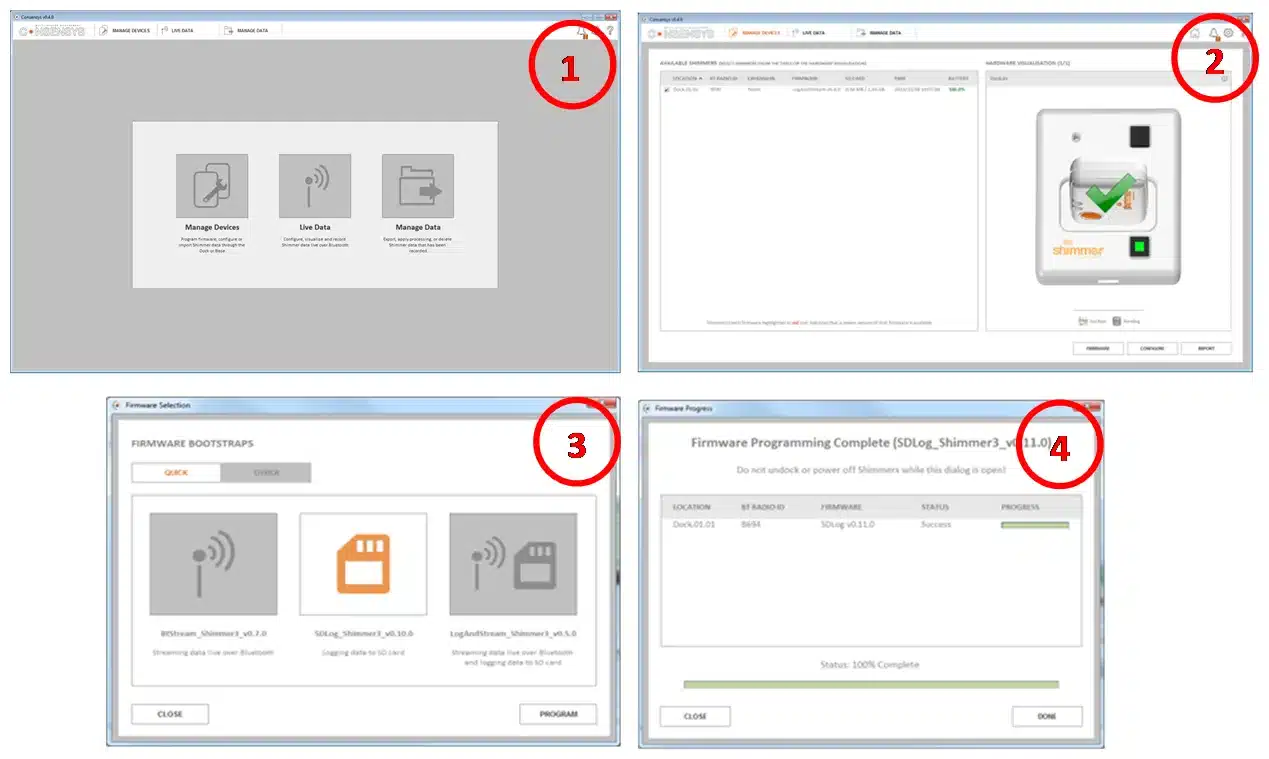
Figure 1‑9 Shimmer3 firmware programming using Consensys
Programming firmware onto a Shimmer using Consensys is a four step process:
Launch Consensys and select the MANAGE DEVICES tab.
Insert your Shimmer (ensure it’s powered on) into a Dock or Consensys Base; select the Shimmer from AVAILABLE SHIMMERS table or from the HARDWARE VISUALISATION graphic and then press the FIRMWARE button.
Select one of Shimmer’s precompiled firmware images provided on the QUICK tab or you may choose to load a firmware image (a file with a .txt extension) from your PC into Consensys on the OTHER tab. Press the PROGRAM button to start programming the Shimmer with the selected firmware.
Progress indicators highlight the status of the firmware programming. When programming is complete, the progress bar will be filled to 100% and the DONE button will be enabled. See expected Shimmer LED behaviour for provided firmware images In section 5.1.
2. Legacy
2.1. Compatibility
The previous version of the Shimmer Dock (v2.1) can be identified by the two LED indicators – one for MicroSD/UART activity and the other for charge indication, as shown in Figure 2‑1. It should be noted that this version of the Dock is not fully compatible with Shimmer3. The charge indicator will not light for Shimmer3 and SD card access through the dock will not work on some PCs.
It should also be noted that the Shimmer Dock (v2.1) (and previous versions) do not contain the DIP switches that are present on Shimmer Dock v3 to change the configuration of the Dock.
MicroSD Indicator/ UART Indicator
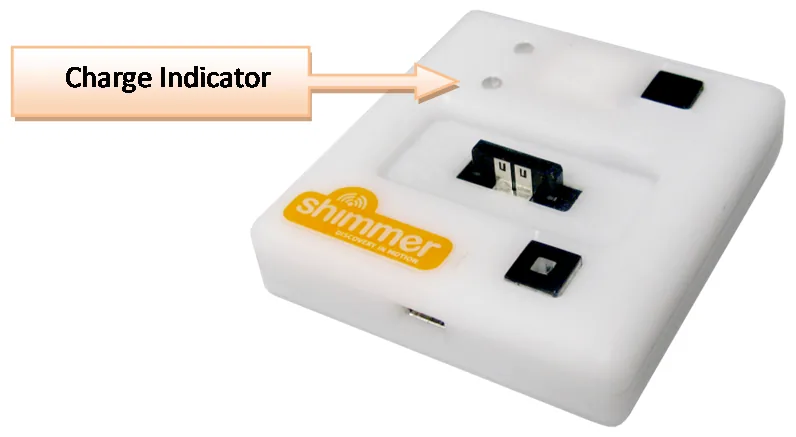
Figure 2‑1 Shimmer Programming Dock v2.1
2.2. GPS
A previous version of the Shimmer Dock (v2.0) included GPS capability. This section only applies to versions of the Dock with GPS capability (evident from the presence of a GPS button as in Figure 2‑2).
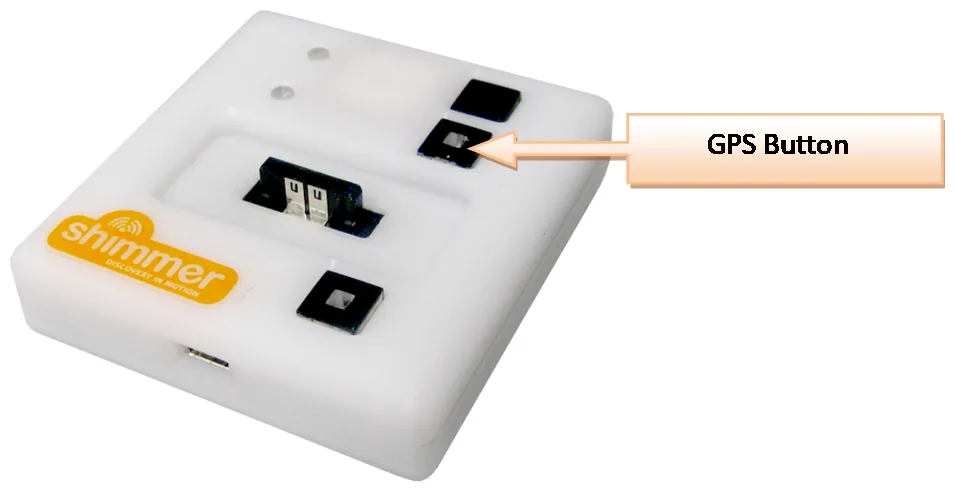
Figure 2‑2 Shimmer Programming Dock v2.0
The GPS Enable button is used to switch between GPS and host computer UART functionality. In GPS mode, the indicator on the button will blink green while GPS location is being acquired. The indicator will turn solid after a lock is reached. This requires a clear view of the sky or placement on a windowsill or ledge.
The GPS module will transmit serial GPS NMEA sentences to the docked Shimmer’s external connector UART lines. This data can be used for application synchronization or localization. Configuration commands use the MTK NMEA format. For more information on the commands, data format and operational parameters of the GPS module see the Shimmer GPS/PRES User Guide available at www.shimmersensing.com in downloads.
Toggling GPS Enable so that the indicator is off will select UART functionality. The UART lines will now pass through to the USB UART on the host computer. In this mode, operation matches the previous Shimmer Dock accessories. A common UART indicator is used for both the host UART, and the BSL programming interface UART. Beyond the indicator difference, the UART mode behaves like legacy USBREADER or USB Dual UART docks.
While the Dock has a memory retention feature for GPS almanac data, after a period of inactivity, or geographic movement, initialization of GPS almanac data may take up to an hour. Without a clear sky-view, data output from the GPS module will be incomplete. This condition is indicated by a persistent blinking GPS indicator or blank fields in output data. When confronted with scenario try a different location. In some indoor cases, insufficient sky-view, RF blocking building materials, or shadows from adjacent structures will limit GPS functionality.
Note: Some example Shimmer applications may operate differently or unpredictably when the GPS mode is selected.
2.3. Programming the Shimmer 2r
This section deals with programming the Shimmer with pre-compiled Firmware images. For details on modifying Firmware please refer to the Firmware section of the Shimmer User Manual.
A Bootstrap Loader application is used in Windows to program the Shimmer 2/2r with pre-compiled firmware images. Bootstrap Loader applications are available from the Shimmer 2r User Resources. You should copy the application folder to a suitable location on your PC. The application does not require installation.
For the application to function correctly you must have previously completed the USB Serial Converter Driver Installation procedure outlined earlier in this document. For *Shimmer2/*2r: When you run BSL430, the application will automatically attempt to detect the serial port associated with the Dock, this will be indicated by the COMxx entry in the port tab (illustrated in Figure 1‑9) where xx is the serial port number. If no port is displayed, try pressing the Reload COM ports button. If that fails, first check the cable, then revisit the USB Serial Converter Driver Installation procedure outlined earlier in this document.
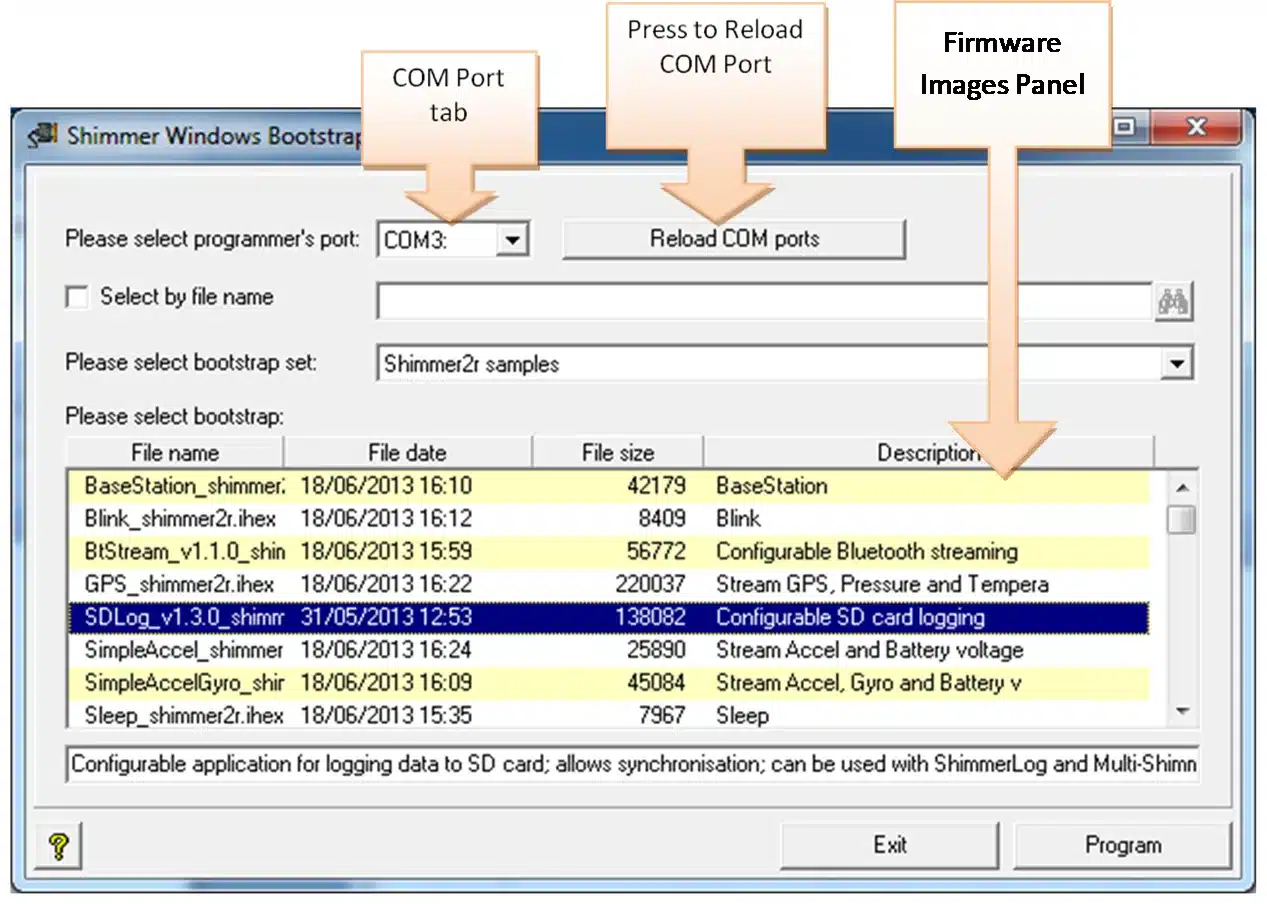
Figure 2‑3 BSL430 Programming application
When you run BSL430, the application will automatically attempt to detect the serial port associated with the Dock, this will be indicated by the COMxx entry in the port tab (illustrated in Figure 1‑9) where xx is the serial port number. If no port is displayed, try pressing the Reload COM ports button. If that fails, first check the cable, then revisit the USB Serial Converter Driver Installation procedure outlined earlier in this document.
The BSL430 application includes a number of precompiled Firmware images – usually a file with an .ihex extension. You may choose to load one of the provided images or, alternatively, tick the “Select by file name” checkbox and browse to the location of the image on your PC.
If you choose one of the provided images (by leaving the “Select by file name” checkbox unchecked), it is very important that the chosen image matches the target platform (Shimmer1, Shimmer2, Shimmer2r or Span) or unpredictable behaviour may occur; the “Please select bootstrap set:” drop-down menu can be used to select the correct set of images. Next, use the scroll bar and selection tabs to browse and select a firmware image from among the available options. If you do not see a list of firmware images please consult the Firmware Images not listed section.
As a test case we will program the Shimmer with the Blink firmware:
Select either the Blink_shimmer2r.ihex or Blink_shimmer2.ihex file (depending on your Shimmer version) and press the Program Button.
A Windows such as that illustrated in Figure 1‑10 should pop up. In addition, the UART Indicator light on the Dock will flash. Depending on the program size, it may take up to five minutes to program a Shimmer, but blink is quite small and the firmware update should complete quickly.
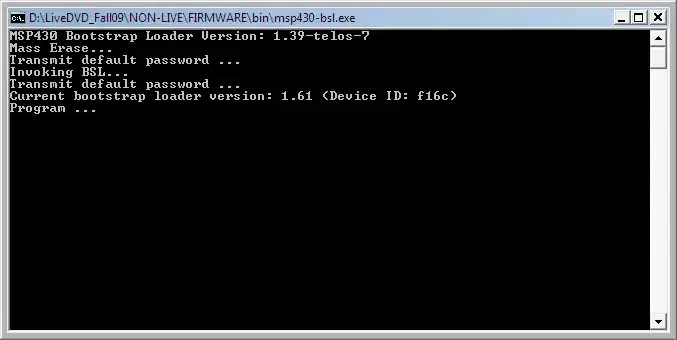
Figure 1‑10 BSL430 Programming
- The LEDs on your Shimmer should be blinking- congratulations you have programmed your Shimmer! If you experience difficulty, verify that your Shimmer is powered on and the correct programming port COM port is selected then try again.
3. Troubleshooting
USB UART drives fail to load
There is no COM Port listed in the COM Port tab in the BSL430 application
Occasionally the USB UART drivers will fail to load. This condition typically happens when the Dock has been unplugged and is often indicated by a solid UART activity LED. The simple fix is to unplug the USB cable and retry. If this process fails to remedy the situation, please contact Shimmer Research support for assistance.
Firmware Images not listed
There are no firmware images listed in Firmware Images Panel in the BSL430 application.
Firstly make sure that the Select by file name option is NOT ticked. Also make sure that you have selected the correct bootstrap set for your platform using the Please select bootstrap set option (e.g. Shimmer2r samples). If that fails to rectify the problem be aware that the folder structure for the BSL430 application has to be maintained. You may have changed the structure by moving the location of bsl430.exe with respect to the bootstraps folder or vice versa. Ensure that the folder structure is in its original format as in Figure 3‑1
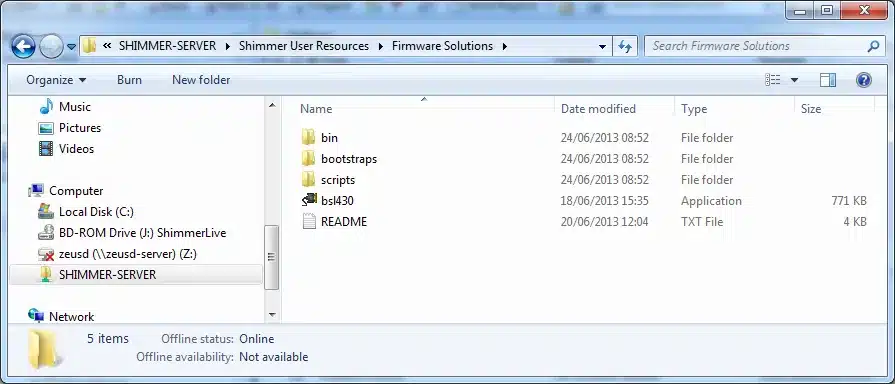
Figure 3‑1 BSL430 folder structure
PC fails to recognise the SD card
I have inserted an SD card into my Shimmer unit but the PC fails to recognise it when I view the list of Devices with Removable Storage as in Figure 3‑2.
Try one or more of the suggested options below to attempt to resolve the problem.
Make sure that the Shimmer Dock drivers installed correctly.
Power off and power on your Shimmer unit.
Unplug and re-plug the Shimmer Dock.
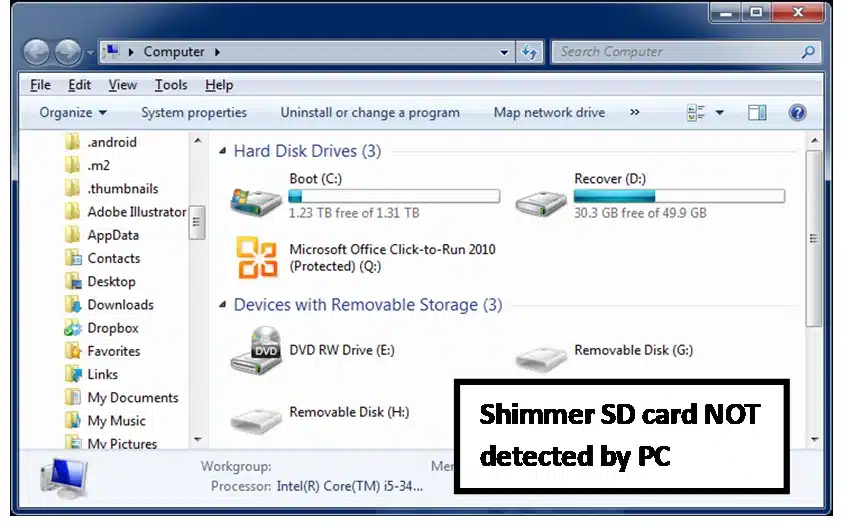
Figure 3‑2 Shimmer SD Card NOT detected by PC
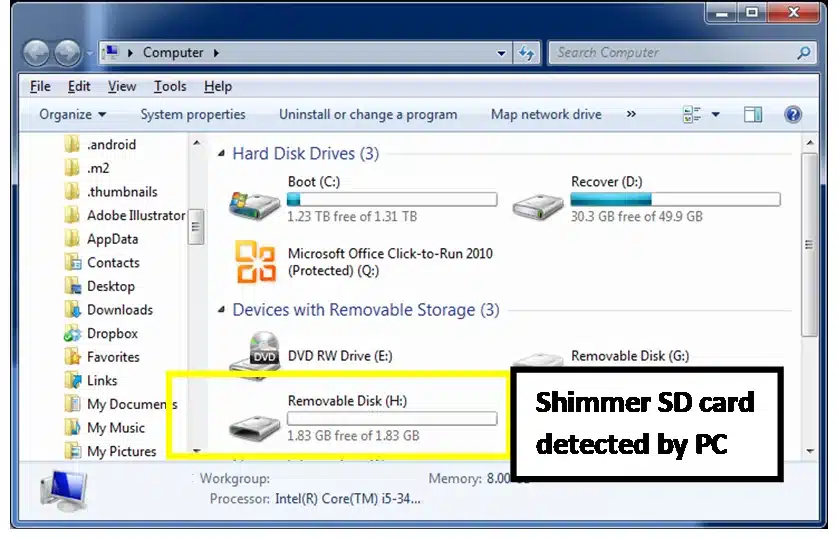
Figure 3‑3 Shimmer SD Card detected by PC
On certain PCs, users of the Shimmer2/2r and the Shimmer Dock v2.1 (and earlier) may experience SD card access problems, due to Windows drivers causing a race condition, which means that the SD card control is not correctly handed over from the Shimmer to the PC. This problem has been rectified in Shimmer Dock v3. The problem can be characterised by the symptoms described above (Shimmer SD card not detected by PC) or by one of the following:
SD card needs to be formatted:
The PC pops up a warning message telling the user that the SD card needs to be formatted.
When the user says “Yes” to formatting the SD card, the format operation fails.
SD card detected but files not accessible:
The SD card appears to be detected and shows up as a Removable Disk in My Computer.
When the user attempts to open directories or files, an error occurs and the SD card subsequently appears not to be detected by the PC.
If this occurs, you should attempt the following steps:
Powercycle the Shimmer on the Dock (long press of dock reset button, followed by short press of the Reset button on the Dock).
Remove the Shimmer from the Dock.
Unplug the USB connection between the PC and the Dock.
Reconnect the USB connection between the PC and the Dock.
Check that the Dock driver settings are correct, according to Section 1.1 of this User Guide.
Replace the Shimmer on the Dock and ensure that it is powered on.
If these troubleshooting steps fail to resolve the problem with Shimmer2/2r and Shimmer Dock, you should consider purchasing the latest release of the Shimmer Dock. This Dock should be configured for Shimmer2/2r SD card access only (see Section 1 of this document for details).
The FW did not program correctly

Make sure the Shimmer is switched on (green LED in Reset Button is on).
Make sure the USB cable is fully inserted in the Dock as depicted in Figure 3‑4 USB cable inserted.
Try again. If programming fails after a few attempts, contact Shimmer support through the form on: http://www.shimmersensing.com/support/wearable-sensing-support/

Figure 3‑4 USB cable inserted
Legal notices
Shimmer Dock
User Guide
Rev1.8
Legal Notices and Disclaimer
Redistribution IS permitted provided that the following conditions are met:
Redistributions must retain the copyright notice, and the following disclaimer. Redistributions in electronic form must reproduce the above copyright notice, this list of conditions and the following disclaimer in the documentation and/or other materials provided with the document.
Neither the name of Shimmer Research, or Realtime Technologies Ltd. nor the names of its contributors may be used to endorse or promote products derived from this document without specific prior written permission.
THIS DOCUMENT IS PROVIDED BY THE COPYRIGHT HOLDERS AND CONTRIBUTORS “AS IS” AND ANY EXPRESS OR IMPLIED WARRANTIES, INCLUDING, BUT NOT LIMITED TO, THE IMPLIED WARRANTIES OF MERCHANTABILITY AND FITNESS FOR A PARTICULAR PURPOSE ARE DISCLAIMED. IN NO EVENT SHALL THE COPYRIGHT OWNER OR CONTRIBUTORS BE LIABLE FOR ANY DIRECT, INDIRECT, INCIDENTAL, SPECIAL, EXEMPLARY, OR CONSEQUENTIAL DAMAGES (INCLUDING, BUT NOT LIMITED TO, PROCUREMENT OF SUBSTITUTE GOODS OR SERVICES; LOSS OF USE, DATA, OR PROFITS; OR BUSINESS INTERRUPTION) HOWEVER CAUSED AND ON ANY THEORY OF LIABILITY, WHETHER IN CONTRACT, STRICT LIABILITY, OR TORT (INCLUDING NEGLIGENCE OR OTHERWISE) ARISING IN ANY WAY OUT OF THE USE OF THIS DOCUMENT, EVEN IF ADVISED OF THE POSSIBILITY OF SUCH DAMAGE.