
Preview: this manual is being updated to cover Shimmer3R. Notes marked TODO are open questions our team is still confirming.
1. Introduction
Shimmer is a small wireless sensor platform well suited for wearable applications. The integrated kinematic sensors, large storage and low-power standards based communication capabilities enable emerging applications in motion capture, long-term data acquisition and real-time monitoring.
Shimmer3, the latest revision of the Shimmer platform includes improvements to the original design based on years of field trials and deployments. We have made improvements in wearability while expanding capabilities with a flexible kinematic sensor array, more powerful CPU and improved user interface. The terms ‘Shimmer’ and ‘Shimmer3’ are used interchangeably in this manual, to refer to the Shimmer3 device. Much of the information applies generically to Shimmer Products.
This manual covers both Shimmer3 and Shimmer3R. Shimmer3R is the current generation of the Shimmer3 platform. It works with the same software, runs the same LogAndStream firmware behaviour and is configured in the same way. Where Shimmer3R differs, the text says so in a Shimmer3R: note, and Shimmer3R hardware describes its hardware in full. Text without a note applies to both.
To tell which you have, look at the Bluetooth device name. A Shimmer3R appears as two devices, Shimmer3R-XXXX-BT and Shimmer3R-XXXX-BLE. A Shimmer3 appears as Shimmer3-XXXX; a Shimmer3 with the dual-mode RN4678 radio also shows a second, Bluetooth Low Energy entry. Consensys also shows the hardware version of a connected device.
TODO(S3R): Is the product name or model printed on the Shimmer3R enclosure or label, so a user can tell the two apart without connecting?
If you are new to the Shimmer platform, there is Quickstart information in Section 2, whilst Section 3 gives a high level overview of the Shimmer platform. Section 2 (Quickstart) is essential reading, Section 3 (Shimmer Platform Overview) is recommended reading and the remaining sections are best browsed based on personal interest and development goals. For details on legacy devices please refer to Shimmer Clock Drift.
2. Quickstart
The Support > Getting Started section of the Shimmer website contains step-by-step instructions for new Shimmer users to help with quickly going from delivery of hardware to streaming data over Bluetooth to a Windows PC or an Android device. It is highly recommended for new customers to refer to those instructions.
This Quickstart guide is aimed at those who do not have access to the online instructions and its purpose is to allow those users to swiftly get up and running with their Shimmer sensing platform on both a Windows OS and Linux OS. For a more in depth understanding of the Shimmer platform please refer to the later sections of this User Manual.
Shimmer units are shipped pre-programmed with the LogAndStream firmware program which allows for Shimmer configuration and data capture over Bluetooth as well as capturing data onto the SD card of the Shimmer. This Quickstart guide assumes the device has been programmed with LogAndStream v0.8.0 or later.
2.1. Powering On/Off the Shimmer
Use the slide switch to turn the Shimmer On/Off, as shown in Figure 2‑1. Some applications may use the user push-button to switch between suspend and active modes; details of this functionality can be found in the appropriate application manual.
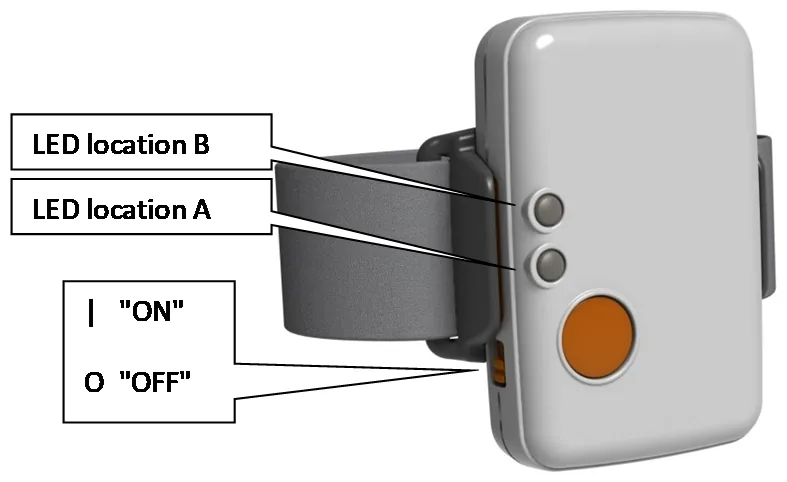
Figure 2‑1 Shimmer3 in enclosure
2.2. LogAndStream LED Indication
There are two LED locations on the Shimmer3, as shown in Figure 2‑1; location A has three LEDs, coloured red, yellow and green, whilst location B has two LEDs, coloured blue and green. These LEDs are used to indicate the state of the device, according to the firmware that is programmed on it.
Figure 2‑2 and Figure 2‑3 provide a summarised translation of LED behaviour when LogAndStream is running on the Shimmer (for a full LogAndStream LED translation table refer to Section 5.1.1). The relative size of the LED symbols in the figures denotes how long the LED of the relevant colour is on or off for, in each case.
Shimmer3R: Shimmer3R has two RGB LEDs, one in each location, instead of five single-colour LEDs. The patterns and their meanings are the same, with the colour shown by a single LED. Location B (upper) shows what the device is doing and location A (lower) shows its health: button, errors, battery and charging. Two states look different:
- Clock not set: a single cyan LED flashes fast, where Shimmer3 lights its green and blue LEDs together.
- Entering the bootloader (Shimmer3R only): the lower LED flashes purple. This happens during a firmware update (see Programming a Shimmer).
The LED feedback reference lists every state for both generations.
LED Pattern |
Description |
||
|---|---|---|---|
|
Full Charge |
|
Green Solid ON |
Charging |
|
Yellow Solid ON |
|
|
Full Charge |
|
Green 0.1s ON/5s OFF |
Medium Charge |
|
Yellow 0.1s ON/5s OFF |
|
Low Charge |
|
Red 0.1s ON/5s OFF |
|





LED Pattern |
Description |
||
|---|---|---|---|
|
Standby |
|
Blue 0.1s ON/2s OFF |
Bluetooth Connected |
|
Blue Solid ON |
|
Streaming only |
|
Blue 1s ON / 1s OFF |
|
RTC not set |
|
0.1s Blue/0.1s Green |
|
|
Configuring |
|
Green 0.1s ON/ 0.1s OFF |
SD error |
|
0.1s Red/0.1s Yellow |
|
Logging only |
|
Green 1s ON / 1s OFF |
|
Streaming and Logging |
|
1s Blue/1s Green |
|








Figure 2‑3 LED indicators for LogAndStream (Location B and A)
Note: The above SD error LED sequence is present in LogAndStream_v0.8.0 and later. Older versions of LogAndStream couple both SD and RTC errors into a 0.1s Blue/0.1s Green LED flashing sequence.
2.3. Charging the Shimmer
A Shimmer unit may be charged using a Shimmer Dock, Multi Charger, a Shimmer charging cable or a Consensys Base. This section is limited to the description of the Shimmer Dock (referred to as “the Dock” in the following) for charging purposes only. For a full description of the Dock functionality and charging with the Shimmer Multi Charger please refer to the Shimmer3 Platform Overview section of this document or the individual User Guides for these items.
Connect the Dock to a powered USB socket.
Warning: If you connect the Dock to a PC, do not allow Windows to install the driver automatically, as some versions of Windows (typically old than Windows 10) will not install the correct driver1. Driver installation is not required for charging purposes. For further details on driver installation please refer to the full description of the Shimmer Dock in the Shimmer3 Platform Overview section.
If using a single Shimmer Dock, insert the Shimmer3 unit into the dock with the Bluetooth ID label facing away from the USB cable.
Warning: Forcing the connector may cause permanent damage to your Shimmer. If you have difficulty inserting the unit into the dock, check that you have the correct orientation.
A detailed explanation of the charging process is outlined in the Section 3.2.3 of this document.
If the Shimmer is powered on, when a charging source is available, the Shimmer will indicate charge status using the Battery status LEDs on the device; while the Shimmer is charging, the yellow LED will be on and once the battery is full, a green LED will be on.
TODO(S3R): Current LogAndStream firmware on both Shimmer3 and Shimmer3R shows steady red while charging, green when full, yellow when charging is suspended, and fast-flashing red for a bad battery (LED feedback reference §4.4). This manual, and Figure 2‑2 below, say yellow while charging. Confirm from which firmware version the colours changed, then update both places to match, with a note for older firmware.
2.4. Pairing a Shimmer
In order to capture data from a Shimmer sensor using a Bluetooth connection, the Bluetooth connection must first be set up in a process called Pairing. Two pairing procedures are outlined below: one for a Windows operating system and another for a Linux operating system. You should follow the procedure which applies to the OS you are using.
Note: The host side machine must have a plug-in or built-in Bluetooth radio installed and activated to continue.
Shimmer3R: A Shimmer3R supports both Classic Bluetooth and Bluetooth Low Energy, and appears in the device list twice: Shimmer3R-XXXX-BT (Classic) and Shimmer3R-XXXX-BLE, where XXXX is taken from its Bluetooth address. Pair Shimmer3R-XXXX-BT to get the COM port the steps below use. The BLE entry is for applications that connect over Bluetooth Low Energy, and gives no COM port. No PIN is needed for either. A Shimmer3R in SD-sync mode uses the PIN 1234, as Shimmer3 does.
TODO(S3R): Bench-check the pairing walkthrough on a Shimmer3R in Windows 10/11: that the -BT entry gives the COM port, and what the -BLE entry looks like in the device list. Update the screenshots if needed.
2.4.1. Bluetooth Pairing in Windows
To pair the Shimmer (or any Bluetooth device) with a Windows OS, ensure that the unit is powered on and follow the steps below.
View Devices
In order to view the list of devices connected to the PC already, follow the path Control Panel → Hardware and Sound → Devices and Printers. A window similar to Figure 2‑4 containing a list of devices is presented. Both Bluetooth devices and non-Bluetooth devices are shown.
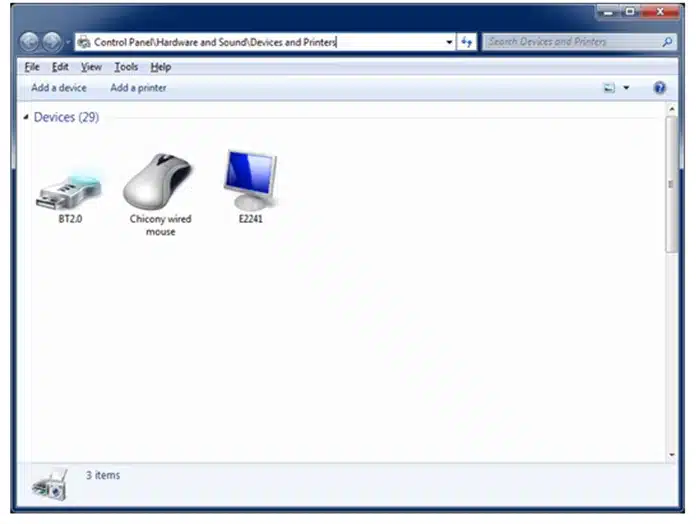
Figure 2‑4 View Devices and Printers
Search for Shimmer Devices
To add a Shimmer to the list of devices connected with the PC, select the Add a Device button on the top left of the window (see screenshot on left of Figure 2‑5). Windows will now search for Bluetooth devices that are within range of your PCs BT radio and display them as in the screenshot on the right of Figure 2‑5.
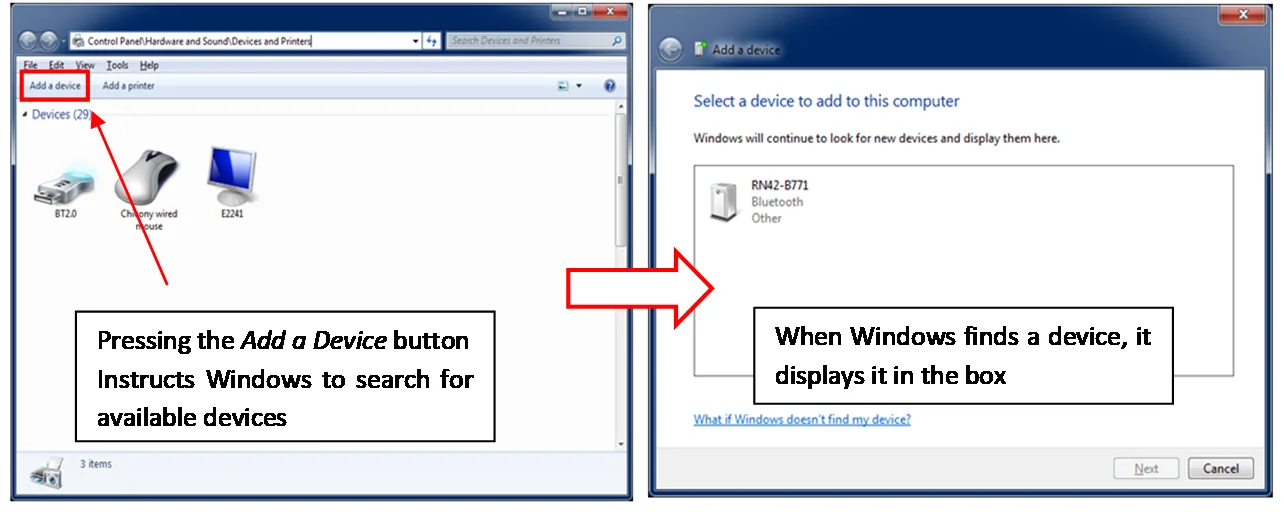
Figure 2‑5 Searching for available Bluetooth devices
Warning: If Windows fails to find the Shimmer device, ensure the following;
The PC attempting to find the Shimmer device is Bluetooth enabled.
The Shimmer unit is powered ON (refer to Section 2.2 to identify if Shimmer is powered ON).
The Shimmer unit is within Bluetooth range of the PC (<12m approximately).
Pair to a Shimmer device
To pair with a particular device, select the device from the list; the device name will be “RN42-XXXX” or “Shimmer3-XXXX”, depending on what hardware version you have purchased, where “XXXX” are the last four digits of the BT radio’s MAC address (printed on the Shimmer label). Windows will attempt to establish a connection with the device.
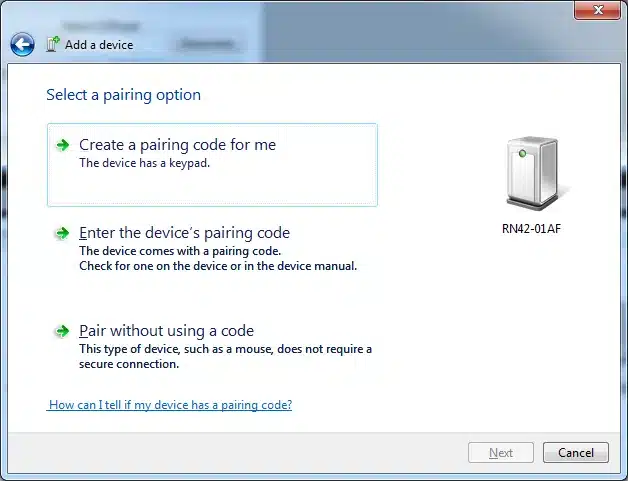
Figure 2‑6 Pairing validation
To complete the pairing process, select the Enter the device’s pairing code (see Figure 2‑6) option at which point, a dialog box will appear prompting for a security code. The default code is 1234.
Verify successful Bluetooth pairing
Return to Control Panel → Hardware and Sound → Devices and Printers where the list of devices connected with the Windows machine should now include the Shimmer that you paired (see Figure 2‑7). In order to use the device with many host side Shimmer applications, it is essential to know the COM port that the Windows machine has assigned to the Shimmer. To identify the COM port number, right click on the Shimmer, select Properties and go to the Services tab. The COM Port number is displayed as a Serial Port (SPP) service (e.g. COM74 in the screenshot on the right of Figure 2‑7).
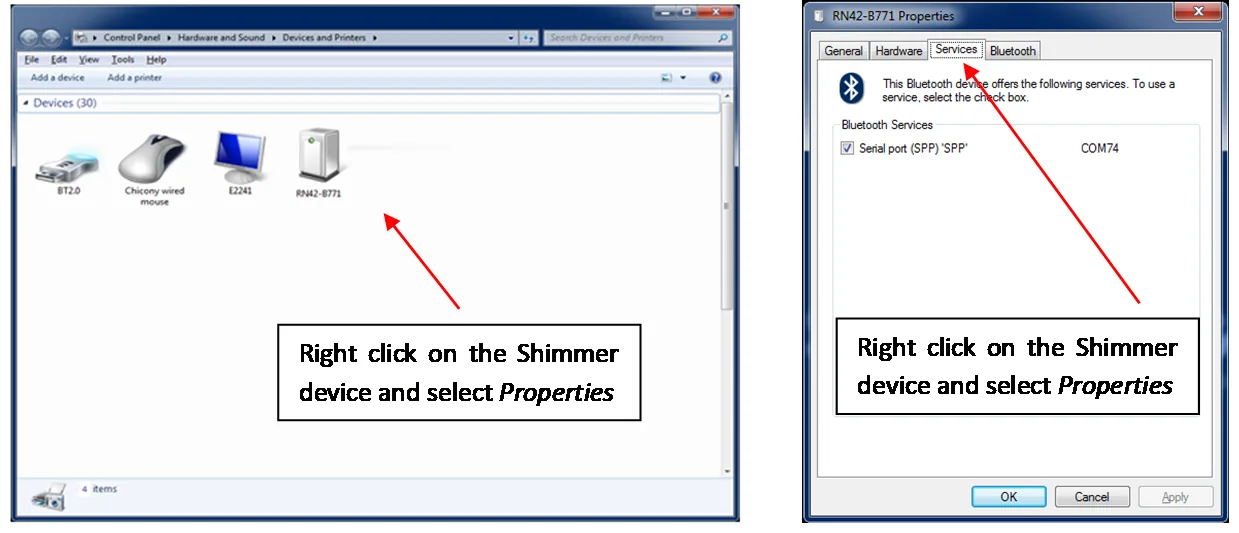
Figure 2‑7 Locating COM port associated with the Shimmer unit
2.4.2. Bluetooth Pairing in Linux
The operation of pairing a Shimmer device in Linux may vary from distribution to distribution. The following procedure has been tested in Ubuntu 10.04, Slackware 13 and OpenSuse 11.3.
All the commands given here should be entered from the command line (in a terminal window).
Bluetooth Radio
The BlueZ Bluetooth libraries and tools need to be installed. See http://www.bluez.org for details. Ensure the Bluetooth radio is available by running the hciconfig command.
tiny2@ShimmerLive:~/Desktop$ hciconfig
hci0: Type: USB
BD Address: 00:19:0E:0A:D6:62 ACL MTU: 1021:8 SCO MTU: 64:1
UP RUNNING PSCAN
RX bytes:1013 acl:0 sco:0 events:34 errors:0
TX bytes:1347 acl:0 sco:0 commands:34 errors:0
Search for Shimmer Devices
Scan for the Shimmer by running the hcitool scan command.
tiny2@ShimmerLive:~/Desktop$ hcitool scan
Scanning …
00:06:66:42:22:BD RN42-22BD
00:A0:96:28:DF:E8 FireFly-DFE8
00:06:66:42:24:18 RN42-2418
Pair to a Shimmer device
To use the Shimmer, for example, with Bluetooth radio ID “RN42-2418”, it must be bound to an rfcomm device. The rfcomm bind <n> <MAC_ADDRESS> command achieves this. The <n> parameter gives the rfcomm device number, which must be different for each Shimmer paired, and the <MAC_ADDRESS> parameter is the Shimmers MAC address which can be obtained from the hcitool scan output above. This command normally needs root privileges, so “sudo” is used.
tiny2@ShimmerLive:~/Desktop$ sudo rfcomm bind 0 00:06:66:42:24:18
[sudo] password for tiny2:
Verify a Successful Bluetooth Pairing
Running the rfcomm command with no arguments shows which Shimmer is bound to which rfcomm device, along with the current connection status.
tiny2@ShimmerLive:~/Desktop$ rfcomm
rfcomm0: 00:06:66:42:24:18 channel 1 clean
rfcomm1: 00:A0:96:28:DF:E8 channel 1 clean
2.5. Setting up a Shimmer data stream
2.5.1. Setting up a Shimmer data stream on Linux
ShimmerCapture is a host side application used to configure a single Shimmer and stream data from it. The application is available for the Linux operating system and is available from the Shimmer User Resources or for download from the members section of the Shimmer website. Follow the steps below on setting up a stream in ShimmerCapture.
Run ShimmerCapture
Launch the ShimmerCapture application on a Linux OS.
Linux: The application must be run using the mono framework. The method of doing this varies and depends on the Linux distribution and the desktop environment being used. To run from the command line navigate to the folder containing the executable and run the mono ShimmerCapture_Linux.exe command.
tiny2@ShimmerLive:~/Desktop$ mono ShimmerCapture_V0.2_Linux.exe
Select a Shimmer
If you are running ShimmerCapture on a Linux OS, enter /dev/rfcomm<n> in the Select COM port field as in Figure 2‑8. Only /dev/rfcomm0 will be populated in the drop down menu, other values will need to be typed in manually.
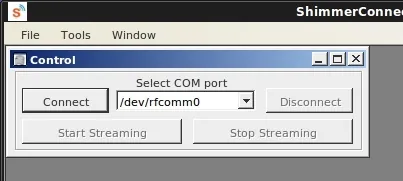
Figure 2‑8 Selecting COM port in ShimmerCapture for Linux OS
Connect to a Shimmer
Ensure the Shimmer unit is powered on and press the Connect button on the ShimmerCapture application to establish a Bluetooth connection between the Shimmer and the host side machine. As per Figure 2‑3, the blue LED on the Shimmer will remain on when a successful connection has been made.
Note: If you have trouble connecting to a Shimmer please refer to the troubleshoot section of this manual.
Configure the Shimmer
To configure the Shimmer, select Tools → Configure Shimmer. Here, Shimmer daughter boards can be enabled/disabled and sensor settings like the sampling rate can be defined. In Figure 2‑9 the low noise accelerometer, wide range accelerometer and gyroscope sensors are enabled a sampling rate of 51.2Hz.
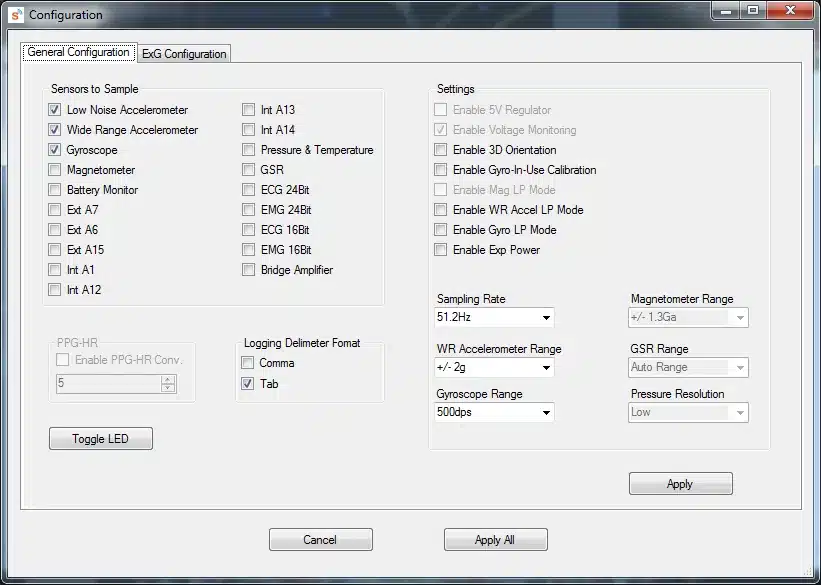
Figure 2‑9 Configuring the Shimmer
Stream data from the Shimmer
Press the Start Streaming button to start the Shimmer streaming data to the ShimmerCapture application. The blue LED on the Shimmer will blink with a 50% duty cycle at a rate of 0.5Hz (1s ON – 1s OFF). The data is displayed on the screen as in Figure 2‑10.
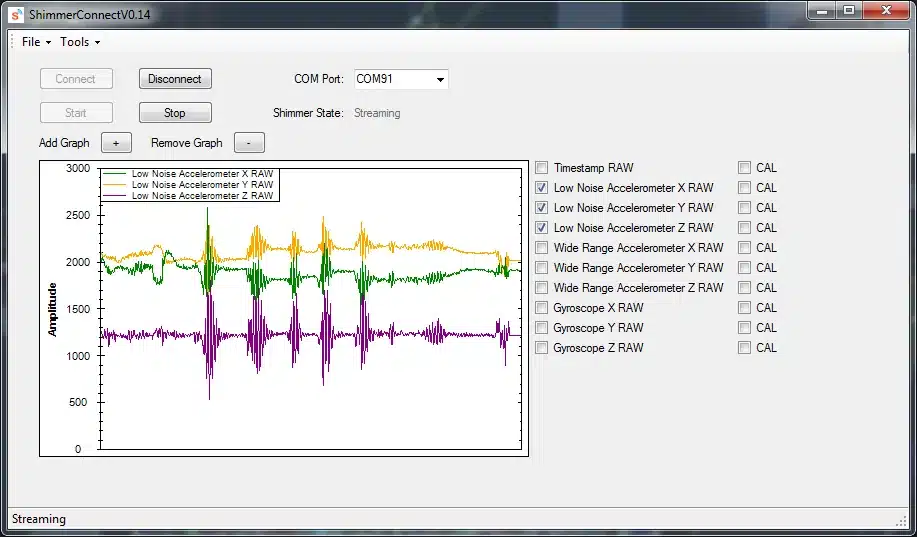
Figure 2‑10 Shimmer streaming data
Data can be stored to a CSV file by pressing Tools → Save to CSV. To stop transmission, press the Stop Streaming button. If you press the Disconnect button, it will release the connection to the host application and remain idle.
For more information on the functionality of ShimmerCapture please refer to the Section4.1.2 of this manual. For more information on the use of LogAndStream firmware please refer to the Section 5.1.1 of this manual.
2.5.2. Setting up a Shimmer data stream on Windows
ConsensysPRO is a host side application used to configure one or more Shimmers and stream data from it. The application is available for Windows from the Shimmer User Resources or for download from the Shimmer website. Follow the steps below for setting up a stream in ConsensysPRO.
Navigate to the live data tab
When ConsensysPRO is launched press the Live Data button or tab as indicated below in Figure 2‑11.
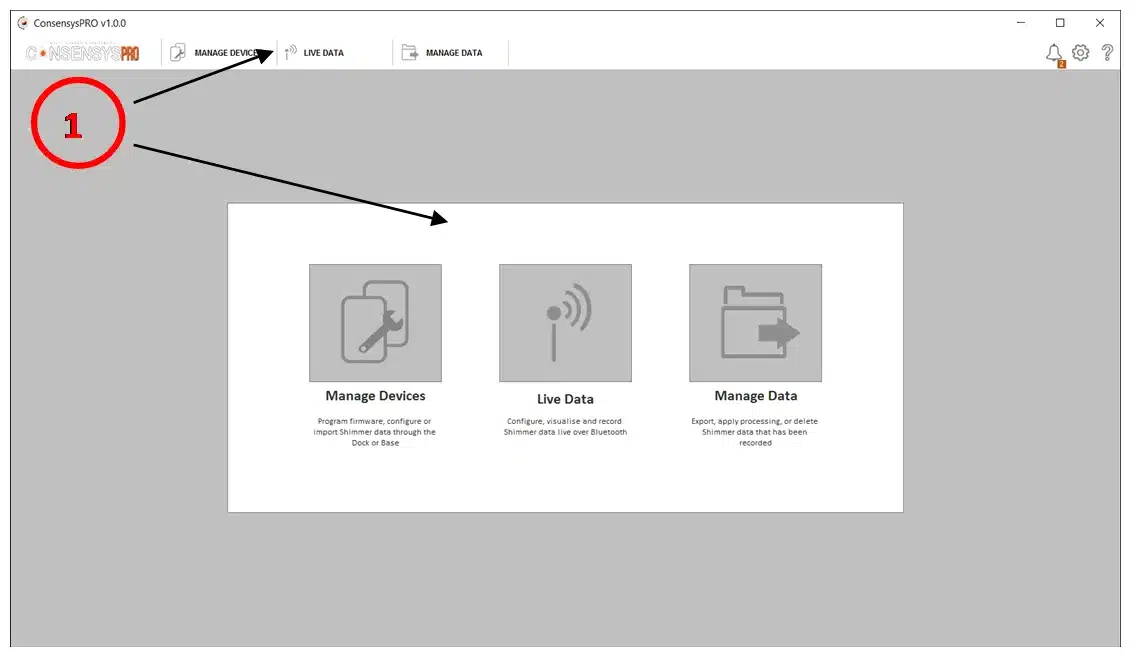
Figure 2‑11 Navigating to setting up data stream in Consensys
Connect to a Shimmer
Ensure the Shimmer unit is powered on and running LogAndStream firmware (v0.8.0 or later), then press one of the Connect buttons highlighted in Figure 2‑12. The blue LED on the Shimmer will turn continuously on when a successful connection has been made.
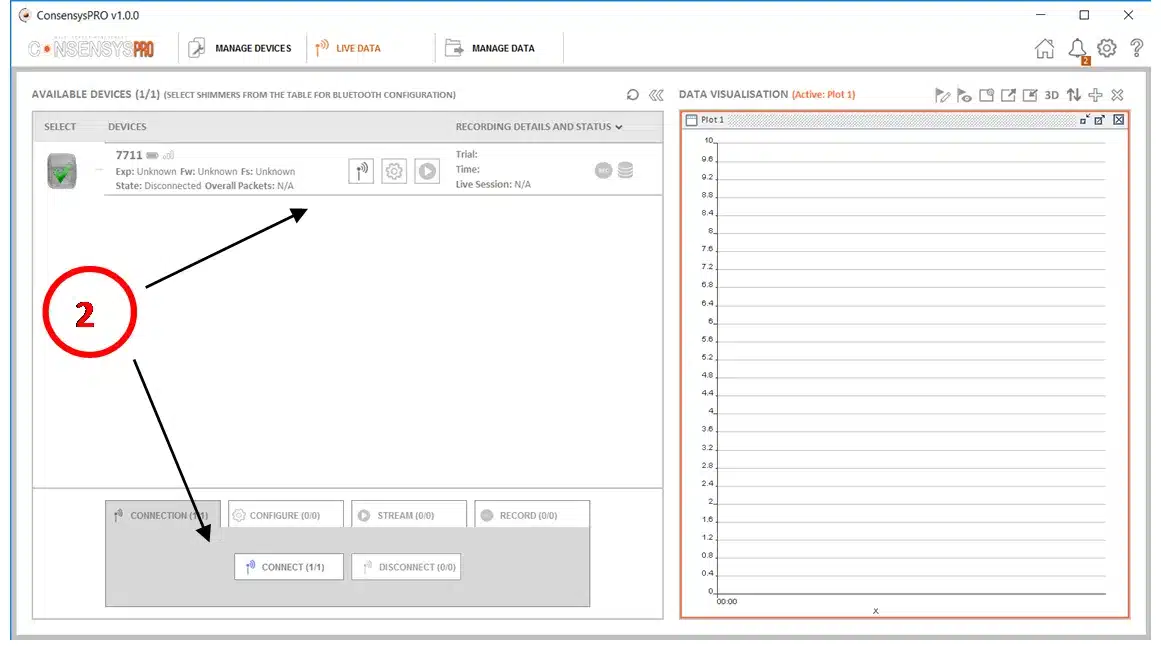
Figure 2‑12 Connecting to the Shimmer
Accessing the Shimmer configuration
To configure the Shimmer, select one of the Configure buttons as shown below in Figure 2‑13.
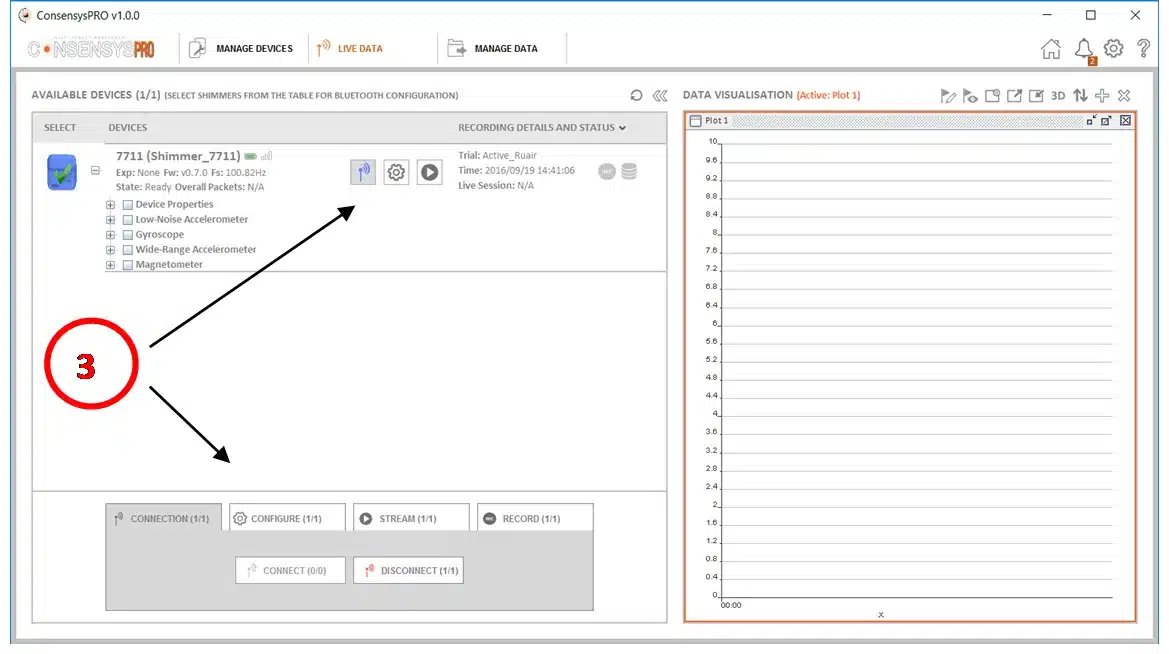
Figure 2‑13 Accessing the Shimmer configuration
Configuring a Shimmer
Here, Shimmer sensors can be enabled/disabled and sensor settings like the sampling rate can be defined. In Figure 2‑14 the low noise accelerometer at a sampling rate of 51.2Hz is enabled. Press the WRITE CONFIG button to write the configuration over Bluetooth to the Shimmer.
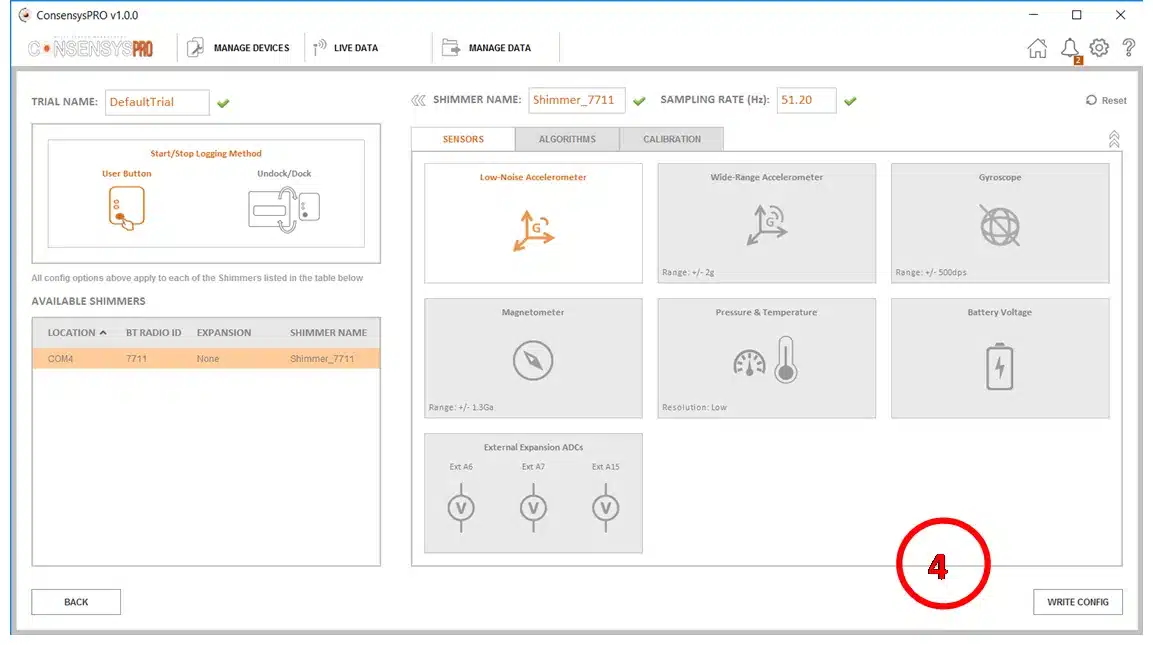
Figure 2‑14 Writing the Shimmer configuration
Stream data from the Shimmer
Press one of the Start Streaming buttons to start the Shimmer streaming data to the Consensys application. The blue LED on the Shimmer will blink with a 50% duty cycle at a rate of 0.5Hz (1s ON – 1s OFF). The data is displayed on the screen as in Figure 2‑15.
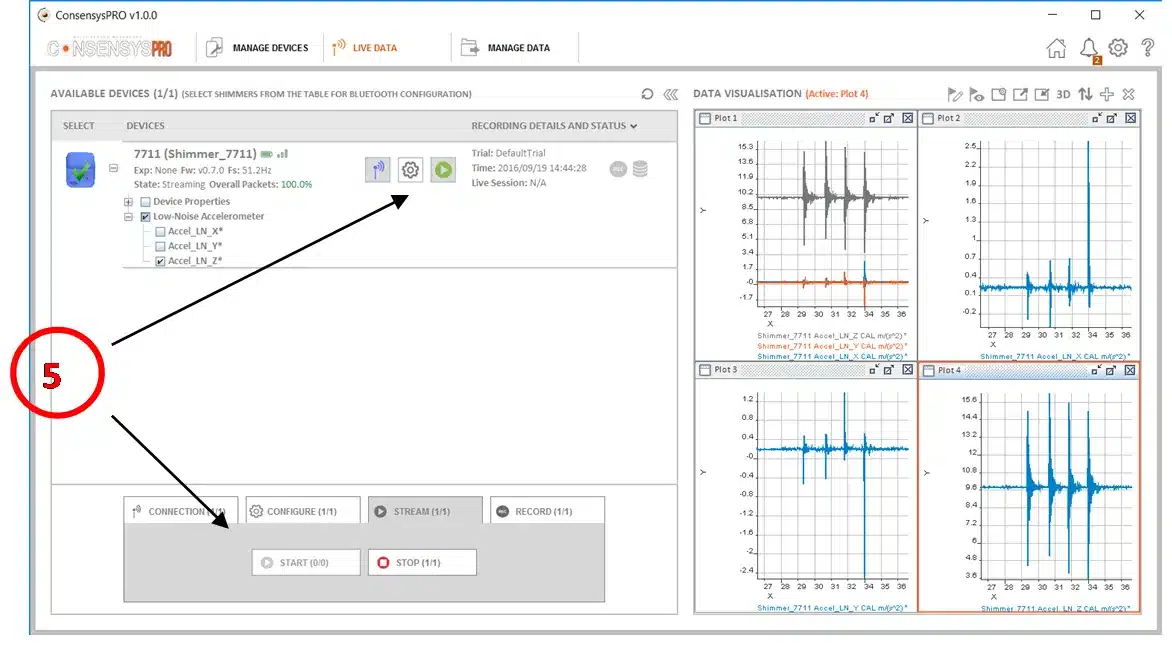
Figure 2‑15 Shimmer streaming data
Recording data from the Shimmer
Data can be stored to the PC (via a Consensys database) and/or locally to the Shimmer’s SD card as shown in Figure 2‑16. It can then be exported to a text file for data visualtation or data processing.
For more information on the functionality of ConsensysPRO please refer to the Section 4.1 of this manual. For more information on the use of LogAndStream firmware please refer to the Section 5.1.1 of this manual.
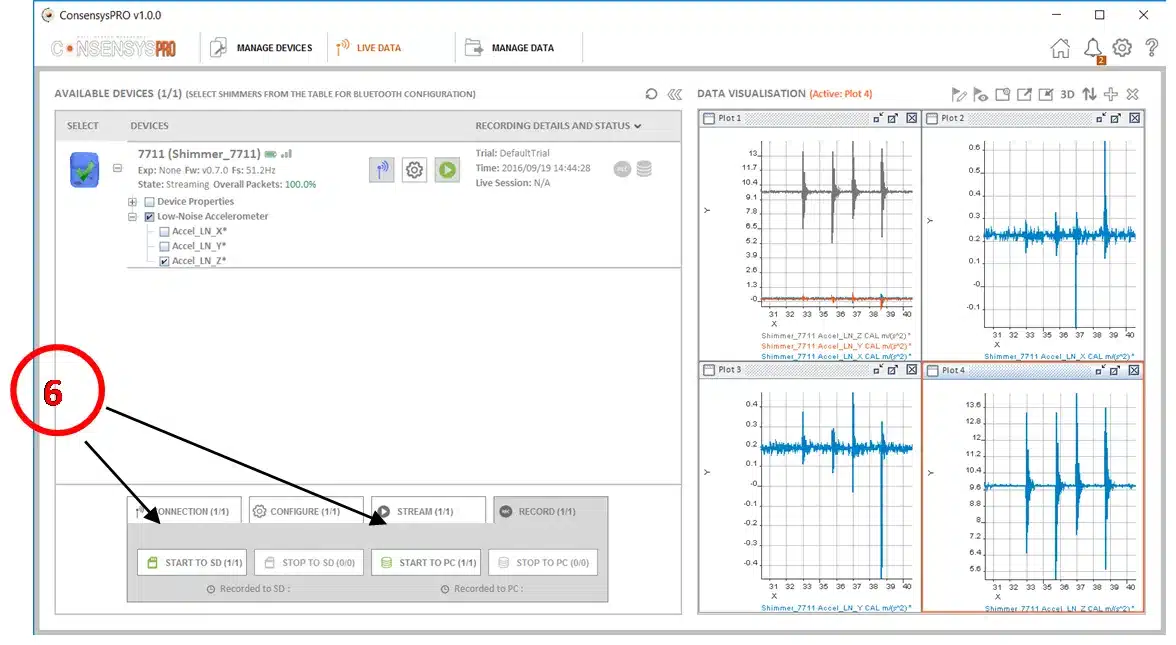
Figure 2‑16 Shimmer recording data
3. Shimmer3 Platform Overview
This section provides an overview of the main components of the Shimmer3 platform. The scope and level of detail provided here is aimed at the general Shimmer user and should be sufficient for understanding the core concepts of the Shimmer3 platform. For more specific and detailed information, please refer to the later sections of this document along with the additional user guides, which are referred to throughout the document.
3.1. Components
Table 3‑1 lists the key components of the Shimmer3 platform.
Feature |
Purpose |
Component/Capabilities |
I/O |
Capture of sensor and user data. |
Integrated
|
Processing |
Control operating state. Provide best signal quality. Operational alerts and messages. |
MSP430F5437A CPU
|
Storage |
No loss of data while mobile, during network outages or while changing batteries. |
microSD slot
|
Communication |
Hi-reliability. Standards-Based . Mobility. |
Class 2 Bluetooth Radio
|
Power |
Long operating life. Safe operation. |
|
Figure 3‑1 shows the individual components of the Shimmer3. To open the case, loosen the two screws with a T-6 Torx screwdriver and open the case carefully by pulling up on the screw side and carefully disengaging the tabs on the opposite side of the unit. Note the position of the PCB, wires, button, slide-switch actuator (if present), and battery for re-assembly. For more detailed instructions on assembly and disassembly, refer to Appendix C – Opening or assembling the Shimmer3 enclosure.
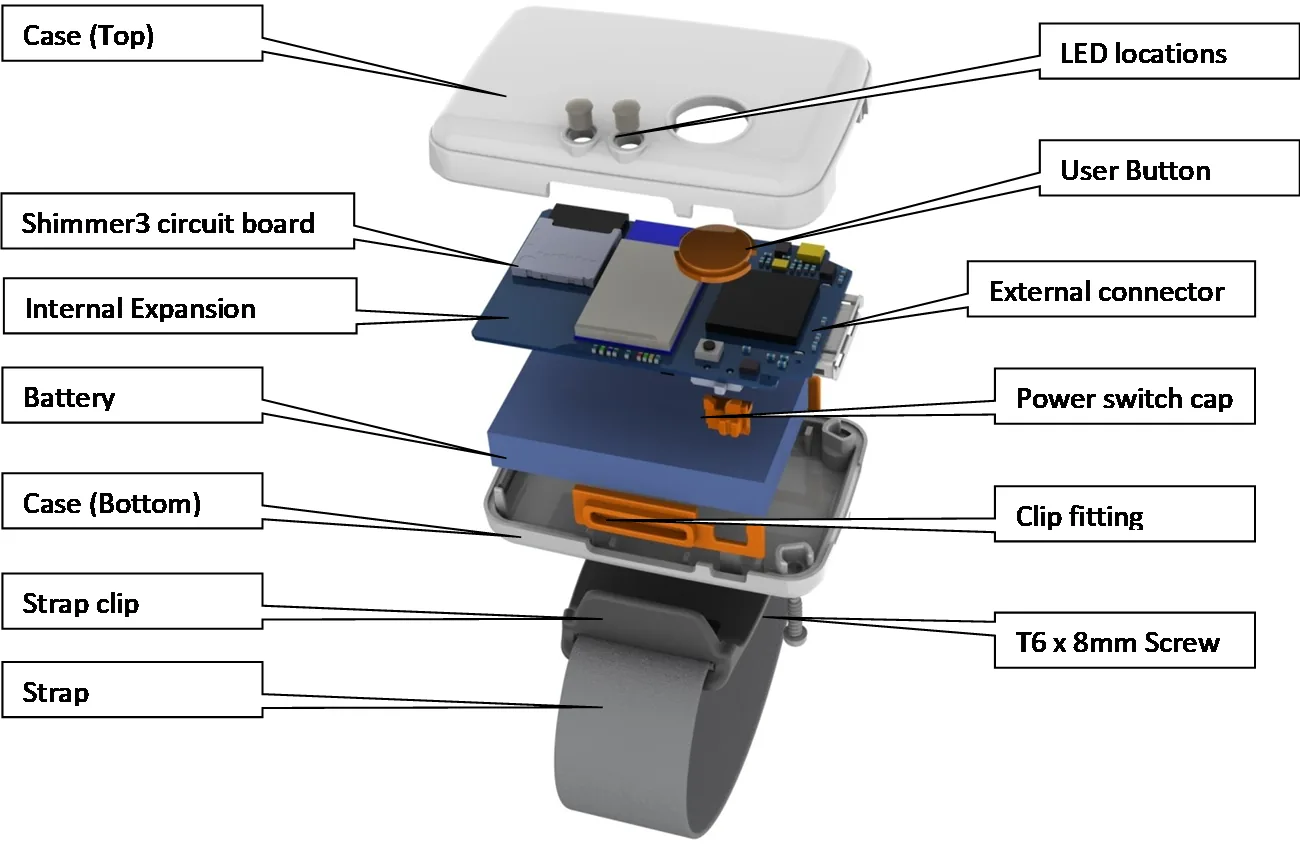
Figure 3‑1 Shimmer3 Exploded view
3.1.1. Power switch
Shimmer units arrive from the factory programmed with LogAndStream firmware with power switched off. To power-on, use the slide switch (highlighted in Figure 3‑1).
The power-off feature on the Shimmer unit is intended for storage or transportation. If you wish to leave a Shimmer in a low-power state without turning off the device, you should program the Shimmer with the Sleep firmware (see Section 5.1.3).
3.1.2. Battery
Like many personal electronic devices, Shimmer is powered by a rechargeable Lithium Polymer battery. The Shimmer battery is 3.7V, 450 mAh and contains a safety circuit board with over-current protection, which can trigger if a component short is created by a faulty peripheral or if components are bridged while the enclosure is open. The battery will return to normal operating condition after the short is removed and the unit is placed back in a Dock.
Shimmer3R: Shimmer3R, and current Shimmer3 units, use a 3.7 V, 400 mAh Li-ion cell; earlier Shimmer3 units have the 450 mAh cell described above.
TODO(S3R): Confirm the battery-life figures in Power for the 400 mAh cell, and for Shimmer3R, which has a different processor and radio. Also confirm whether the over-current protection described above applies to the Shimmer3R battery.
The Shimmer operating life when using these batteries depends on a number of factors including which, if any, radio is in use, which sensors are enabled and the rate at which data is being sampled and transferred. Battery life estimation information for a number of different configurations is provided in section 6.2.3 and also contains further details on voltage measurement.
Some Shimmer applications feature a low-battery message using an LED indicator (located near the reset button). There is also hardware low-battery protection which will prevent damage to the battery or Shimmer device. If your application fails to start or terminates abruptly after initiating streaming data over a radio or writing to flash, it could be a symptom of a battery in need of recharging. For details on battery re-charging please refer to Section 3.2.3 of this User Manual. If you suspect a fault with your Shimmer battery, please refer to the troubleshooting section of this manual.
3.1.3. User button
There is an orange-coloured user button on the Shimmer3 (highlighted in Figure 3‑1), whose function is defined by firmware. Users should note that this button does not provide tactile feedback. All firmware solutions provided by Shimmer include visual feedback when the user button is pressed and it is recommended that any users who wish to develop firmware do the same.
Shimmer3R: Holding the user button for 3 seconds while the Shimmer3R powers up starts its bootloader, for a firmware update; the lower LED then flashes purple. To leave the bootloader without updating, power the Shimmer3R off and on again.
TODO(S3R): Confirm that leaving the bootloader by power cycle is right, and whether the manual should tell customers to use the button entry at all, or only the Consensys/dock route.
3.1.4. Shimmer LED Indicators
Two software-controlled LED indicators (highlighted in Figure 3‑1) are available, the lower indicator is intended to display operational status and is tri-coloured (green, yellow, and red). The upper indicator is bi-coloured (blue/green) and is intended to display the data communication mode or status.
Firmware developers are encouraged to follow international standards for indicator lights, for example:
Operational status:
Green: Correct operation
Yellow: Warning
Red: Error
Data status
Blue: Bluetooth
Green: Sensing
Shimmer3R: Each indicator is a single RGB LED, so it can show any of these colours, and also cyan and purple; see LogAndStream LED Indication.
3.1.5. MicroSD Card Socket
The Shimmer mainboard contains a microSD card socket to incorporate extra memory resources, with capacities up to 32GB. This allows the additional storage of data while the Shimmer is not streaming and ensures no loss of this data while mobile, during network outages or while changing batteries.
You will find the microSD card socket on the corner of the PCB with a label printed on the PCB in the socket opening. As Shimmer has a power switch on this component, there is no drawback to leaving a card installed at all times. The card socket is spring-loaded and you can insert the card from the side without complete disassembly.
The microSD card may be accessed using the Shimmer Dock or Consensys Base. For more information on microSD card access please refer to Section 3.2.4 of this document.
For further hardware-based information on the microSD card socket, please refer to Section 6.2.2 of this manual. For information on firmware solutions for using the microSD card please refer to Section 5.1 of this manual.
Note: The Shimmer is not compatible with SDHC cards.
TODO(S3R): This note is out of date. Shimmer now supplies an 8 GB SanDisk card (SDSDQAB-008G), and every card above 2 GB is SDHC. Confirm the supported card types and the maximum capacity for current Shimmer3 and for Shimmer3R, then rewrite this note and the “up to 32GB” above.
Shimmer3R: A Shimmer3R can also list, read and delete the files on its card over Bluetooth, without docking. Consensys uses this where it is available.
TODO(S3R): Confirm which Consensys version offers SD file transfer over Bluetooth, and how it is presented to the user.
3.1.6. Internal Connector
The expansion connector is on the top side of the Shimmer and consists of both J6 and J7, as shown in Figure 3‑2. It is used to connect to internal daughter boards. All expansions will include appropriate enclosures.
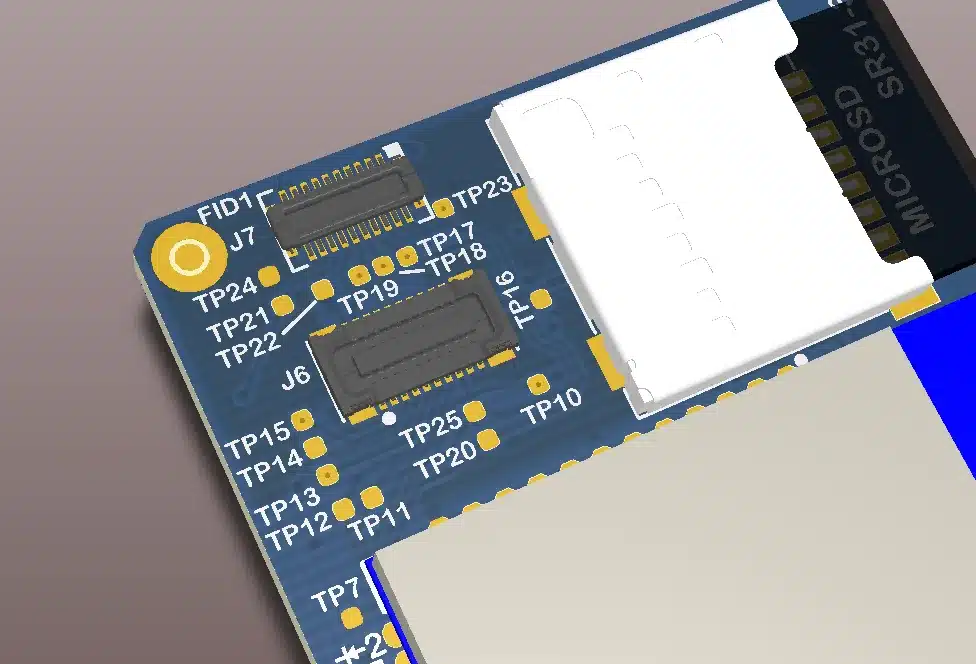
Figure 3‑2 Shimmer3 mainboard’s internal expansion connector
Care should be taken when making decisions about hardware configuration, in order to minimise the number of times that boards are removed from and inserted into the internal connector. The connector is rated for up to four insertions.2
Never force the expansion board when connecting it to the Shimmer mainboard and be sure to install it with the board aligned with dimensions of the Shimmer PCB. The connection is keyed and its orientation is visually obvious. The expansion enclosure may be self-aligning to assist in the assembly process.
For further hardware-based information on the internal connector please refer to Appendix A – Mainboard detail for Debug and Testing.
TODO(S3R): Describe the Shimmer3R internal connector: whether it exists on every model, its pinout, and whether Shimmer3 expansion boards fit it. The board-revision records list the ExG, GSR+ and Bridge Amplifier+ of both generations as single (“unified”) boards carrying the processor and radio; if so, say which models the internal connector applies to.
3.1.7. External Connector
The Shimmer mainboard connects to the Shimmer Dock and Shimmer Multi Charger via the External Connector (highlighted in Figure 2‑1). The External Connector can also be used to attach external expansion boards. The External Connector is keyed and does not require force to attach to a device.
For further hardware based information on the External connector please refer to Appendix A – Mainboard detail for Debug and Testing.
Shimmer3R: Shimmer3R also has a USB connection. On a PC it appears as a serial port, which Consensys uses for configuration and firmware update, and as a removable drive holding the SD card. Data cannot be streamed over USB; use Bluetooth. While the Shimmer3R is connected to USB, or docked, it does not log to its SD card, because the card is handed to the PC.
TODO(S3R): Confirm where the USB-C socket is: on the sensor itself, or on a Shimmer3R dock or cable. Also confirm whether the external connector, and Shimmer3 external expansion boards, are the same on Shimmer3R.
3.2. Shimmer Dock
TODO(S3R): Confirm whether Shimmer3R works in the Shimmer Dock, the Multi Charger and the Consensys Base6/Base15. That covers charging, SD card access and firmware update through each. Then add a Shimmer3R: note here and under Consensys Base and Multi Charger, or say which Shimmer3R dock replaces them.
The Shimmer Dock (referred to as the Dock in this section) is a multi-purpose device which can provide three primary functions, as described in more detail throughout this section:
Charging the Shimmer
MicroSD Card access
Programming the Shimmer
Whilst there have been several Dock design iterations, the current dock is the Shimmer Programming Dock v3, which is best identified by a square white enclosure, with a power/reset3 button containing an LED for power indication, a black user button and an LED indicator (see Figure 3‑3).
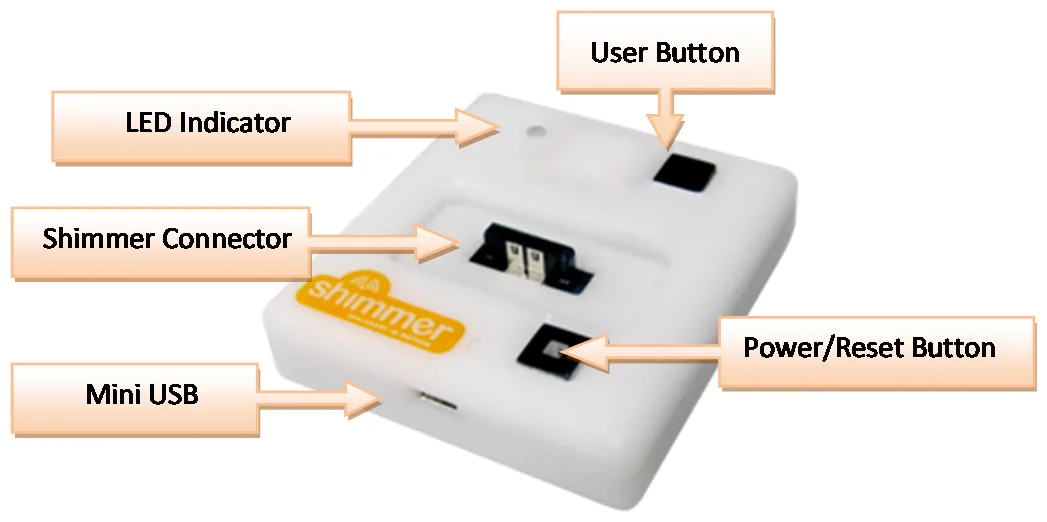
Figure 3‑3 Shimmer Dock – enclosure view
The different features of the Dock are summarised in Table 3‑2.
| Item | Status / Function |
|---|---|
| Power/Reset Button1 | Reset (quick press). |
| Power/Reset Button Indicator | Solid Green when Shimmer is powered on |
| User Button | Application specific signal to Shimmer |
| Charge Indicator | Solid Yellow during primary charging state |
| microSD Indicator | Blinks Blue with host PC access to Shimmer microSD |
| UART Indicator | Blinks Orange during programming (BSL) or UART activity |
Table 3‑2 Shimmer Dock features
The Dock connects to a PC via a USB cable. Whilst drivers for the microSD Card Access should already exist on your PC, you may need to manually install USB Serial Converter drivers to use the Dock for programming the Shimmer. You should perform the installation of these drivers before you first connect your Dock to the PC. Later versions of Windows (e.g., Windows 10) normally have this driver pre-installed and so manual installation might be necessary.
Warning: If you are using an older version of Windows (typically less than Windows 10) and you connect the Dock to a PC, do not allow Windows to install the driver automatically.
Note: For more information about the Dock, including troubleshooting, please refer to the Shimmer Dock User Guide, which can be obtained from the folder \Documentation\Hardware User Guides in the Shimmer User Resources distribution.
3.2.1. USB Serial Converter Driver Installation
The USB Serial Converter drivers for the Dock can be downloaded from the FTDI Chip Drivers webpage. Download and install the driver to match your operating system.
Plug in your Shimmer USB Dock or USB reader. If the reader hasn’t been powered recently, you may get a driver error. Simply unplug and try again.
Verify your system settings:
- From the Control Panel, select Device Manager (in Windows this is found from
Control Panel → System → Hardware → Device Manager or by typing devmgmt.msc in the Start menu) and expand the USB or Universal Serial Bus controllers entry as shown in Figure 3‑4.
- You should see at least two entries for USB Serial Converter (the other entries will vary with system configuration and may not match the image above exactly).
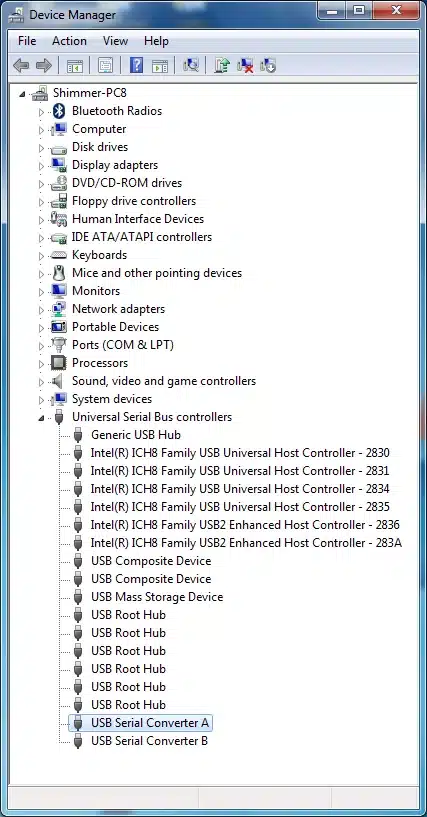
Figure 3‑4 Device Manager showing USB Serial Converter A and B
- Double-click on each USB Serial Converter entry and under the General tab, confirm that the manufacturer is FTDI. Then, under the Advanced tab, make sure the Load VCP checkbox is ticked (see Figure 3‑5). If the checkbox isn’t ticked, you will need to tick for each Serial converter and then unplug and re-insert the dock.
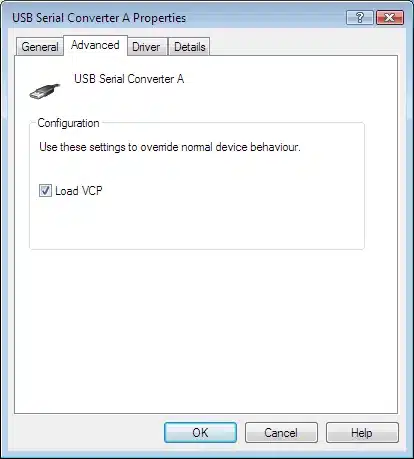
Figure 3‑5 USB Serial Converter Properties
- Next, under the Ports (COM & LPT) entry in the Device Manager, you should see two new USB Serial Port entries, each with an associated COM port number, as shown in Figure 3‑6. The USB Serial Port with the lowest number is the Programming Port.
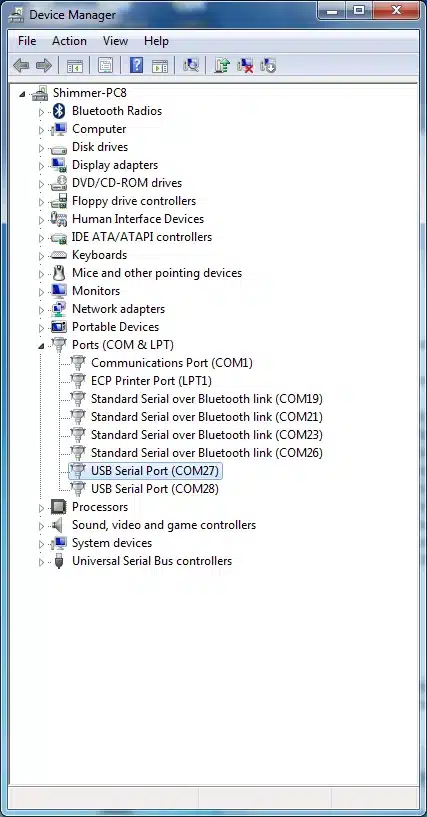
Figure 3‑6 Device Manager showing Dock USB Serial Ports
- Double-click on each of these USB Serial Port entries and, under the Port Settings tab, click on Advanced…. In the Miscellaneous Options at the bottom right-hand side of the window, ensure that Set RTS On Close is ticked, as shown in Figure 3‑7.
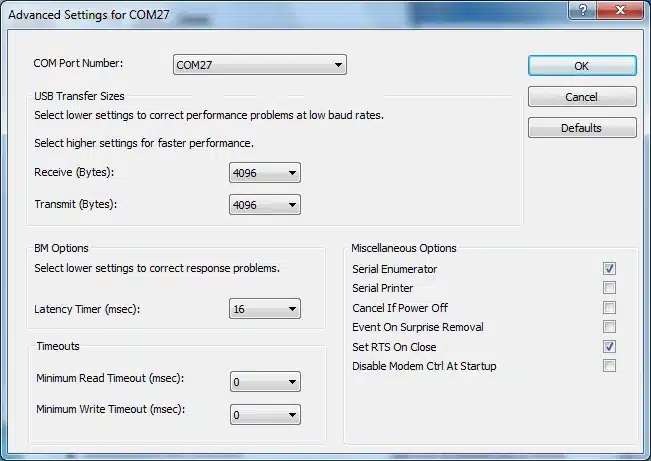
Figure 3‑7 Advanced Port Settings: Select Set RTS On Close
The first of the USB Serial Port entries should be the outgoing COM Port associated with your dock; this will be used for programming Shimmer devices and should be noted for future use.
3.2.2. Placing a Shimmer in the Dock
The Dock connects to the Shimmer via the External Connector. The External Connector is keyed and does not require force to insert. Insert the Shimmer with the Bluetooth ID label facing away from the USB cable.
Warning: Forcing the connector may cause permanent damage to your Shimmer.
When the Shimmer is placed in the dock, the green LED on the Power/Reset button on the dock will light up green if the Shimmer is powered on. If it does not light up, one of the following may have occurred:
Shimmer unit may be powered off — check the slide power switch.
Shimmer unit may not be inserted properly.
Dock may not be powered via the USB cable.
3.2.3. Charging the Shimmer
The Dock, Base and Multi Charger are multi-functional devices – all of which are capable of charging Shimmer units. This section outlines the use of the Dock for charging a Shimmer unit. For details on using the Multi Charger please refer to the Shimmer Multi Charger User Guide.
In order to use the Dock as a charging device simply connect the USB cable of the Dock to a powered USB socket and insert the Shimmer unit into the Dock.
Note: You should make sure your Dock is powered when a Shimmer is docked as the Shimmer battery will discharge if it is left idle in a Dock that is not powered.
The state of the charge indicator LED is an indication of charge phase for the battery. There are three phases to Shimmer battery charging, illustrated in Figure 3‑8. The background colour on the graph in Figure 3‑8 indicates the colour of the charge indicator LED on the Dock during each phase.
Phase 1 is a Preconditioning Phase and is only required when the battery voltage has dropped below a minimum threshold. The battery voltage should not drop below this minimum threshold with normal everyday use. However, if a Shimmer is left idle for a long period of time, the battery may self-discharge to a voltage below the minimum threshold. During the Preconditioning Phase, a low current (12.5mA) is applied to bring the voltage to the Minimum Charge Voltage. The duration of pre-conditioning will depend on the extent to which battery is discharged. For example, a Shimmer that has been unused for several months and was discharged before storage may have a lengthy pre-conditioning phase.
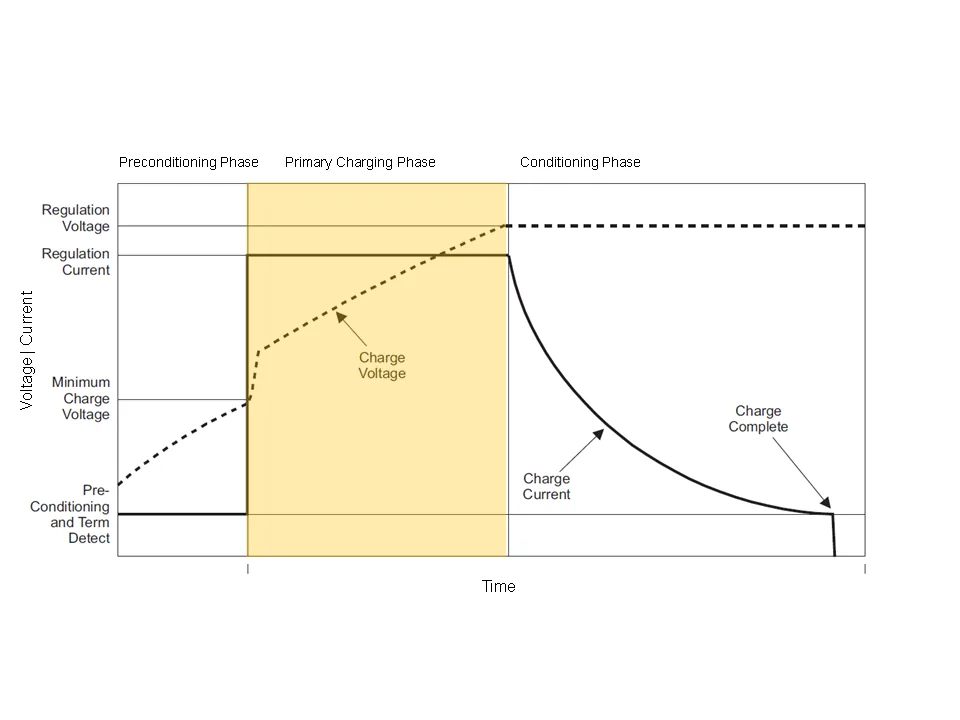
Figure 3‑8 Shimmer Battery Charging Phases. The background colour on the graph indicates the colour of the charge indicator LED on the Dock during this phase.
For the most efficient recharging after a deep discharge, it is recommended to program the Shimmer unit with the Sleep firmware image (see Troubleshoot section for further details). During the Preconditioning Phase the charge indicator LED on the Dock will be off.
Phase 2 is the Primary Charging Phase. This phase is the standard charging phase and involves the application of a constant current (125mA) to bring the battery voltage to the Regulation Voltage level. During this phase, the charge indicator LED on the Dock will illuminate yellow/orange.
Phase 3 is the Conditioning Phase. The charger will continue to condition the battery as long as the Shimmer remains inserted in the charger. For maximum operating life, it is advisable to allow as much conditioning time as your needs allow. During this phase, the charge indicator LED on the Dock will be off.
The duration of primary charging for a standard Shimmer battery (3.7V – 450mAh) is typically 4.5 hours. Knowing that the Shimmer charges at 125mA/hr and conditions at 12.5mA/hr, it is possible to estimate charge times for larger or smaller batteries. The charger has a 6.16hr time-out. Users using >800mAh capacity rechargeable batteries need to increase the charge rate on the Shimmer mainboard to ensure a full charge; please contact support@shimmersensing.com for further details.
3.2.4. microSD Card Access
When a Shimmer with microSD card is inserted into a Dock that is connected to a PC, the standard drivers on the host system should mount the microSD card as though it were a USB flash key. Depending on the specifics of your system, a few things may happen:
A window may open to display the contents of the SD card.
A prompt window may pop-up and ask you what you want to do.
Nothing may happen, but when you click on the drive letter or volume name associated with the USB port of the USB Dock, the contents of the SD card may be browsed.
If you experience difficulties accessing the microSD card, please consult the Shimmer Dock User Guide which can be obtained from the folder \Documentation\Hardware User Guides in the Shimmer User Resources distribution.
3.2.5. Programming a Shimmer
When a Shimmer is inserted in the Dock it can be programmed with pre-compiled firmware images using a Bootstrap Loader application. For further information on programming Shimmers please refer to section 5.2 of this document.
3.3. Consensys Base
Consensys Base hardware (referred to as the Base in this section) is a multi sensor management system with an integrated software solution (see Consensys in section 4.1 for further information), for the simple and effective management of all your Shimmer data. The Base allows users to easily configure and capture data from up to 15 Shimmers simultaneously and provides ability to:
- Charge Shimmers
Data download through MicroSD Card access
Program Shimmers
Configure Shimmers
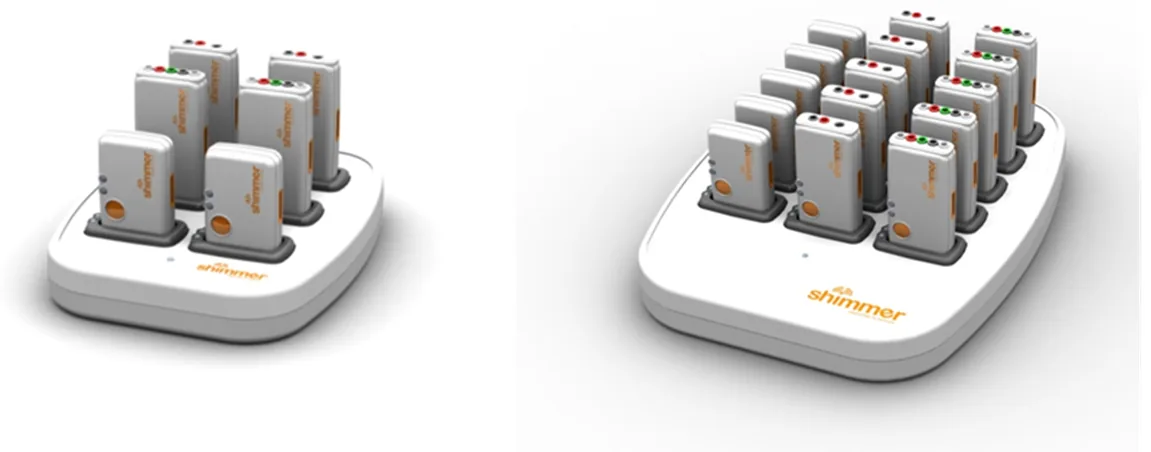
Figure 3‑9 Consensys Base (Base6U and Base15U from L-R)
3.3.1. Consensys power-up order
1. Undock all Shimmers from the Base.
2. Plug in the mains power supply and connect to the Base.
3. Connect the USB cable from a computer to the Base.
4. Wait for all drivers to install.
5. Dock Shimmers.
| Item | Status / Function |
|---|---|
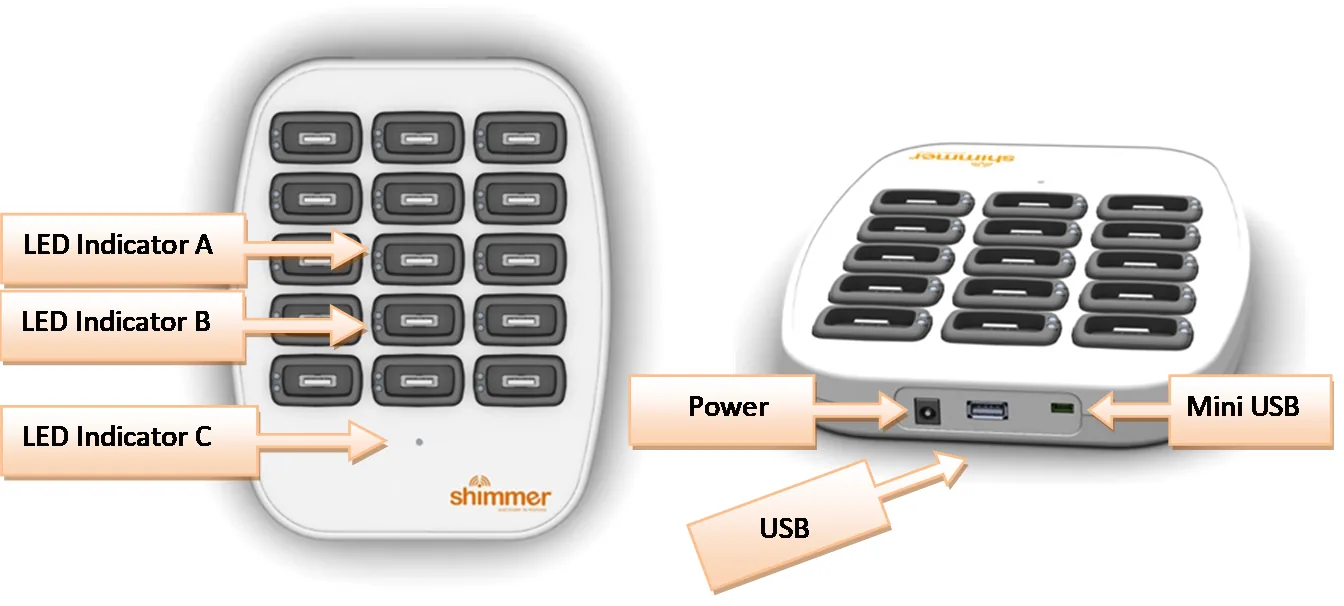
| LED Indicator A | Solid Green if a Shimmer is docked |
| LED Indicator B | Active slot indicator**; Solid Blue** if SD access**, Solid Orange** if UART access |
| LED Indicator C | Blinks Orange if Base is powered and Consensys software is running |
| Power | 12V, 5A power supply |
| USB | USB hub for chained Consensys Bases |
| Mini USB | For UART communications with the Shimmers in the Base |
Figure 3‑10 Consensys Base – enclosure view
Table 3‑3 Consensys Base features
3.4. Other Accessories and Shimmer Platform Components
3.4.1. Shimmer3 Variations
Shimmer provides sensing units other than the standard Shimmer3 kinematics module including the Shimmer3 ECG, Shimmer3 EMG, Shimmer3 GSR+, Shimmer3 Bridge Amplifier+ and the Shimmer3 PROTO3 Series. Each sensing unit has a corresponding user guide which details the specifications of the board, as well as providing information on appropriate use of the board. A copy of each user guide can be obtained from the folder \Documentation\Hardware User Guides in the Shimmer User Resources distribution or by downloading it from the Shimmer website.
Currently available Shimmer sensing units are the:
ECG: digital front-end optimized for measuring physiological signals like ECG.
EMG: digital front-end optimized for measuring physiological signals like EMG.
GSR+: analog front-end for the measurement of skin conductance, along with a 3.5mm jack for analog or digital input from an external sensor such as the Optical Pulse Sensing Probe from Shimmer.
Bridge Amplifier+: a bridge amplifier, excitation source, and connector enabling force measurement with Shimmer, along with connector and amplifier for resistance measurement.
PROTO3 Series: a series of prototyping boards for connecting external sensors to the Shimmer3.
Please refer to the Shimmer website for more information about new releases.
3.4.2. Multi Charger
The primary function of the Multi Charger (see Figure 3‑11) is to allow for the simultaneous charging of up to six Shimmers. The Multi Charger also has a Reset Button which allows for synchronised reset of multiple Shimmers.
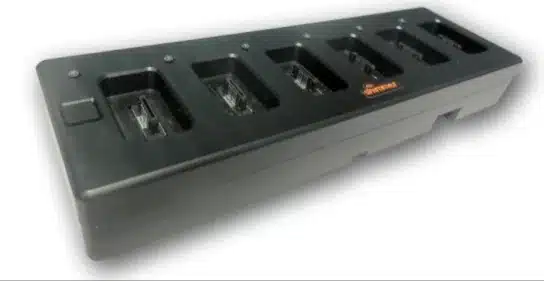
Figure 3‑11 Shimmer Multi Charger
For further information, please consult the Shimmer Multi Charger User Guide available in the folder, \Documentation\Hardware User Guides, in the Shimmer User Resources distribution or available for download from the Shimmer website.
3.4.3. Shimmer3 JTAG Adapter Board
The Shimmer3 JTAG Adapter Board, shown in Figure 3‑12, can be used by firmware developers for debug and programming purposes. It can also be used to provide input signals from analog sensors or for peripheral prototyping. It installs in-line with Shimmer Dock to enable use of 3rd party JTAG programming and debugging tools. The Shimmer3 connector, labelled in the figure, should be inserted into the Shimmer3 external connector and the Dock connector should be connected directly to the Shimmer Dock. Alternatively, the board can be powered directly via the USB power-only connector, for use without a Shimmer Dock.
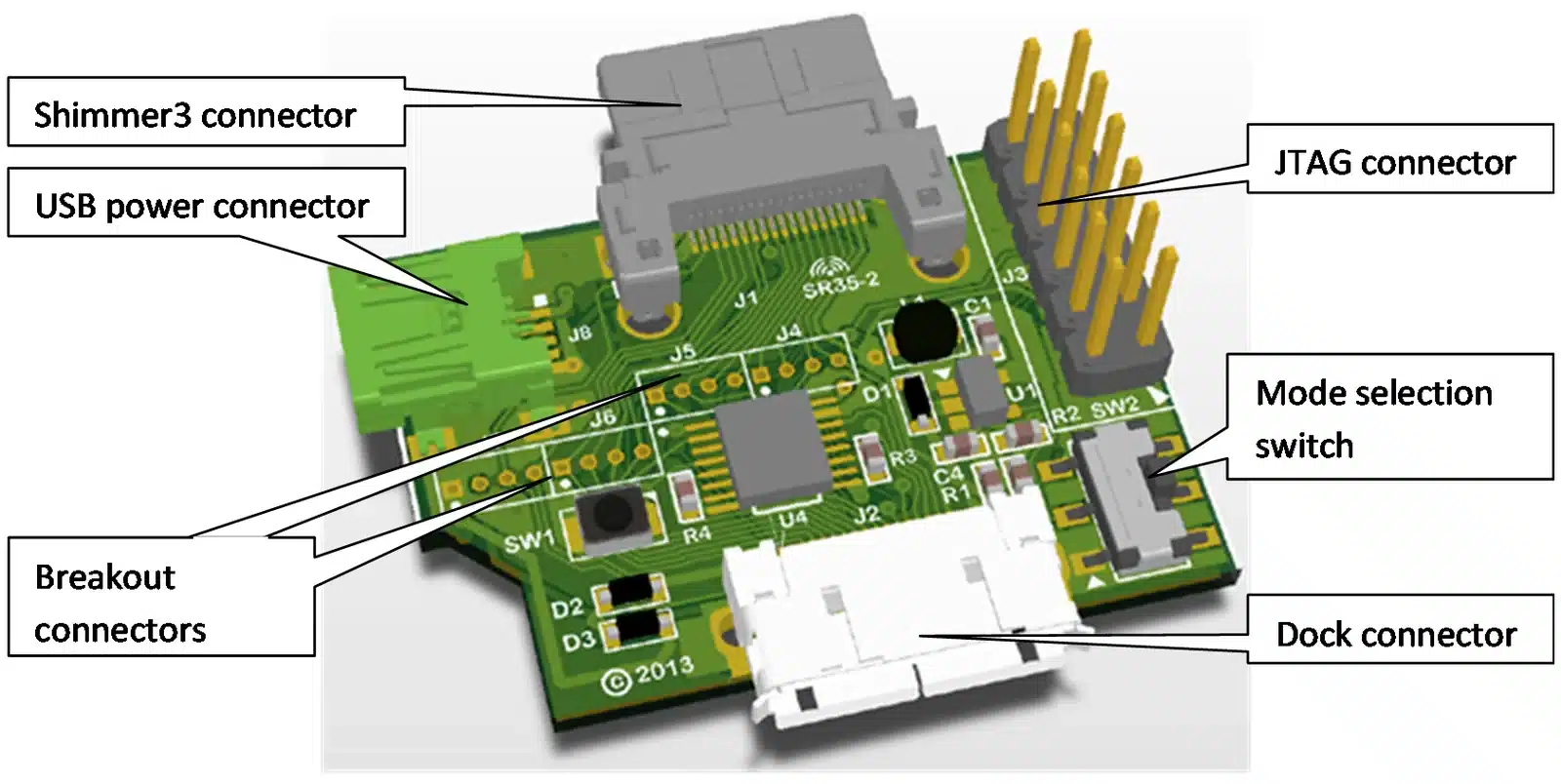
Figure 3‑12 Shimmer3 Programming Adapter
When the mode-selection slide switch is down, JTAG is disabled (normal dock operation). When the switch is up, only power is provided by the dock and various signals are reconfigured to provide a JTAG port. For more information and pin-out details, please refer to the Shimmer3 JTAG Developer Board User Guide.
Shimmer3R: The JTAG Adapter Board is for Shimmer3 only: it serves the Shimmer3’s MSP430 processor. Shimmer3R’s STM32 processor is programmed and debugged over SWD, and customers update its firmware over USB (see Programming a Shimmer).
TODO(S3R): Say how a firmware developer reaches SWD on a Shimmer3R (connector, adapter) or that it is not customer-accessible.
3.4.4. Shimmer3 Calibration Stand
The Shimmer3 Calibration Stand should be used for stabilization of the Shimmer3 during calibration. Due to the rounded design of the Shimmer3 enclosure, calibration should not be carried out without the calibration stand, as this will significantly affect the accuracy.

Figure 3‑13 Shimmer3 Calibration Stand
To use the Shimmer3 Calibration Stand, simply remove the strap clips from the Shimmer3 and insert the device into the stand using the clip slots, as shown in Figure 3‑13. Ensure that the plastic clip inserts on the stand are securely inserted into the Shimmer3 clip slots and that that user button is facing upwards, as illustrated.
3.5. Maintenance
3.5.1. Cleaning
Warning: The Shimmer3 enclosure is not waterproof and should never be submerged or saturated with fluids during operation or cleaning.
You should perform a periodic wipe-down of the case with an antiseptic wipe or, according to the standard operating procedure used on any piece of equipment in the place of operation. The external connector should be swabbed with a fine brush.
If you are using Shimmer in the presence of biohazards, treatment with a disposable wrap or cover is required according to best practices. Biohazard contamination will void warranty and contaminated devices returned to Realtime Technologies or any Shimmer address will be disposed of in accordance with applicable laws.
Replacement cases are available for purchase.
3.5.2. Inspection
The battery should be periodically inspected, at least weekly. Due to the unpredictable usage patterns of a research device, premature aging or failure may occur. If the battery seems “puffy” to the extent that it is impacting the fit of the enclosure (>1mm) or the integrity of the battery pack has been compromised by a puncture or abrasion you should contact customer support immediately for service.
3.5.3. Battery Replacement
Please note that any modification to the Shimmer hardware, while the device is within warranty, by any person/organization other than Shimmer will void said warranty.
The Shimmer units are supplied with a 3.7V 450mAh re-chargeable Lithium Polymer battery but the design supports both Lithium-Ion/Lithium-Poly cell chemistry as well as lithium coin cells and alkaline batteries. The battery should only be replaced by qualified personnel. Shimmer offers a battery replacement service or, alternatively, a battery replacement kit with an instruction manual and video. For further details contact info@shimmersensing.com.
The Shimmer uses a diode wired-OR to prevent device damage from reversed battery leads and allow operation from external power while charging.
The Texas Instruments LM3658D Smart Li Charger is used for battery management. The LM3658D implements a multi-phase charge profile including battery conditioning and overcharge protection. The default Rset resistor value of 22.1kΩ provides conservative 125mA charge limiting. The included 450mAh battery pack includes secondary failsafe protection against over/under voltage and over-discharge – all user-selected or installed batteries must provide secondary failsafe protection. The maximum discharge current on the supplied battery is 3.360A, a rate far exceeding expected conditions for sensing applications.
There is no limit on battery capacity but the charger has a safety circuit and will time-out after 6.16hrs. Due to the charge current being preset at 125mA the max charge capacity is 770mAh. The charge timer can be reset by removing the Shimmer, waiting for about 15 seconds and then reinserting. With large capacity batteries, Shimmers should be turned off while charging to reduce current loss from BT radio or other active components. Note that for Shimmer3 the charging LED indicator does not represent the charging state when the Shimmer is switched off.
Warning: Never place LiPo batteries in parallel. There is a risk of fire in that configuration. As an alternative you should buy a larger capacity battery. The battery must include a safety PCB. A good source for these, in the USA, is http://www.powerstream.com/li-pol.htm (e.g. GM053048-PCB).
3.5.4. Disposal
Warning: Never expose Shimmer devices to excessive heat or an open flame.
Shimmer devices should be disposed of like other rechargeable devices. They should never be thrown away in the trash without first removing the battery. Lithium-Ion/Polymer batteries are classified as hazardous substances in most municipalities and should be disposed of according to local law or practice.
4. Software
Shimmer software offerings can be classified into two main categories:
Shimmer Software Applications – stand-alone applications designed to meet the needs of Shimmer users, primarily in the area of data capture and Shimmer Software.
Development tools – provided to customers who wish to develop their own software applications.
The sections below provide high level overviews of both Shimmer Software Applications and Software Development tools.
4.1. Software Applications
This section provides a brief introduction to the suite of Shimmer Software Applications.
In addition to the summary below, further details on each application can be found in the Documentation/Software Application User Manuals folder of the Shimmer User Resources distribution. A copy of each application can be installed from the installation files located in the folder, Software Solutions. The most recent versions of the user manuals and applications can also be downloaded from the Shimmer website.
4.1.1. Software for Logging Data to SD card
Consensys
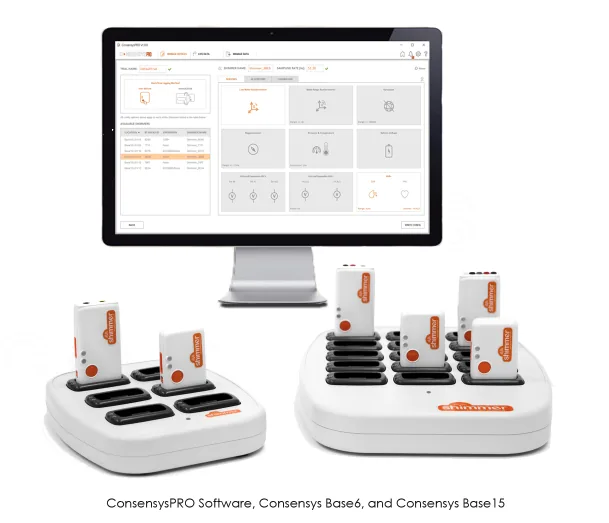
Consensys is an integrated software solution for managing your Shimmer3 devices. This solution merges several Shimmer software applications into a single software package. Consensys currently has four core features including: Shimmer3 firmware programming; Shimmer3 configuration through UART (via a Dock or Base) or over Bluetooth; Multi-Shimmer synchronisation4; data management for Shimmer data captured over Bluetooth and/or to the Shimmer SD card. Consensys streamlines management of your Shimmer3 devices and simplifies experiment configuration.
The Consensys software solution contains two software applications, ConsensysBASIC and ConsensysPRO.
ConsensysBASIC is a free application that provides:
Single Shimmer management.
Basic visualisation of data that is streamed over Bluetooth from one Shimmer to the PC.
Recording data that are streamed over Bluetooth from a single Shimmer to the PC into a database.
Importing data recorded onto the microSD card of a single Shimmer into a database.
Export data from the database for review in third party applications.
ConsensysPRO is a paid application that requires a license to run:
All features of ConsensysBASIC
Multiple Shimmer management.
Event marking for annotating data.
Off-line and on-line data processing algorithms.
Enhanced data visualisation over Bluetooth.
Add data descriptions for further data contextualization.
You can trial ConsensysPRO free of charge for a 30 day period (select TRY IT FREE when the software starts up)!
Using Consensys, users can easily manage their Shimmer3 devices from within the application itself. The application will automatically download the latest firmware updates to help ensure your Shimmers are kept up-to-date.
A key feature of Consensys is the ability to easily configure multiple Shimmers in an experiment simultaneously. Once the experiment is setup using the intuitive user interface, the process of saving the configuration to each of the Shimmers is automated (configuring 15 or more Shimmers takes under 75s).
Consensys is designed to work with the Consensys Base hardware which allows users to easily configure up to 15 Shimmers per base device simultaneously. Consensys includes a database backend to allow the user to easily manage and organise the data recorded from all their Shimmer3 devices. Post-data capture, the Consensys application along with the Consensys Base can be used to collate and organise data from multiple experiments and across multiple Shimmers. An export screen then allows users to output the data into their preferred file format.
Other Core Features Include
Simple, intuitive application user interface.
Simple Shimmer configuration screen allowing full configuration of the Shimmer3.
Allows for simultaneous configuration of up to 15 Shimmers per Consensys Base in a fast and efficient manner (approximately 75 s for 15 Shimmers).
Automatically keeps your Shimmer3 devices up to date with the latest firmware releases.
Automated transfer of data from Shimmer to PC.
Data collated and stored in an SQL-based database.
Data can be exported in uncalibrated or calibrated format to the users preferred output file type (e.g., a tab delimited text format for compatibility with Microsoft Excel, Open Office, MATLAB and most standard data manipulation programs).
Multi Shimmer Sync for SD
This application has been deprecated since April, 2015 and replaced by Consensys. No further support will be provided for this software.
ShimmerLog
This application has been deprecated since March, 2015 and replaced by Consensys. No further support will be provided for this (free) software.
4.1.2. Software for Streaming Data over Bluetooth
Consensys
Consensys (see Figure 4‑1) allows users to display and record data received from Shimmer devices streaming over Bluetooth (using LogAndStream firmware v0.8.0 or later). See section 4.1.1 for Consensys overview. Currently, Consensys is only supported on the Windows platform.
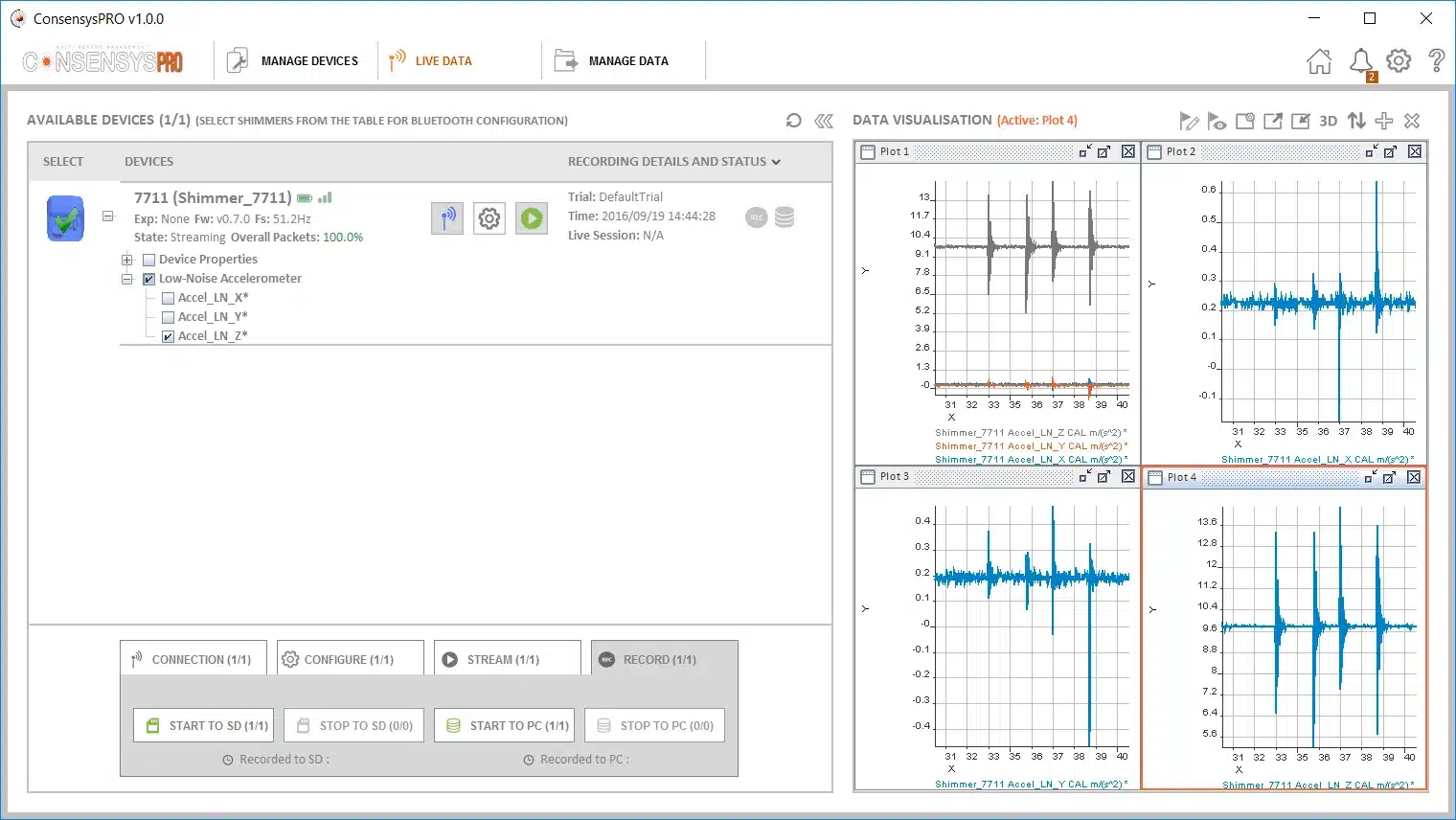
Figure 4‑1 Consensys Software Application
ShimmerCapture
ShimmerCapture (see Figure 4‑2) allows users to display and save data received from Shimmer devices streaming over Bluetooth. Currently, ShimmerCapture is only supported on the Linux platform.
Figure 4‑2 ShimmerCapture Software Application
Users can select the sampling rate, enable/disable specific sensors, enable/disable power monitoring, and change parameters such as the kinematic sensors’ sensitivity. Once captured, the data can then be saved to a CSV file for further interpretation and analysis.
ShimmerCapture is not intended to be the answer to all host side application requirements but, instead, provides a quick-start application which, for many users, can act as a stepping stone for more advanced Shimmer applications. A number of design decisions have been focused on favouring simplicity over more advanced features and/or robustness, to allow the application to be as portable as possible. The C# source code for ShimmerCapture is available to Shimmer customers; see Section 4.2.1 for more details.
ShimmerCapture for Android
ShimmerCapture for Android (Figure 4‑3) is a mobile-device based application which allows users to configure a single Shimmer unit to stream data to an Android device over Bluetooth and save the data to file.
The application is ideal for entry level users looking for quick-start application to visualise and store data from the Shimmer platform.
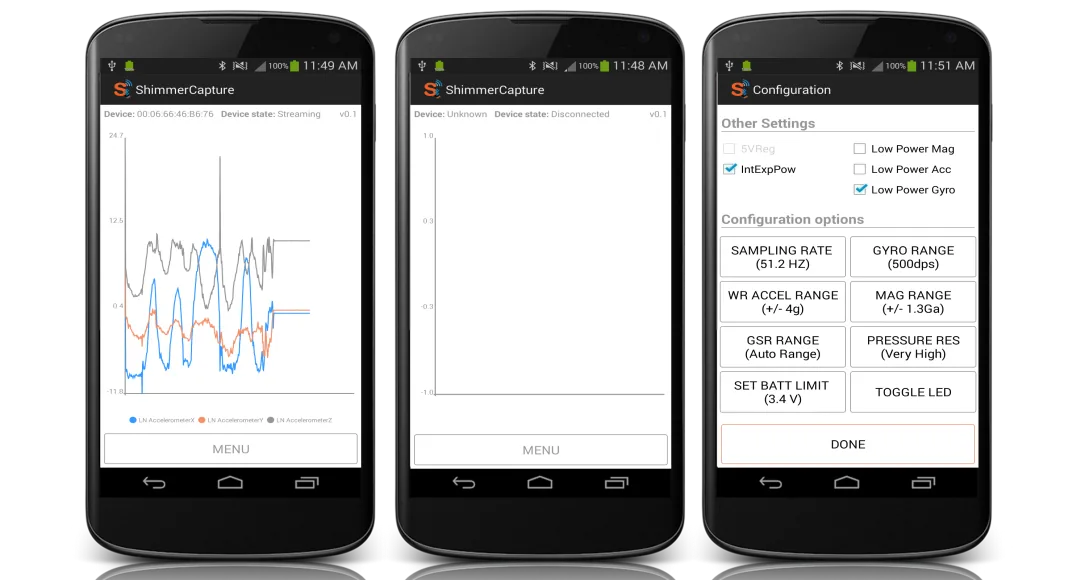
Figure 4‑3 ShimmerCapture for Android Software Application
Multi Shimmer Sync for Android
Multi Shimmer Sync (MSS) for Android (Figure 4‑4) is a mobile-device based application which allows users to configure multiple Shimmer units to stream data to an Android device over Bluetooth, as well as saving the time-synchronised data to a file.
The application is ideal for users looking to develop applications in mobile scenarios where simultaneous data capture from a number of units is required. MSS (Android) permits the user to configure multiple Shimmer units and can be used with the full range of Shimmer sensing modules. With a range of features and data capture tools, users can select sampling rate, detect dropped packets, save and load application settings for future use, annotate data, and name Shimmer units.
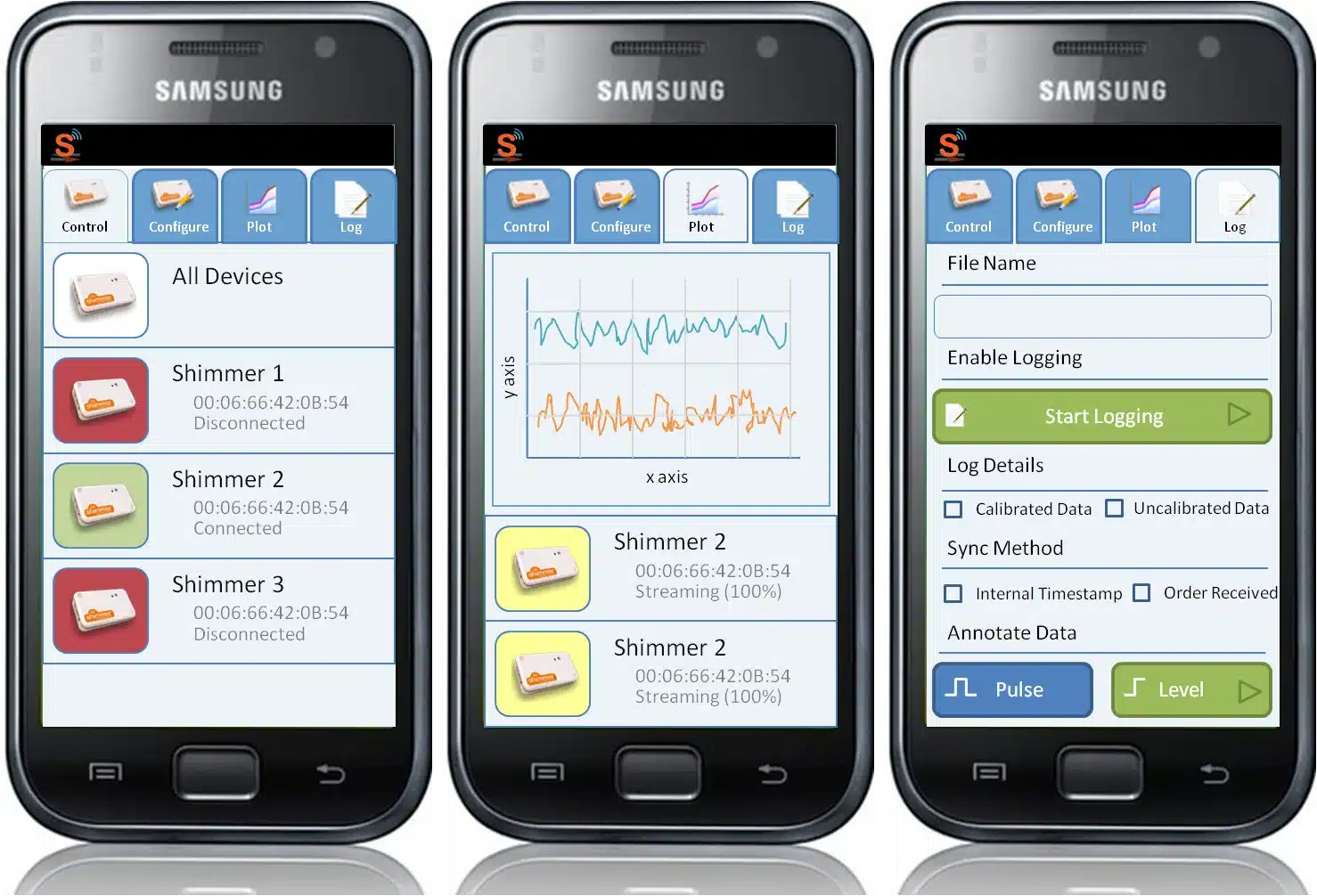
Figure 4‑4 MSS for Android Software Application
Multi Shimmer Sync for Windows
This application has been deprecated since October, 2015 and replaced by Consensys. No further support will be provided for this software.
4.1.3. Software for Calibrating sensors
9DoF Calibration Application
The Shimmer 9DoF Calibration for Windows (Figure 4‑5) and Shimmer 9DoF Calibration for Android (Figure 4‑6) applications provide an automated procedure for calculating the calibration parameters for Shimmer’s integrated tri-axial accelerometer, gyroscope and magnetometer. The calibration parameters can be stored to the Shimmer on-board memory or to a file and can be recalled by other applications to provide calibrated sensor data.
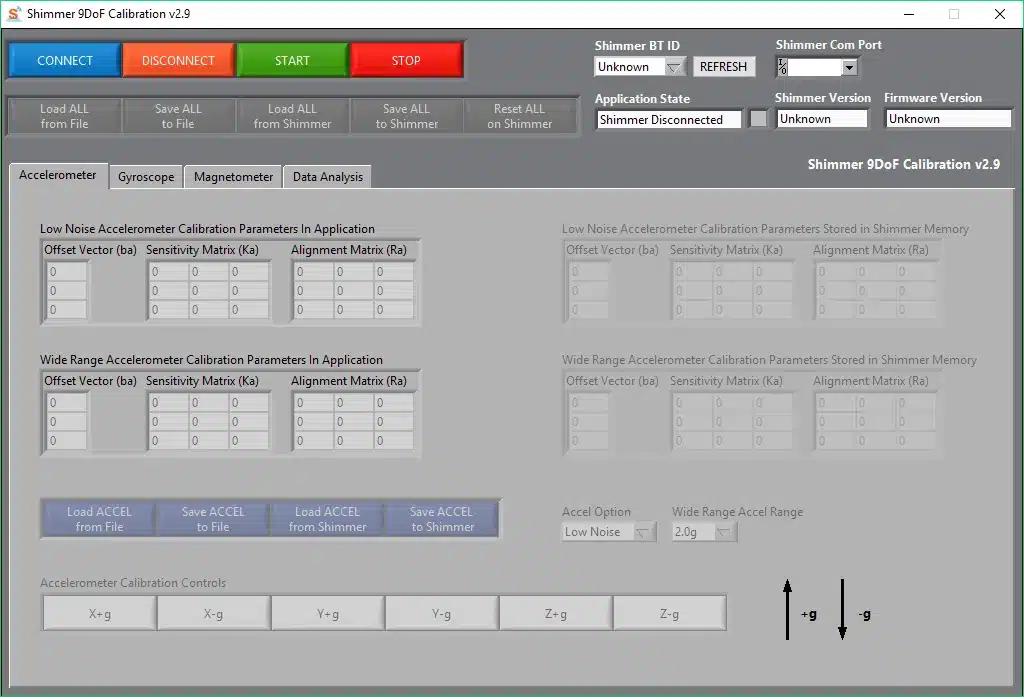
Figure 4‑5 9DoF Calibration for Windows Software Application
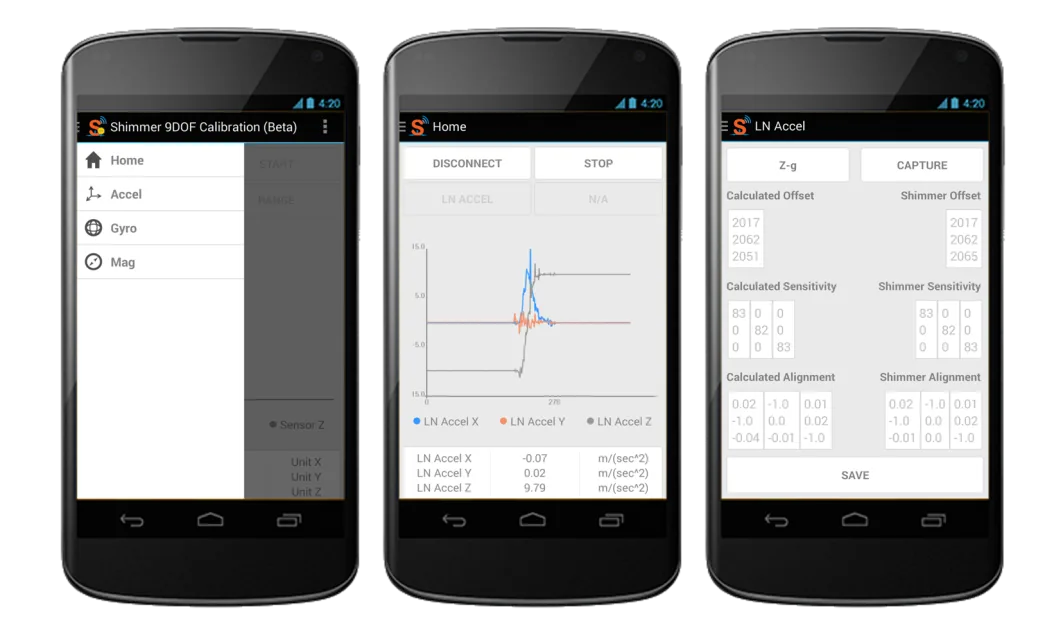
Figure 4‑6 9DoF Calibration for Android Software Application
4.2. Software Development
This section provides a brief introduction to the suite of Shimmer Software Development tools, called the Shimmer Instrument Drivers (Shimmer IDs) and Shimmer Application Programming Interfaces (Shimmer APIs). The Shimmer IDs and APIs are libraries for software developers that allow for the rapid integration of the Shimmer platform into software applications being developed in C#, LabVIEW, MATLAB and Java/Android.
4.2.1. C#
 The C# API includes the .NET based source code for the ShimmerCapture application (see Section 4.1.2). The code is the basis for an application which allows users to calibrate, display and save data received from Shimmer devices streaming over Bluetooth. The code is designed for usability and functionality, with a number of data capture parameters being configurable. C# developers can quickly integrate Shimmer devices into their applications by building on top of the C# API.
4.2.2. JAVA/Android
 The Shimmer JAVA/Android API allows for the development of Android applications that require data to be streamed directly from Shimmer units to Android devices. The solution permits Shimmer users to easily interact with Shimmer units to configure, stream, display and log data on Android devices. The purpose of this Shimmer API is to reduce the development time for Shimmer developers on the Android operating system. The library includes a number of example applications. Built on top of the Android Bluetooth Library, the driver’s object oriented design allows easy integration with other libraries.
4.2.3. LabVIEW

The ShimmerSensing LabVIEW Instrument Driver Library is a library of LabVIEW VI’s designed to assist users of the Shimmer2, Shimmer2r and Shimmer3 platforms in the development of Shimmer-based applications in LabVIEW. This Shimmer ID provides all the benefits associated with the LabVIEW development environment and incorporates a number of end-user functions specific to the Shimmer platform, as well as example applications. Extensive support documentation is available along with video demonstrations.
4.2.4. MATLAB
 The Shimmer MATLAB Instrument Driver Library is an object oriented solution for Shimmer data capture in MATLAB. This Shimmer ID allows Shimmer data to be streamed directly to MATLAB and assists users of the Shimmer2, Shimmer2r and Shimmer3 platforms in the development of Shimmer based applications in MATLAB.
Shimmer users will benefit from MATLAB’s full range of tools including matrix manipulations, plotting of functions and data, implementation of algorithms, creation of user interfaces, and interfacing with programs written in other languages, including C, C++, Java, and Fortran. The code is extensively commented and includes a number of sample applications.
5. Firmware
At Shimmer we provide a range of stock firmware solutions for use on the Shimmer platform; however, a user is free to develop their own firmware solution should they wish to do so. Shimmer firmware solutions have been developed to ensure Shimmer users benefit from some of the most efficient and effective wireless sensing solutions available, availing of low power communications and a flexible, highly configurable framework. Section 5.1 below outlines our existing Shimmer firmware solutions, whilst Section 5.3 provides information on firmware development for Shimmer.
The Consensys application allows for the Shimmer unit to be programmed with the appropriate firmware solution when docked in the Shimmer Dock or Consensys Base. This process is explained in more detail in Section 3.2.5.
5.1. Firmware Solutions
Whilst LogAndStream and SDLog are complete firmware solutions, provided by Shimmer to support Shimmer IDs, Shimmer APIs, Multi Shimmer Sync for Android and Consensys software, the additional solutions described in this section are intended to help new users to become familiar with the Shimmer platform and to be a starting point for users who are developing their own custom firmware solutions.
5.1.1. LogAndStream
LogAndStream firmware is a complete data recording solution which merges features from our previous Shimmer3 firmware releases. The LogAndStream firmware facilitates logging of data from a Shimmer3 to the on‑board SD card while also providing the ability to simultaneously stream data over wireless connection to a Bluetooth-enabled PC. The firmware allows for full user configuration of the Shimmer3 using a configuration file stored on the SD card, over Bluetooth using the provided Consensys software application and is also fully compatible with the Shimmer Instrument Drivers.
LogAndStream Firmware can be used with a Shimmer3 device with a microSD card, with capacity up to 32Gbytes. For Shimmer compatibility the microSD card chosen must implement 1-bit SPI mode. The Shimmer3 is shipped with a compatible microSD card. A Shimmer Dock or Consensys Base is required to allow access the SD card on the Shimmer from the PC for configuration of logging preferences and data transfer. Please note that legacy (black) Shimmer docks are not suitable for this purpose and a newer (white) dock is required.
The source code is also openly available for any able user who may wish to modify or customise it to their own needs or, indeed, to use it as the basis for a new firmware application; see Section 5.3 for more details and resources for developing firmware.
Using the firmware
The LogAndStream firmware provides a seamless integration of SDLog (i.e. logging Shimmer3 data to an on-board microSD card) and streaming Shimmer3 data back to “host” device over Bluetooth. The LogAndStream firmware has been designed such that a user can still utilise the Shimmer3 in a purely Bluetooth only or SDLog mode if they desire – with the additional capability of doing both simultaneously.
A Shimmer3 programmed with LogAndStream firmware can be in one of five states: Idle, BT Connected, BT Streaming, BT Streaming + SD Logging or just SD Logging – as shown in Figure 5‑1. The active states form two operational branches from which the user can choose to operate the Shimmer3 device – one initiated by a Bluetooth connection (blue shaded area in Figure 5‑1) and the other based on SD Logging operation (orange shaded area in Figure 5‑1).
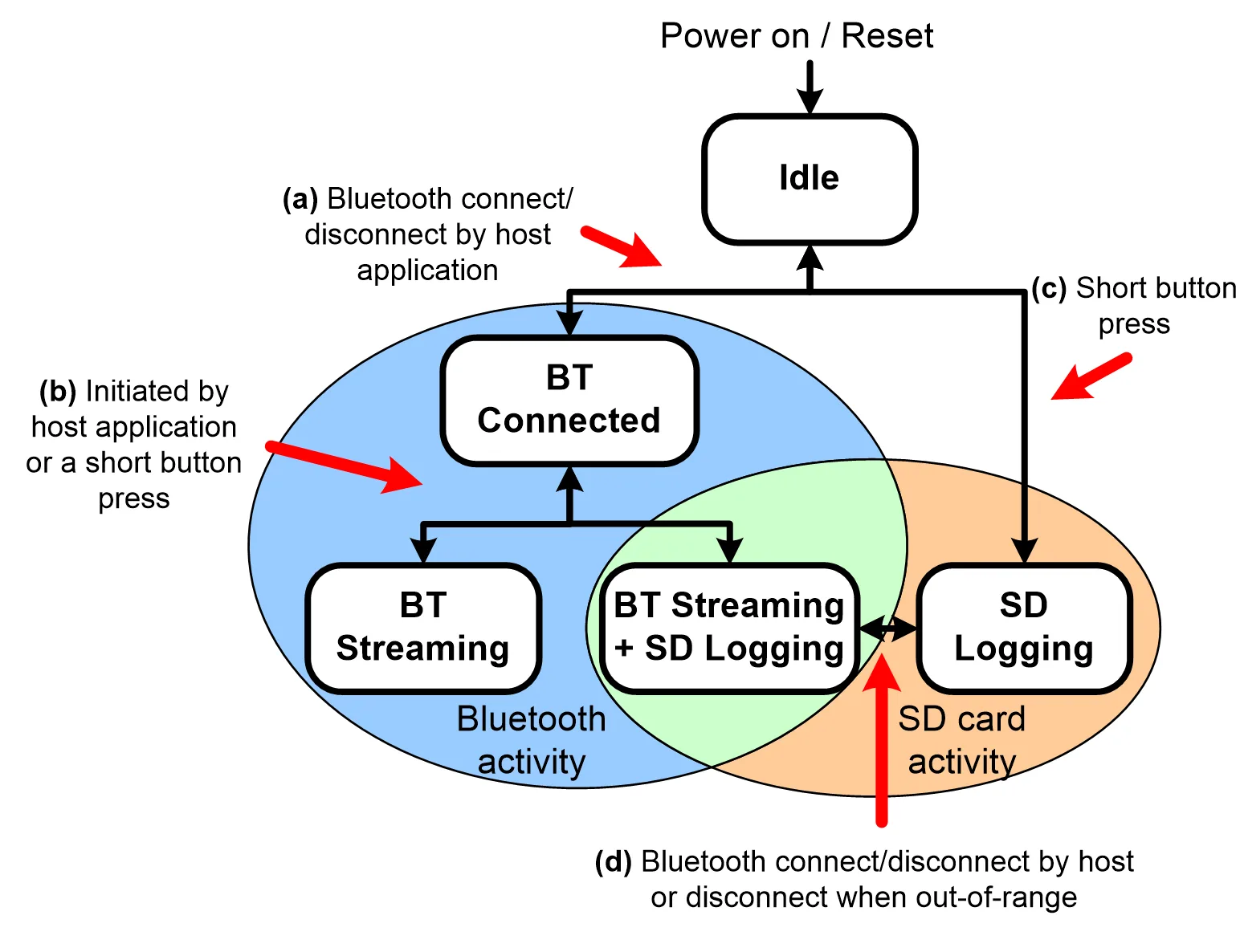
Figure 5‑1 LogAndStream firmware operational hierarchy.
LogAndStream firmware LED Indicators
The Shimmer3 has five LEDs in two locations as shown in Figure 2‑1: the lower LED location (location A) which contains the green (b), yellow5 and red LEDs; and the upper LED location (location B) which contains the green (a) and blue LEDs.
The two upper LEDs are used to indicate state of operation for the LogAndStream firmware. The status of each depends on whether the Shimmer3 is in a docked or undocked state, as shown in Table 5‑1 below.
LED Pattern |
Description |
||
|---|---|---|---|
|
Standby |
|
Blue 0.1s ON/2s OFF |
Bluetooth Connected |
|
Blue Solid ON |
|
Streaming only |
|
Blue 1s ON / 1s OFF |
|
RTC not set |
|
0.1s Blue/0.1s Green |
|
|
Configuring |
|
Green 0.1s ON/ 0.1s OFF |
SD error |
|
0.1s Red/0.1s Yellow |
|
Logging only |
|
Green 1s ON / 1s OFF |
|
Streaming and Logging |
|
1s Blue/1s Green |
|
LED Pattern |
Description |
||
|---|---|---|---|
|
Full Charge |
|
Green Solid ON |
Charging |
|
Yellow Solid ON |
|
|
Full Charge |
|
Green 0.1s ON/5s OFF |
Medium Charge |
|
Yellow 0.1s ON/5s OFF |
|
Low Charge |
|
Red 0.1s ON/5s OFF |
|
Note: The SD error LED sequence is present in LogAndStream_v0.8.0 and later. Older versions of LogAndStream combine both SD and RTC errors into a 0.1s Blue/0.1s Green LED flashing sequence.
Note: The Shimmer unit should never be placed in the dock while the operation status LED’s indicate that it is configuring as this may cause a file-system error. Once configuration has begun, you must power off or reset the Shimmer unit before docking.
Note: It is not recommend to place the Shimmer3 unit in the dock while it is logging data as this can cause SD card access problems. Once logging has begun, you must power off or reset the Shimmer3 unit before docking.
5.1.2. SDLog
SDLog Firmware is a firmware image which allows logging of data from a Shimmer to the on-board SD card. The firmware allows full user configuration of the Shimmer via a configuration file, stored on the SD card. Many useful features, such as time synchronisation among multiple Shimmer units, start/stop logging on one or more devices by a single button press, and user-defined naming of devices, are enabled by this firmware image.
SDLog Firmware is fully compatible with Consensys software. SDLog Firmware can be used with a Shimmer3 device with a microSD card, with capacity up to 32Gbytes. For Shimmer compatibility the microSD card chosen must implement 1-bit SPI mode. The Shimmer3 is shipped with a compatible microSD card.
A Shimmer Dock or Consensys Base is required to allow access the SD card on the Shimmer from the PC for configuration of logging preferences and data transfer. Please note that legacy (black) Shimmer docks are not suitable for this purpose and a newer (white) dock is required.
Using the firmware
To use the SDLog Firmware, the user must provide the desired configuration parameters of each Shimmer. The configuration parameters are saved in a configuration file, named sdlog.cfg, from which they will be loaded by the Shimmer at initialisation. The configuration file is read every time a new logging session is started on the Shimmer. To change the configuration, modify the sdlog.cfg file and reboot the Shimmer (there is no need to reprogram). The configuration file allows configuration of all firmware features, including which sensors are enabled, sampling rate, sensor sensitivity parameters and synchronisation options.
It is recommended to use the Consensys software to avoid errors in writing the configuration file. However, it can be written in any text editor and saved to the SD card without the software application; refer to the SDLog for Shimmer3 Firmware User Manual for further details. Consensys is available in the Shimmer User Resources distribution as well as for download from the Shimmer website (http://www.shimmersensing.com).
SDLog firmware LED Indicators
The Shimmer3 has five LEDs in two locations: lower location A (green, yellow and red); upper location B (green , blue), as shown in Figure 2‑1.
The LEDs in Location A are used to indicate battery charge status, as outlined in Table 5‑3.
LED Pattern |
Description |
||
|---|---|---|---|
|
Full Charge |
|
Green Solid ON |
Charging |
|
Yellow Solid ON |
|
|
Full Charge |
|
Green 0.1s ON/5s OFF |
Medium Charge |
|
Yellow 0.1s ON/5s OFF |
|
Low Charge |
|
Red 0.1s ON/5s OFF |
|





The LEDs in Location B are used to indicate operation status, as outlined in Table 5‑4.
LED Pattern |
Description |
||
|---|---|---|---|
|
Standby |
|
Green 0.1s ON/2s OFF |
Radio On |
|
Blue Solid ON |
|
Synchronising with another Shimmer |
|
0.1s Blue/0.1s Green |
|
RTC not set |
|
0.1s Blue/0.1s Green |
|
|
Configuring |
|
Green 0.1s ON/ 0.1s OFF |
SD error |
|
0.1s Red/0.1s Yellow |
|
Logging |
|
Green 1s ON / 1s OFF |
|


Note: The SD error LED sequence is present in SDLog_v0.14.0 and later. Older versions of SDLog combine both SD and RTC errors into a 0.1s Blue/0.1s Green LED flashing sequence.
Note: The Shimmer should never be placed in the Dock while the operation status LED’s indicate that it is configuring as this may cause a file-system error. Once configuration has begun, you must power off or reset the Shimmer before docking.
Note: Placing the Shimmer in the Dock while it is logging data is not recommended as this can cause SD card access problems. Make sure that logging has stopped before docking the device.
Note: Logging and other SD card related operations are not carried out while the device is on the dock.
Further information
For a complete understanding of the SDLog Firmware, including important limits on allowed sampling frequency for various sensor configurations, please refer to the Shimmer3 SDLog Firmware User Manual, available in the Shimmer User Resources distribution as well as from the download section of the Shimmer website (http://www.shimmersensing.com).
5.1.3. Other sample solutions
Blink
This simple application blinks the five LEDs on the Shimmer3.
Sleep
This simple application puts the Shimmer3 into a low power state.
5.2. Programming a Shimmer
To program a Shimmer, you need a Shimmer Dock or a Consensys Base and must have previously completed the USB Serial Converter Driver Installation procedure outlined earlier in section 3.2.1 of this document. Two methods for programming your device are outlined below; choose the one most suited to your configuration and preference.
5.2.1. Programming in Windows using Consensys
The Consensys application can be used in Windows to program the Shimmer with pre-compiled firmware images. Consensys is available from the Shimmer User Resources or for download from http://www.shimmersensing.com.
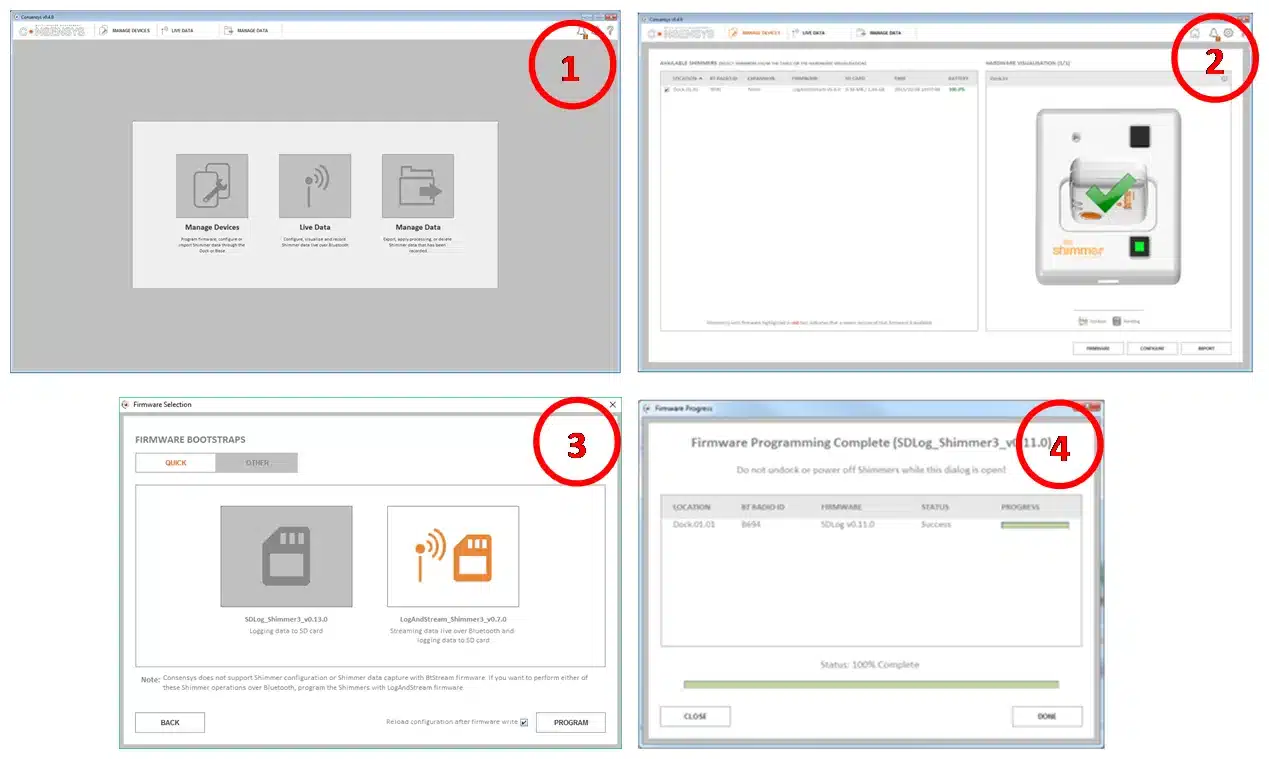
Figure 5‑2 Shimmer3 firmware programming using Consensys
Programming firmware onto a Shimmer using Consensys is a four step process:
Launch Consensys and select the MANAGE DEVICES tab.
Insert your Shimmer (ensure it’s powered on) into a Dock or Consensys Base; select the Shimmer from AVAILABLE SHIMMERS table or from the HARDWARE VISUALISATION graphic and then press the FIRMWARE button.
Select one of Shimmer’s precompiled firmware images provided on the QUICK tab or you may choose to load a firmware image (a file with a .txt extension) from your PC into Consensys on the OTHER tab. Press the PROGRAM button to start programming the Shimmer with the selected firmware.
Progress indicators highlight the status of the firmware programming. When programming is complete, the progress bar will be filled to 100% and the DONE button will be enabled. See expected Shimmer LED behaviour for provided firmware images in section 5.1.
Shimmer3R: Consensys updates Shimmer3R firmware over USB, using the processor’s built-in USB bootloader (USB DFU) in place of the Shimmer3’s serial bootstrap loader. Consensys restarts the Shimmer3R into the bootloader itself; the lower LED flashes purple while it is there, and the Shimmer3R restarts into the new firmware when programming is finished. Shimmer3R firmware images are separate from Shimmer3 images, and their version numbers are independent: a Shimmer3R version cannot be compared with a Shimmer3 one.
TODO(S3R): Confirm the minimum Consensys version for Shimmer3R firmware update, whether Consensys needs STM32CubeProgrammer installed alongside it, and the exact Consensys screens and steps. Also confirm whether the update works through the Shimmer Dock / Consensys Base, through a USB cable, or both.
5.2.2. Programming under Linux
Shimmer3R: The steps below are for Shimmer3 only. A Shimmer3R in its bootloader is a standard USB DFU device, and can be programmed under Linux with STMicroelectronics’ STM32CubeProgrammer.
Programming of the Shimmer3 in Linux requires a number of prerequisites to be completed; these are listed below. Steps 1 to 4 need only be run once for installation purposes.
- Obtain the latest version of the MSP430 Tools library (actively maintained at https://code.launchpad.net/python-msp430-tools) using Bazaar by using the following command line:
bzr branch lp:python-msp430-tools
- Obtain the patch “bsl5uart_fixes_2.patch” (described at https://bugs.launchpad.net/python-msp430-tools/+bug/1258574 ) using the following command line:
wget https://launchpadlibrarian.net/160212768/bsl5uart_fixes_2.patch
- Copy the patch to the python-msp430-tools directory and apply the patch as follows:
patch < bsl5uart_fixes_2.patch
If file path errors appear, give the path msp430/bal5/bsl5.py followed by msp430/bsl5/uart/py in response to the errors.
- Install the MSP430 Tools library as follows:
sudo python setup.py install
- To load the Bootstrap code to the Shimmer3, use the command listed below. This command assumes that the Bootstrap image “S3_Blink.txt” is in the folder you are running from and the programming port of the dock is “/dev/ttyUSB0” – change as necessary):
python -m msp430.bsl5.uart –invert-test –invert-reset -p /dev/ttyUSB0 -r -e -i titext -P S3_Blink.txt
- Remove the Shimmer3 from the Shimmer Dock and cycle the power to reset and run the freshly loaded firmware.
Note that the reset function does not operate as expected but programming will still result in a success – hence the need to undock the Shimmer3 and cycle the power.
5.3. Firmware Development
It is recommended that design, implementation, testing and validation of Shimmer embedded software (firmware) be done in Code Composer Studio™ from Texas Instruments. Alternatively, any compiler that supports the MSP430F5437A can be used (e.g. IAR embedded workbench, Rowley Crossworks, MSP430GCC). Shimmer application code examples for Code Composer Studio™ are actively maintained at https://github.com/ShimmerResearch/shimmer3-firmware.
Shimmer3R: Shimmer3R firmware is developed for its STM32U5 processor (Arm Cortex-M33) in STM32CubeIDE from STMicroelectronics, and programmed and debugged over SWD with an ST-LINK. Its source is at https://github.com/ShimmerResearch/shimmer3r-firmware. The behaviour both generations share (logging, streaming, configuration, calibration, LEDs, button, clock) lives in one library, https://github.com/ShimmerResearch/log-and-stream-common, whose
docs/folder is the reference for the Bluetooth protocol, configuration memory and data formats. The rest of this section describes Shimmer3.
Current functionality includes:
microSD flash storage.
FAT file system.
Bluetooth configuration, connection management and streaming data transfer.
Time and clock configuration.
Peripheral control and configuration.
Power supply monitoring.
5.3.1. Setting up a build environment
To develop firmware for Shimmer3, you will need the Code Composer Studio™ IDE from Texas Instruments or another compiler that supports MSP430F5437A (examples listed above). Furthermore, a Flash Emulation Tool (FET), such as the MSP-FET430UIF (or equivalent) from Elpotronic or another manufacturer and a Shimmer Developer Board are recommended for developers but not essential unless debug capability is needed.
5.3.2. Getting and updating the Shimmer source code
All Shimmer source code is hosted in a Github repository. Git is an open source version control system that facilitates software configuration management. It is used by many software developers to manage changes within their source code tree and provides the means to store the current version of a source code element (e.g. a *.c source file) and it records all changes that have occurred to that source code. For further details on Git, follow the documentation link at http://git-scm.com; a download link can be found on the same website.
To clone a copy of the Shimmer3 repository to a new directory, use the following command:
git clone –recurse-submodules https://github.com/ShimmerResearch/shimmer3-firmware
To update the repository, navigate to the appropriate folder and run the following two commands:
git fetch origin
git pull origin
In the Shimmer3 repository, you will find the source code for all the sample solutions mentioned in Section 5.1.
5.3.3. Getting started with Code Composer Studio™
The programming language for the Shimmer3 is C. Texas Instruments provide training material helping new users to get up-to-speed with Code Composer Studio on their Wiki: http://processors.wiki.ti.com/index.php/Category:CCS_Training.
As mentioned previously, if in‑program debugging is not required, Code Composer Studio can be configured to create an output flash image that can be loaded to a Shimmer3, using the Consensys application and Shimmer Dock or Consensys Base. To ensure this option is selected, complete the following steps:
With the project selected in Code Composer Studio, go to the “Project” menu and select “Properties”.
As shown in Figure 5‑3, select the “Build” menu in the left panel and then select the “Steps” panel on the right.
Ensure that “Create flash image TI-TXT” is listed in the “Description” box. If this is not the case, select it from the “Apply Predefined Step” drop down menu as shown.
Finally press the “Apply” button to save the changes.
An output TXT file with the same name as the project will then be created within the “Debug” directory of the project when the project is built. This is the file that can be loaded to the Shimmer3 through the Consensys application.
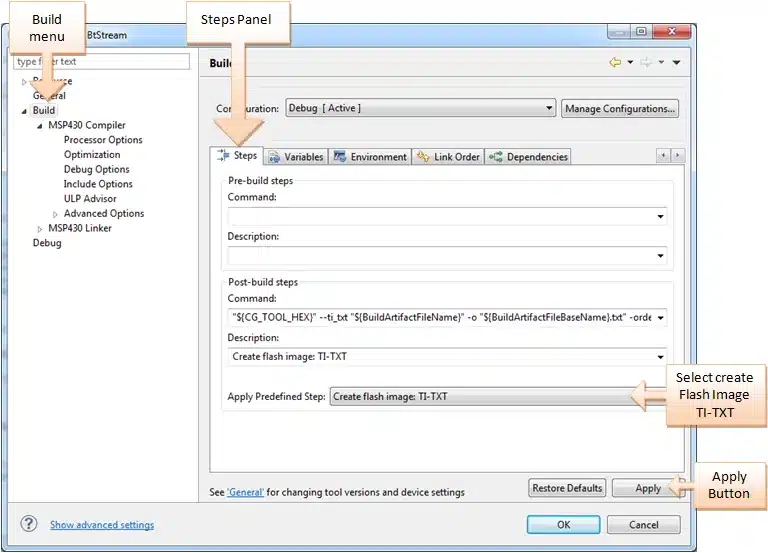
Figure 5‑3 Creating an output TXT file using Code Composer for custom firmware programming with the Consensys application.
6. Hardware
This section provides an overview of the Shimmer hardware architecture and discusses the hardware sub-systems contained within. For Shimmer3 mainboard detail, debug and testing procedures and pin-out information, please refer to the Appendices of this document.
6.1. Shimmer Hardware Overview
Figure 6‑1 presents a block diagram of the Shimmer3 mainboard with core components and interconnections between integrated devices illustrated.
The central element of the platform is the low-power MSP430F5437A microprocessor which controls the operation of the device. Nearly every feature of the CPU is exercised in the Shimmer implementation. The CPU configures and controls various integrated peripherals through I/O pins, some of which are available on the internal/external-expansion connectors. The CPU has an integrated 16-channel 12bit analogue-to-digital converter (ADC) which is used to capture sensor data from the low noise accelerometer, battery, or sensor expansions, such as GSR, Bridge Amp and Proto 3 Deluxe. The external expansion also allows communication to and from the mainboard using the docking station.
The Shimmer board has a built in microSD Flash socket for additional storage and has five light-emitting diodes (LED) for display purposes. It also has an on-off switch and a software-defined user button. For wireless data streaming, the platform is equipped with a Bluetooth radio module and has the capacity for an additional alternative radio.
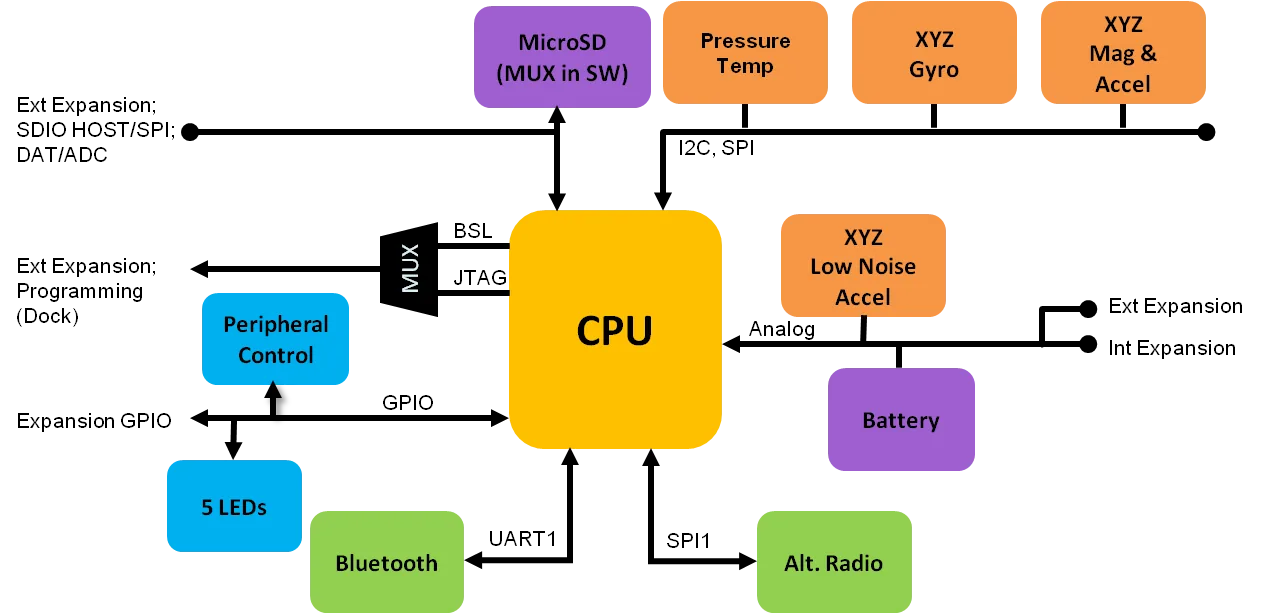
Figure 6‑1 Shimmer3 Core Component Block Diagram
6.2. Hardware Sub-System Detail
Functional descriptions of communication, microSD storage and power subsystems are presented in this section. For the purposes of debug and testing, lower level component information can be found in the appendices of this document. Vendor datasheets and application notes are the best sources of detailed operational information, training material and errata on components designed into Shimmer.
6.2.1. Radio Communication
One of the key functions of the Shimmer board is its ability to communicate as a wireless platform. Shimmer uses a Bluetooth Radio module.
Bluetooth (IEEE 802.15.1)
Bluetooth is a low-cost, low-power, robust, short-range wireless communication protocol which was initially founded by Ericsson in 1994 to replace traditional mobile phone and computer cables with wireless links. It operates in the license free 2.4 GHz ISM (industrial, scientific, medical) band with a short range (power-class-dependent: 1 metre, 10 metres, 100 metres) transceiver in each device. With the introduction of the (EDR) Enhanced Data Rate feature [1], devices can communicate with each other at up to 3Mbps. The Bluetooth special interest group (SIG) was founded in 1998 by companies such as Ericsson, Nokia and Intel and the core system consists of an RF transceiver, baseband and protocol stack. Bluetooth radios are designed for busy environments with many users. Up to eight Bluetooth devices can communicate together in a network called a piconet. The piconet is a point to multipoint network consisting of one master and up to seven slave devices. Multiple piconets can coexist and join together to form scatternets. Bluetooth uses 79 1MHz channels to transmit data. Interference between other ISM band devices (802.11 and 802.15.4 devices) and other Bluetooth piconets is minimised using frequency hopping spread spectrum (FHSS), where the carrier is rapidly switched (hops) among the 79 available channels. The frequency hopping sequence is controlled by the master within the piconet. Other Bluetooth interference reduction techniques include adaptive power control, Channel Quality Driven Data Rate (CQDDR) and Adaptive Frequency Hopping (AFH) [2]. Extensive documentation and analysis of Bluetooth and its applications can be accessed from the Bluetooth SIGs website at www.bluetooth.com.
Microsoft Windows currently only supports a single Bluetooth Piconet, limiting users to seven simultaneously attached devices. Linux support multiple Piconets and exposes the entire Bluetooth stack in open source software, for users interested in doing advanced or special purpose development with Bluetooth.

Roving NetworksTM design and manufacture sensors and other custom platforms to integrate embedded devices, allowing access from Bluetooth® enabled PCs, PDAs, cell phones, and networks. Further information can be found at http://www.rovingnetworks.com/
The Shimmer platform uses the Roving Networks RN-42 [3] Class 2 Bluetooth module to communicate via an integrated 2.4GHz antenna. This module was found to be well engineered and very configurable [4], reliable and robust. This module contains a full Version 2 Bluetooth Protocol Stack and supports the Serial Port Profile which facilitates rapid application development. The Bluetooth module is connected to the MSP430 directly via the USART1 serial connection. It can also be controlled by ASCII strings over the Bluetooth RF link. The RN-42 has a range of more than 10 metres (33 feet) and the transmitted power can be adjusted depending on the application distance. The system has seventy-nine channels with channel intervals of 1MHz and offers a robust secure link via frequency hopping spread spectrum (FHSS) and error correction schemes. Users can expect to communicate with the Shimmer USART at speeds up to 230kbaud, with 115kbaud as the default and recommended value.
6.2.2. MicroSD Card Storage
MicroSD Card Socket
The Shimmer3 mainboard contains a microSD card socket to incorporate extra memory resources. For Shimmer compatibility, the microSD card chosen must implement 1-bit SPI mode. Please refer to the Shimmer3 MicroSD Media Guide for more information on microSD card compatibility. A compatible SD card is shipped with each Shimmer3.
Host Data bypass Functionality
To improve usability, Shimmer incorporates a wide bandwidth analogue MUX and tri-state logic buffering on certain signals routed to the external connector to provide direct and immediate access to flash memory using an external SD-flash card controller (SDHOST) for high-speed data transfer. Shimmer Applications that use the microSD card will require firmware that allows for the SD specification’s requirement of a power-cycle to change from SPI mode (the card talking to the MSP430) back to SDIO mode (the card is controlled by the USB flash media controller). Power-cycling the card requires explicit control of the card’s interface pins, setting them to LOW (zero Volts).
The Host Data Bypass implementation has been simplified when compared to prior generation sensor platforms such as Shimmer2r. When a firmware application detects that the Shimmer is docked, it can complete pending activities, power cycle the flash media (including lowering all SPI pins going to the media), reconfigure the data path and the assert a media-detect signal to the host computer via a USB flash media controller peripheral.
Always use a Shimmer Dock v3 (or higher) for best performance.
Earlier docks required a logic timing-critical scheme, which has been deprecated.
The Host data activity indicator on the USB Reader dock, presented earlier in this manual, provides helpful status information.
6.2.3. Power
The Shimmer units are supplied with a 3.7V 450mAh re-chargeable Lithium battery but the design supports both Lithium-Ion/Lithium-Poly cell chemistry and lithium coin cells and alkaline batteries. Device safety is maintained by integrating battery polarity protection, charge monitoring and failsafe battery over/under voltage and over-discharge limits in common mobile environments and while AC-powered. Refer to the Section 3.5.3 for further details on use of replacement batteries with Shimmer.
Power States
A sliding switch is used to control board power states.
Soft power switching is provided for the Bluetooth radio module, temperature compensated crystal oscillator, FFC expansion (Radio Peripheral) and microSD socket (see Host Data bypass Functionality discussion above for more information on microSD card power control). Other modules have integrated shutdown functionality.
Shimmer’s on-board regulator can provide 100mA continuous current and tolerates surges until a thermal limit is reached. Expansion devices must be current limited or have independent regulation running off the PV_REG expansion pin. Exceeding the 100mA limit of the regulator, whilst possible, is not recommended without detailed analysis and qualification of both electrical and thermal design margin.
Battery Life
The Shimmer3 operating time will depend on a number of factors, e.g.: whether or not the radio is enabled; which sensors are enabled; what sampling frequency is used; how old the battery is (based upon the number of charge cycles a battery has undergone in its lifetime). Table 6‑1 and Table 6‑2 provide battery life estimations for a number of typical data capture configurations. A new Shimmer3 unit was used for each of the tests shown below. As such, these values are estimates but are considered to be typical for each of the Shimmer3 units specified in the tables below. These tables can also be used to estimate the battery life for a configuration not specifically listed.
Table 6‑1 provides some battery-life estimations for single device experiments. These values have been obtained through laboratory testing using SDLog and LogAndStream (with Bluetooth streaming only).
Sensors Enabled |
Shimmer Units |
Sampling Rate |
Estimated Battery Life |
|
|---|---|---|---|---|
Logging only (SDLog v0.18.0) |
Streaming only (LogAndStream v0.10.0) |
|||
Accel (wide range) |
Shimmer3 IMU (SR31-7) |
51.2 Hz |
78 hrs |
15 hrs |
100 Hz |
75 hrs |
14 hrs |
||
256 Hz |
64 hrs |
11 hrs |
||
Accel (wide range) Gyro Mag (LSM303AHTR) |
Shimmer3 IMU (SR31-7) |
51.2 Hz |
63 hrs |
14 hrs |
100 Hz |
58 hrs |
11 hrs |
||
256 Hz |
49 hrs |
11 hrs |
||
ECG/EMG |
Shimmer3 ExG Unit (SR47-1) |
256Hz |
95 hrs |
14 hrs |
512 Hz |
60 hrs |
12 hrs |
||
1024 Hz |
41 hrs |
11 hrs |
||
2048 Hz |
22 hrs |
09 hrs |
||
GSR |
Shimmer3 GSR Unit (SR48-3) |
10 Hz |
184 hrs |
18 hrs |
GSR & PPG |
256 Hz |
124 hrs |
14 hrs |
|
Table 6‑2 shows battery life estimations for multi-Shimmer sync experiments, using SDLog, with each of the synchronisation options between the master and slave devices, i.e., short, medium and long experiments.
| Sensors Enabled | Shimmer Units | Sampling Rate | Estimated Battery Life | |||||
|---|---|---|---|---|---|---|---|---|
| Short Experiment | Medium Experiment | Long Experiment | ||||||
| Master | Slave | Master | Slave | Master | Slave | |||
| Accel (wide range), Gyro, Mag (LSM303AHTR) | Shimmer3 IMU (SR31-7) | 51.2 Hz | 18 hrs | 28 hrs | 59 hrs | 59 hrs | 61 hrs | 60 hrs |
| 100 Hz | 17 hrs | 26 hrs | 54 hrs | 54 hrs | 57 hrs | 58 hrs | ||
| 256 Hz | 17 hrs | 21 hrs | 45 hrs | 44 hrs | 47 hrs | 46 hrs | ||
The Shimmer IDs, Shimmer APIs and software applications provide calibrated data, as well as raw data. If you are developing a solution that does not avail of those options, you will need to calibrate your raw ADC channel values to obtain a meaningful battery voltage reading.
| Remaining Capacity | Voltage | Remaining Capacity | Voltage |
|---|---|---|---|
| 0.0% | 3.2 | 53.1% | 3.8034 |
| 5.9% | 3.627 | 57.0% | 3.8106 |
| 9.8% | 3.645 | 61.0% | 3.8394 |
| 13.8% | 3.663 | 64.9% | 3.861 |
| 17.7% | 3.681 | 68.9% | 3.8826 |
| 21.6% | 3.699 | 72.8% | 3.9078 |
| 25.6% | 3.717 | 76.7% | 3.933 |
| 29.5% | 3.7314 | 80.7% | 3.969 |
| 33.4% | 3.735 | 84.6% | 4.0086 |
| 37.4% | 3.7386 | 88.5% | 4.041 |
| 41.3% | 3.7566 | 92.5% | 4.0734 |
| 45.2% | 3.771 | 96.4% | 4.113 |
| 49.2% | 3.789 | 100.0% | 4.167 |
Table 6‑3 Battery Capacity based on Battery Voltage
Equation 1, below, defines how to convert the raw battery measurement values to Volts. Equation 2 calculates the battery voltage by multiplying the calibrated voltage output by two (required due to use of voltage divider in hardware; contact Shimmer support if further information is required).
$`calibratedBatteryData\ = \ (rawBatteryData – offset).\left( \frac{1}{4095} \right).\left( \frac{Vref}{gain} \right)`$ Equation 1
where offset = 0, Vref=3V, gain = 1.
$`Battery\ Voltage = \ calibratedBatteryData\ *2`$ Equation 2
In order to estimate the remaining battery capacity you can use Table 6‑3 which has been derived from information provided by the battery manufacturer. Note that the number of charge cycles a battery has undergone in its lifetime will influence the accuracy of the remaining capacity estimates. According to the battery manufacturer the worst case is 75% of full capacity after 300 cycles.
TODO(S3R): Confirm that Equations 1 and 2 (12-bit, 3.0 V reference, ×2 divider) and Table 6‑3 hold for Shimmer3R, whose battery voltage is read by an external ADC.
6.3. Shimmer3R hardware
Shimmer3R is the current generation of the Shimmer3 platform. It keeps the Shimmer3 form factor, sensing functions, firmware behaviour and software support, and replaces the processor, the Bluetooth radio, the kinematic sensors and the analogue-to-digital converter. Everything in this manual applies to Shimmer3R except where a Shimmer3R: note says otherwise; this section collects the hardware differences in one place.
| Shimmer3 | Shimmer3R | |
|---|---|---|
| Processor | TI MSP430F5437A (16-bit) | ST STM32U5A5 (32-bit Arm Cortex-M33) |
| Bluetooth | Roving Networks RN-42 (Classic), or Microchip RN4678 (Classic and BLE) on later units | Ezurio Vela IF820 (Classic and BLE) |
| Analogue inputs | Processor’s internal 12-bit ADC | External TI ADS7028 12-bit ADC, 3.0 V reference |
| LEDs | Five single-colour LEDs in two locations | Two RGB LEDs, one per location |
| Real-time clock | Lost at every reset | Kept across a reset; lost only when the device loses power entirely |
| USB | Through the Shimmer Dock | USB connection: serial port for configuration and firmware update, and the SD card as a removable drive |
| SD card over Bluetooth | No | Files can be listed, read and deleted over Bluetooth |
| Firmware update | Serial bootstrap loader, through the Dock | USB bootloader (USB DFU), through Consensys |
6.3.1. Kinematic sensors
| Function | Part | Ranges | Sampling rates |
|---|---|---|---|
| Low-noise accelerometer | ST LSM6DSV | ±2, ±4, ±8, ±16 g | Set with the gyroscope |
| Gyroscope | ST LSM6DSV | ±125, ±250, ±500, ±1000, ±2000, ±4000 dps | 1.875 Hz to 7680 Hz |
| Wide-range accelerometer | ST LIS2DW12 | ±2, ±4, ±8, ±16 g | 12.5 Hz to 1600 Hz (high-performance mode); 1.6 Hz to 200 Hz (low-power mode) |
| Magnetometer | ST LIS2MDL | ±49.152 Ga | 10, 20, 50, 100 Hz |
| High-g accelerometer (IMU only) | Analog Devices ADXL371 | ±200 g | 320, 640, 1280, 2560 Hz |
| Pressure and temperature | Bosch BMP390, or BMP581 on later boards | 300 hPa to 1250 hPa | 0.0015 Hz to 200 Hz |
Both generations refuse a sampling rate above 4096 Hz, whatever the sensor allows. In the data, Shimmer3R sends pressure before temperature, and its temperature value is 3 bytes rather than 2; software that reads Shimmer data through Shimmer’s APIs or Consensys handles this automatically. The IMU User Guide describes the sensors in detail.
TODO(S3R): Confirm whether the alternate LIS3MDL magnetometer (fitted on early boards only) needs mentioning, and whether Shimmer3R noise figures belong here as well as in the IMU User Guide. Also check that the axis directions match Shimmer3’s.
6.3.2. Analogue channel names
Shimmer3R reads its analogue inputs through an external ADC, so the channels have new names in Consensys and the Shimmer APIs. The inputs are the same; only the label changes:
| Shimmer3 name | Shimmer3R name |
|---|---|
| Ext A7 | Ext A0 |
| Ext A6 | Ext A1 |
| Ext A15 | Ext A2 |
| Int A12 | Int A0 |
| Int A13 | Int A1 |
| Int A14 | Int A2 |
| Int A1 | Int A3 |
For example, the GSR+ optical pulse input that is Int A13 on Shimmer3 is Int A1 on Shimmer3R. On Shimmer3R the GSR input shares Int A3, so enabling GSR disables Int A3, as GSR disables Int A1 on Shimmer3.
6.3.3. Models
Shimmer3R is available as IMU, ExG, GSR+, Bridge Amplifier+ and PROTO3 Deluxe, each with the kinematic sensors in the table above. There is no Shimmer3R PROTO3 Mini or 200 g IMU.
TODO(S3R): Confirm the Shimmer3R model list against what is offered for sale, and whether the IMU’s ADXL371 is fitted on every Shimmer3R IMU.
7. Troubleshoot
Note: Further troubleshoot information pertaining to non-mainboard hardware and software can be found in the additional User Guides/Manuals.
Shimmer Won’t Connect over Bluetooth
Verify that the Shimmer has been programmed with Bluetooth (BT)-enabled firmware (e.g. LogAndStream).
Verify Shimmer is within range of host side device and has a line of sight.
- Whilst the Shimmer BT radio has a range of 10m, the range of your host side BT radio may vary and should be verified. Bluetooth communication doesn’t necessarily require line of sight; however, for initial connection, it is recommended.
Verify that there are not any issues with a low or problematic battery.
- Place the Shimmer in a powered charging dock; if the cause of the connection issues is the Shimmer battery, then placing the Shimmer in the dock should rectify the issue.
Make multiple connection attempts.
Making multiple connection attempts may be required for the following reasons:
Paging Inquiry – When the Shimmer is not connected the paging inquiry window on the BT radio defaults to 320ms (out of 2.56s) so the Shimmer is only ‘listening’ for a connection 12.5% of the time.
FHS (frequency hopping synchronization) – When a BT slave successfully connects or pairs with a BT master they synchronize their frequency hopping pattern. If a master has not connected to a slave over a long period of time then the frequency hopping pattern can become severely out of sync. Variations in clock drift across Shimmers means that some Shimmers will become out of sync more easily than others. Note that, once a connection is made, the frequency pattern of the master and slave are, once again, synchronised.
Shimmer Battery Performing Poorly
If you are achieving poorer performance from your battery than expected, it may be that your battery has gone into a deep battery discharge state. To rectify this you should do the following:
Install the sleep or blink firmware image. These firmware images are bundled with the Consensys software application and can be found on the “Other” tab in the “Firmware Selection” dialog.
Charge unit for 6-7 hours (no longer). Remove from charger. Repeat charge for 6-7 hours.
Install LogAndStream firmware and have a look at the battery voltage data to ensure that the battery is fully charged.
Plot the battery voltage data vs. time as this gives an insight into how rapidly the battery is discharging.
If the battery is still faulty, please refer to the battery replacement information in Section 3.5.3 of this document.
PC cannot access SD card via Dock
If you experience difficulties accessing the microSD card, please consult the Troubleshooting section of the Shimmer Dock User Guide (v1.5 or later) which can be obtained from the folder \Documentation\Hardware User Guides in the Shimmer User Resources distribution or from our website.
Magnetometer value jumps to -4096
Why does a Shimmer3 magnetometer axis sometimes read as -4096?
In the event of a data overflow on a magnetometer axis – as would be the case if the local magnetic field strength exceeds the configured magnetometer range – the axis channel will read as a value of -4096 in 2s complement form. To overcome this, simply increase the magnetometer range.
8. References
[1] Bluetooth Special Interest Group, Serial port Profile Specification, Vol. 7 Part B of the Bluetooth Specification Version 2, November, 2004.
[2] C. Hodgdon, Adaptive frequency hopping for reduced interference between Bluetooth and wireless LAN, Ericsson Technology Licensing, May 2003.
[3] Roving Networks, Bluetooth Module RN-42, Available at http://www.rovingnetworks.com
[4] Roving Networks, Bluetooth Module RN-46 Command Set, Available at http://www.rovingnetworks.com
9. Appendices
9.1. Appendix A – Mainboard detail for Debug and Testing
Shimmer3R: This appendix describes the Shimmer3 mainboard (MSP430). Its component list, pin assignments and CPU pins do not apply to Shimmer3R.
TODO(S3R): Add the Shimmer3R equivalent, or state that it is not published: important components, the external and internal connector pin assignments, and the processor pin assignment.
9.1.1. Important Components
These following components may be removed or replaced to support specific user applications, configure the board or perform power-measurement testing. Figure 9‑1 and Figure 9‑2 provide illustrations of the Shimmer3 mainboard layout with each component labelled appropriately. For more information, contact Shimmer support.
J1 Negative battery terminal
J2 Positive battery terminal
F1 Battery discharge limit PTC (MF-FSMF050X-2)
SW2 On/Off switch
U9 Primary Regulator (3.0V LDO)
EU5 Battery charger
R37 Battery charger RSET
D5 Battery Isolation Diode (SBR130S3)
R46 Battery voltage divider resistor (top)
R47 Battery voltage divider resistor (bottom)
U1 Battery voltage divider buffer
X1 32.768k crystal
X3 XT2 clock source, 8MHz resonator
U8 CPU (MSP430F5437AIPN)
U2 Bluetooth soft power switch
U3 microSD power switch
U4 FFC / Radio Peripheral power switch
U5 TCXO power switch
EU1 RN-42 Bluetooth Radio Module
R20 Zero-ohm microSD power jumper (use for power measurements)
R21 Zero-ohm Radio power jumper (use for power measurements)
R23 Zero-ohm FFC / Radio peripheral power jumper (use for power measurements)
R41 22.1 ohm TCXO power jumper (use for power measurements and filtering)
R26 22.1 ohm MPU power jumper (use for power measurements and filtering)
R24 22.1 ohm low-noise accel. power jumper (use for power measurements and filtering)
U20 3-Axis low-noise accelerometer (KXRB5-2042)
U21 6 Axis Motion Processor (MPU-9150)
U22 3-Axis magnetic sensor (LSM303DLHC)
U7 Digital Pressure/Temp Sensor (BMP180)
C44 .033uF Accelerometer x-filter
C26 .033uF Accelerometer y-filter
C29 .033uF Accelerometer z-filter
J6 Internal Expansion (BM10NB(0.6)-20DS-0.4V(51))
J7 Internal Expansion (BM10B(0.6)-20DP-0.4V(51))
J5 External Expansion (ST80-18P)
J8 FFC / Radio Peripheral Expansion (XF2L-1025-1A)
J4 microSD socket
U12 Debug Mode Mux (ADG784A)
U14,U15 microSD Isolation MUX (ADG742BKSZ)
U6 Debug Mode detector (MIC845HBC5)
SW1 User button
D1 Green LED
D2 Yellow LED
D3 Red LED
D6 Green LED
D9 Blue LED
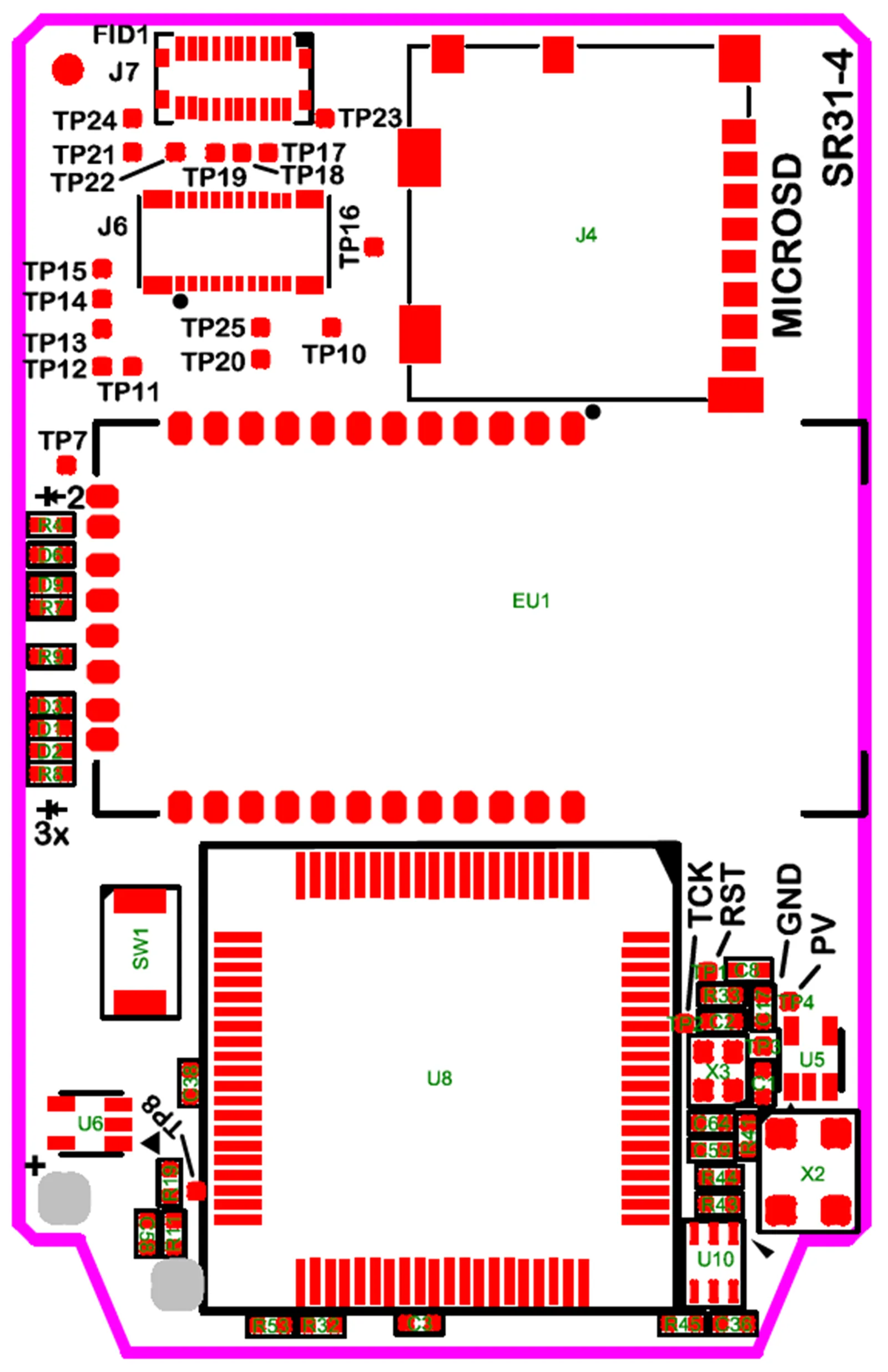
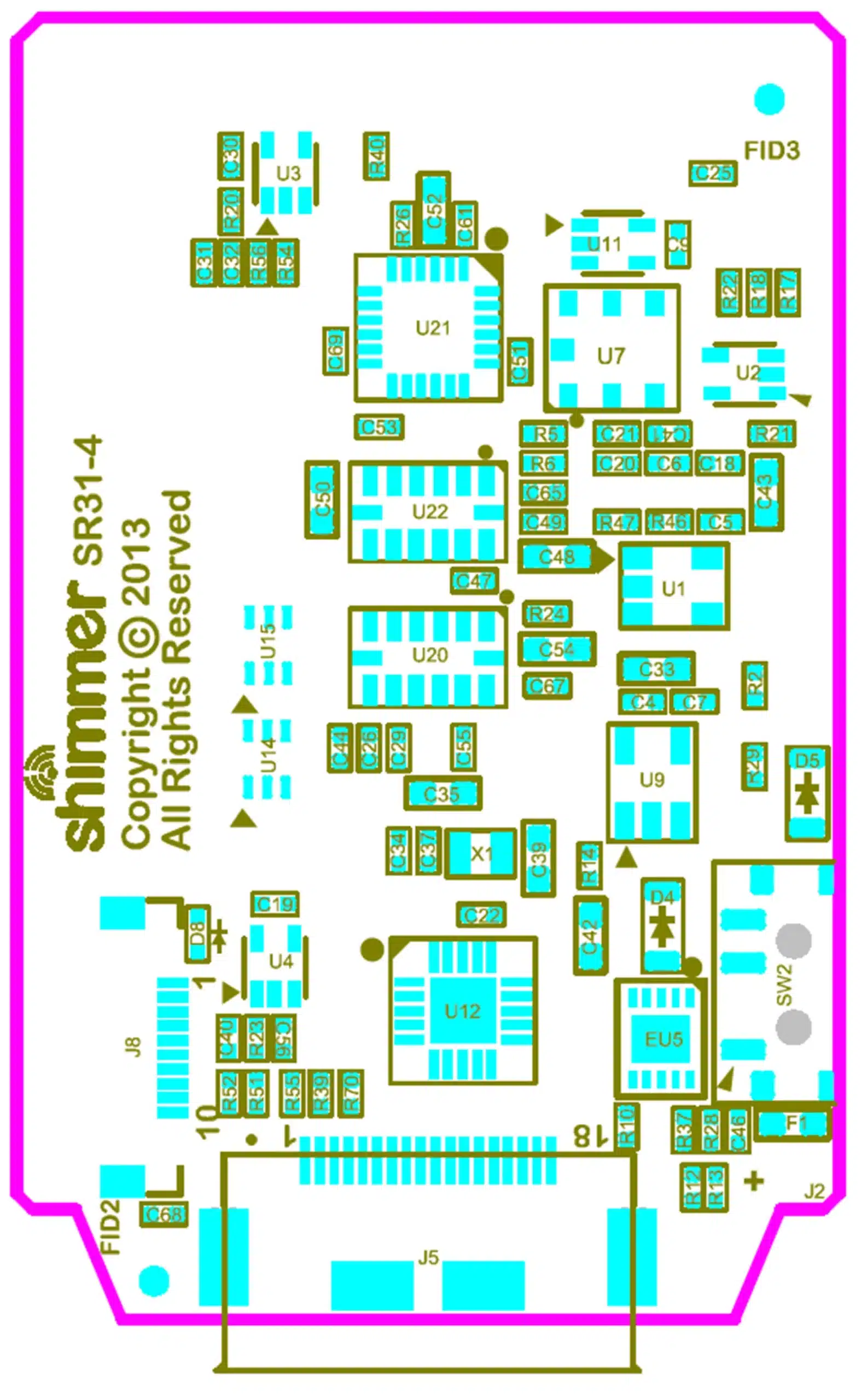
Figure 9‑1 Shimmer3 mainboard Layout Top View
Figure 9‑2 Shimmer3 mainboard Layout Bottom View
9.1.2. Connector Pin Assignments
External Expansion Connector
Conn Pin |
Net Name |
Interruptible? |
Function |
J5-1 |
PV_CHG |
N |
Battery Charging Power 5-6VDC. Do not exceed 300mA connector current rating When >5.7V is applied to this pin, DEBUG mode is activated and JTAG signals are activated. JTAG signals are indicated in ()’s below. |
J5-2 |
SA_SOMI_RXD |
N |
USART A0: Serial |
J5-3 |
SA_SIMO_TXD |
N |
USART A0: Serial |
J5-4 |
FLASH_SCLK_EXT |
N |
USART B1: SPI (wired to microSD) |
J5-5 |
FLASH_SOMI |
N |
USART B1: SPI (wired to microSD) |
J5-6 |
FLASH_SIMO |
N |
USART B1: SPI (wired to microSD) |
J5-7 |
SBWTCK |
N |
BSL programming |
J5-8 |
MSP_RESET_N |
N |
BSL programming and Global Reset |
J5-9 |
DETECT_N (JTAG_TDI) |
N |
Card detect output signal to flash controller (JTAG TDI signal) |
J5-10 |
GPIO_EXTERNAL_RADIO_DD |
Y |
GPIO. Alternate function is reserved for coprocessor Bi-Spy Wire |
J5-11 |
BSL_RX_LED_BLU (JTAG_TMS) |
Y |
BSL programming, BLU LED SIGNAL (JTAG TMS signal) |
J5-12 |
ADC6_FLASHDAT2 |
N |
ADC input or GPO. Also used for SD mode flash access |
J5-13 |
ADC7_FLASHDAT1 |
N |
ADC input or GPO. Also used for SD mode flash access |
J5-14 |
BSL_TX_LED_GR1 (JTAG_TCK) |
Y |
BSL Programming, LED signal (JTAG_TCK signal) |
J5-15 |
FLASH_CS_N (JTAG_TDO) |
Y |
Flash CS or SD Mode DAT3 line (JTAG TDO Signal) |
J5-16 |
ADC15_RADIO_DC |
Y |
ADC Input. Alternate function is reserved for coprocessor Bi-Spy Wire |
J5-17 |
PV |
N |
Regulated Board power output: 3.0VDC @ 100ma* |
J5-18 |
GND |
N |
Board Ground |
J5-TABS/SHELL |
GND |
N |
Board Ground |
* Exact current capacity will vary based on operating state of integrated peripherals and processor.
Internal Expansion Connectors
For function descriptions see previous table.
Conn and Pin Number |
Net Name |
Conn and Pin Number |
Net Name |
J6-1 J6-20 |
PV |
J7-1 J7-2 J7-19 J7-20 |
PV_REG |
J6-2 J6-19 |
GPIO_INTERNAL2 |
||
J6-3 J6-18 |
GPIO_INTERNAL |
J7-3 J7-18 |
ADC1 |
J6-4 J6-17 |
SA_SIMO_TXD |
J7-4 J7-17 |
ADC12 |
J6-5 J6-16 |
SA_SOMI_RXD |
J7-5 J7-16 |
ADC13 |
J6-6 J6-15 |
SA_SCLK |
J7-6 J7-15 |
ADC14 |
J6-7 J6-14 |
SB_SCL |
J7-7 J7-14 |
GPIO_INTERNAL1 |
J6-8 J6-13 |
SB_SDA |
J7-8 J7-13 |
EXP_RESET_N |
J6-9 J6,10 J6-11 J6-12 |
GND |
J7-9 J7,10 J7-11 J7-12 |
GND |
J6-TABS |
GND |
J7-TABS |
GND |
9.1.3. CPU Pin Assignment
The CPU pin connections for Shimmer developers are listed below:
| Pin Name | Pin # | Board Name | Use | ** Type** |
| DVCC | 16,51,31,67 | PV_MSP | Power | Analogue |
| AVCC | 11 | PV_MSP | Power | Analogue |
| VREF | 9 | PV_VREF_MSP | A/D Ref | Analogue |
| VREFN | 10 | GND | A/D Ref | Analogue |
| DVSS | 15,50,30,68 | GND | Power | Analogue |
| AVSS | 12 | GND | Power | Analogue |
| VCORE | 11 | PV_MSPC | Power | Analogue |
| TEST | 71 | SBWTCK | BSL, SBW | Input |
| TCK | 75 | JTAG_TCK | JTAG | Input |
| TMS | 74 | TP_JTAG_TMS | JTAG | |
| TDI | 73 | TP_JTAG_TDI | JTAG | |
| TDO | 72 | TP_JTAG_TDO | JTAG | |
| RST_N | 76 | MSP_RESET_N | BSL, SBW, JTAG | Open Drain |
| XIN | 13 | CLK_MSP_XIN | Primary XTAL | Clocking |
| XOUT | 14 | CLK_MSP_XOUT | Primary XTAL | Clocking |
| XT2IN | 69 | CLK_MSP_HF_XIN | 8MHz Resonator | Clocking |
| XT2OUT | 70 | CLK_MSP_HF_XOUT | 8MHz Resonator | Clocking |
| P1.0 | 17 | RADIO_STATUS | RADIO, RADIO EXP | Input (IRQ) |
| P1.1 | 18 | BSL_TX_LED_GR1 | BSL/LED | Output |
| P1.2 | 19 | BSL_RX_LED_BLU | BSL/LED | |
| P1.3 | 20 | RADIO_RTS | RADIO | INPUT(IRQ) |
| P1.4 | 21 | GPIO_INTERNAL | TBD | Input (IRQ) |
| P1.5 | 22 | GPIO_EXTERNAL_RADIO_DD | TBD, RADIO EXP | Input (IRQ) |
| P1.6 | 23 | USER_N | User Button | Input (IRQ) |
| P1.7 | 24 | MPU_INT | Kinematics | Input(IRQ) |
| P2.0 | 25 | GPIO_EXTERNAL1 | Expansion | Input (IRQ) |
| P2.1 | 26 | GPIO_EXTERNAL2 | Expansion | Input (IRQ) |
| P2.2 | 27 | RADIO_CTS | RADIO | Input (IRQ) |
| P2.3 | 28 | DOCK | Input (IRQ) | |
| P2.4 | 29 | MAG_DRDY | Kinematics | Input (IRQ) |
| P2.5 | 32 | MAG_INT1 | Kinematics | Input (IRQ) |
| P2.6 | 33 | CHG_STAT1 | CHARGER | Input (IRQ) |
| P2.7 | 34 | CHG_STAT2 | CHARGER | Input (IRQ) |
| P3.0 | 35 | SA_SCLK_R | Expansion | Output |
| P3.1 | 36 | SB_SDA | USART B0 | Output |
| P3.2 | 37 | SB_SCL | USART B0 | Input |
| P3.3 | 38 | EXP_RESET_N | Expansion | Output |
| P3.4 | 39 | SA_SIMO_TXD | USART A0 | Output |
| P3.5 | 40 | SA_SOMI_RXD | USART A0 | Input |
| P3.6 | 41 | RADIO_SCLK_R | RADIO EXP, USART A1 | Output |
| P3.7 | 42 | FLASH_SIMO | FLASH, USART B1 | Output |
| P4.0 | 43 | FLASH_CS_N_FLASH_DAT3 | FLASH | Output |
| P4.1 | 44 | SD_DETECT_N | FLASH | Input |
| P4.2 | 45 | SW_FLASH | FLASH | Output |
| P4.3 | 46 | SW_BT | RADIO | Output |
| P4.4 | 47 | BT_RESET_N | RADIO | Output |
| P4.5 | 48 | BT_FACTORY | RADIO | Output |
| P4.6 | 52 | SW_TCXO | TCXO | Output |
| P4.7 | 53 | TCXO_CLK_R | TCXO | Input (Clock) |
| P5.4 | 54 | FLASH_SOMI | FLASH | Input |
| P5.5 | 55 | FLASH_SCLK_R | FLASH | Output |
| P5.6 | 56 | RADIO_TXD_SIMO | RADIO, RADIO EXP | Output |
| P5.7 | 57 | RADIO_RXD_SOMI | RADIO, RADIO EXP | Input |
| P7.2 | 58 | LED_RD | LED | Output |
| P7.3 | 59 | LED_GR | LED | Output |
| P8.0 | 60 | LED_YE | LED | Output |
| P8.1 | 61 | RADIO_CS_N | RADIO EXP | Output |
| P8.2 | 62 | RADIO_RESET_N | RADIO EXP | Output |
| P8.3 | 63 | SW_RADIO | RADIO EXP | Output |
| P8.4 | 64 | NOT ROUTED | ||
| P8.5 | 65 | NOT ROUTED | ||
| P8.6 | 66 | SW_ACCCEL | Kinematics | Output |
| P6.0 | 77 | DETECT_N | FLASH | Output |
| P6.1 | 78 | SEL_ADC | Expansion | Output |
| P6.2 | 79 | BATTERY | ADC | Analogue Input |
| P6.3 | 80 | ACCEL_X | Low Noise Accel | Analogue Input |
| P6.4 | 1 | ACCEL_Y | Low Noise Accel | Analogue Input |
| P6.5 | 2 | ACCEL_Z | Low Noise Accel | Analogue Input |
| P6.6 | 3 | ADC6_FLASHDAT2 | Ext GPIO, ADC | Analogue Input |
| P6.7 | 4 | ADC7_FLASHDAT1 | Ext GPIO, ADC | Analogue Input |
| P7.4 | 5 | ADC12 | ADC | Analogue Input |
| P7.5 | 6 | ADC13 | ADC | Analogue Input |
| P7.6 | 7 | ADC14 | ADC | Analogue Input |
| P7.7 | 8 | ADC15_RADIO_DC | ADC, RADIO EXP | Analogue Input |
9.1.4. Shimmer Clock Drift
Like many embedded devices, the clock on the Shimmer device is prone to drift. Laboratory experiments have indicated that Shimmer-to-Shimmer clock drift is variable and can be up to 12 µs/s. To equate this to longer recording periods 12µsec/sec is equivalent to 0.72 ms/min, 43 ms/hour and 1.04 s/day.
9.2. Appendix B – Legacy Support
9.2.1. Legacy Support
Shimmer1, Shimmer2, and Shimmer2R daughter boards and applications are not compatible with Shimmer3.
Dock and Charging Peripherals may be used for charging and, in some cases, firmware updates. Flash access is not supported using legacy docks.
9.3. Appendix C – Opening or assembling the Shimmer3 enclosure
Whilst the Shimmer3 enclosure can be opened to allow hardware reconfiguration of the device (e.g. adding an expansion board), it is important to note that the plastic enclosure is not designed for regular opening and closing. In particular, it is recommended that the screws not be removed and reinserted on a regular basis as damage to the plastic by over-use of the screw mechanism will occur.
Please, consider your configurations carefully to minimise the number of hardware reconfigurations you will need to carry out.
The following instructions should be used as a guide for opening and closing the Shimmer3 enclosure.
9.3.1. Opening the enclosure to change the SD card or insert an expansion board
Unscrew the screws using a T6 screwdriver.
Turn the unit over so that the button is facing up.
Carefully remove the top of the case, opening from the end of the dock connector.
You now have access to the SD card slot and the internal expansion connector.
If, for any reason you need to remove the circuit board from the case, lift it upward out of the case. The battery should be attached to the underside of the board – ensure that it comes out of the case with the board so as not to damage the connections.
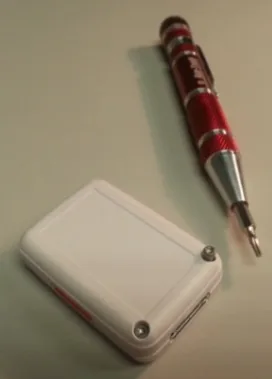
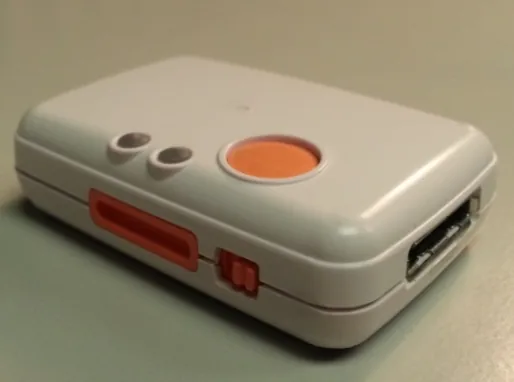
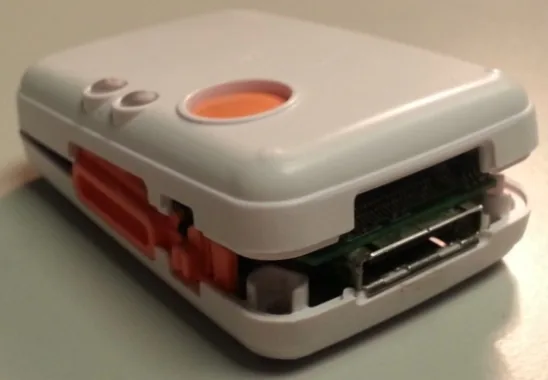
Figure 9‑3 Opening the enclosure
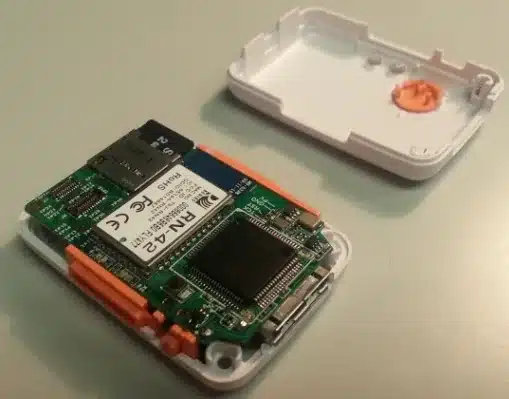
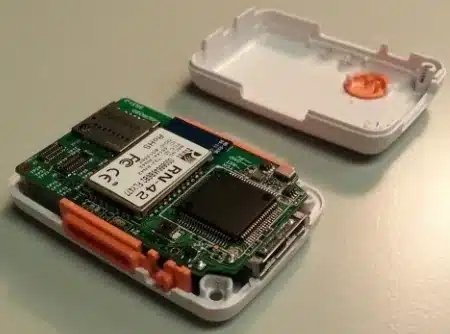
Figure 9‑4 Open enclosure with (left) and without (right) SD card
9.3.2. Assembling the enclosure
Ensure that you have all of the required plastic parts as shown in Figure 9‑5, as well as two screws (M2.0 x 8mm).
Assemble the orange clip fittings in the bottom of the enclosure (these are both the same so it doesn’t matter which one goes to which side).
Install the power switch cap, as shown in Figure 9‑6.
Place the circuit board, with the battery attached to the underside, into the bottom of the enclosure, as shown in Figure 9‑7.
The bottom of the enclosure has a plastic divider to hold the battery in place; ensure that the battery is fitted beside this divider.
Ensure that the power switch actuator sits in the notch on the power switch cap and that the dock connector sits neatly into its slot.
Ensure that the battery wires are fully underneath the circuit board and not obstructing the screw positions.
The orange clip fittings are designed to hold the circuit board in place – it should be an exact fit.
Insert the SD card, as shown in Figure 9‑7.
Carefully attach the top of the case, starting from the end of the dock connector, as shown in Figure 9‑8. When the top is in place, gently push down on the top to snap closed.
- Do not force the top closed – if there is an obstruction, remove the top to clear the obstruction before trying again.
Tighten the screws in the underside of the enclosure.
Note: it is very important to hold the boss ends together while running in the screw. Do not let the screws draw the parts together as this could damage the enclosure.
Note: do not over-tighten the screws as they may damage the top of the enclosure; when the top of the screw is flush with the plastic, stop tightening.
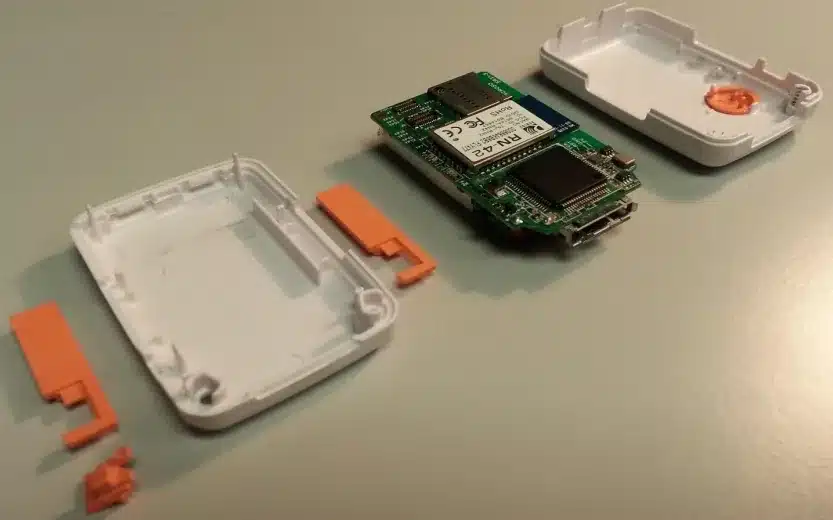
Figure 9‑5 Plastic enclosure parts
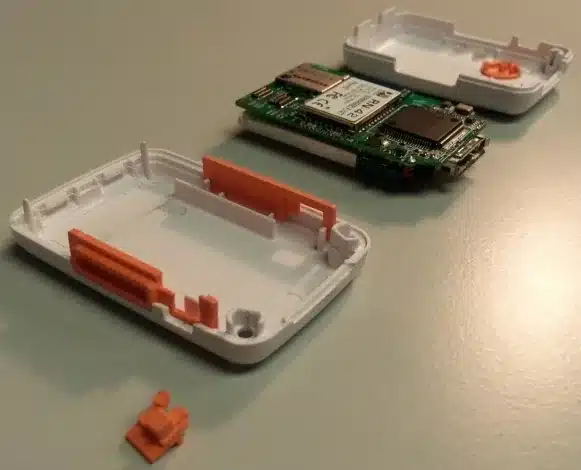
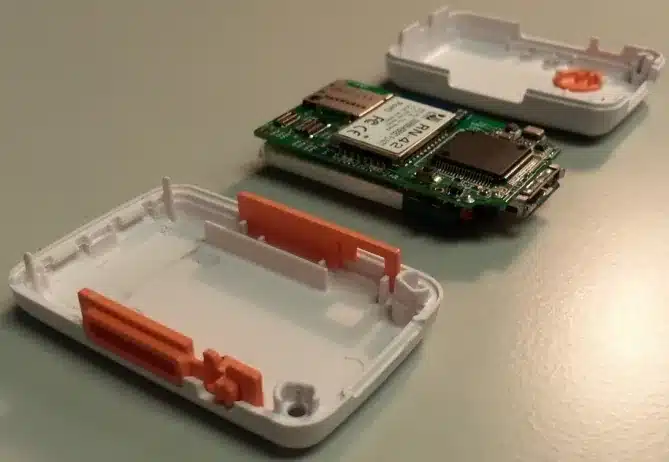
Figure 9‑6 Assembling clip fittings and power switch cap
Figure 9‑7 Installed circuit board and SD card insertion

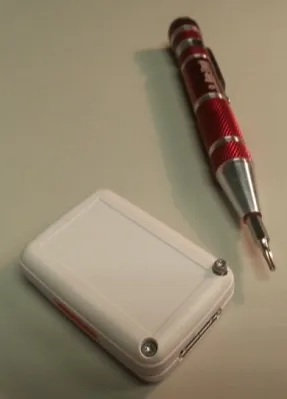
Figure 9‑8 Closing the enclosure and inserting screws
Glossary
| ACLK | Auxiliary Clock |
|---|---|
| ADC | Analogue-to-Digital Converter |
| BSL | Boot Strap Loader |
| BT | Bluetooth |
| CPU | Central Processing Unit |
| CSMA | Carrier Sense Multiple Access |
| CVS | Concurrent Versioning System |
| DCO | Digitally Controlled Oscillator |
| DMA | Direct Memory Access |
| ECG | Electrocardiogram |
| ECG | Electrocardiogram |
| EEG | Electroencephalogram |
| EMG | Electromyogram |
| EOG | Electrooculography |
| FHSS | Frequency Hopping Spread Spectrum |
| GPIO | General Purpose Input/Output |
| GSR | Galvanic Skin Response |
| GUI | Graphical User Interface |
| HTML | Hypertext Markup Language |
| HTTP | Hypertext Transfer Protocol |
| ID | Instrument Driver |
| IEEE | Institute of Electrical and Electronic Engineers |
| ISM | Industrial, Scientific and Medical Band |
| LCD | Liquid Crystal Display |
| LED | Light Emitting Diode |
| MAB | Memory Address Bus |
| MAC | Media Access Control |
| MCLK | Master Clock |
| MDB | Memory Data Bus |
| MPR | Microprocessor and Radio Boards |
| MSS | Multi-Shimmer Sync |
| MTS | Mote Sensor |
| nesC | network embedded system C |
| PAN | Personal Area Network |
| PWM | Pulse Width Modulation |
| RAM | Random Access Memory |
| RF | Radio Frequency |
| RISC | Reduced Instruction Set Computer |
| ROM | Read Only Memory |
| RPM | RedHat Package Manager |
| SD | Secure Digital |
| SDK | Software Development Kit |
| SIG | Special Interest Group |
| SIMO | Slave In, Master Out |
| SIP | Session Initiation Protocol |
| SMCLK | Sub-Main Clock |
| SOMI | Slave Out, Master In |
| SPI | Serial Peripheral Interface |
| SPP | Serial Port Profile |
| STE | Slave Transmit Enable |
| TCP/IP | Transmission Control Protocol / Internet Protocol |
| TinyOS | Tiny Operating System |
| UART | Universal Asynchronous Receiver/Transmitter |
| UCLK | USART Clock |
| USART | Universal Serial Asynchronous Receiver/Transmitter |
| USB | Universal Serial Bus |
| WBSN | Wireless Based Sensor Network |
| WSN | Wireless Sensor Network |

Legal Notices and Disclaimers · Informed Consent Statement · Agency Compliance · Welcome Message
Shimmer User Manual
Revision 3q
Legal Notices and Disclaimers
Disclaimers
REALTIME TECHNOLOGIES LTD. MAKES NO WARRANTY OF ANY KIND WITH REGARD TO THIS MATERIAL, INCLUDING, BUT NOT LIMITED TO, THE IMPLIED WARRANTIES OF MERCHANTABILITY AND FITNESS FOR A PARTICULAR PURPOSE. REALTIME TECHNOLOGIES LTD. ASSUME NO RESPONSIBILITY FOR ANY ERRORS THAT MAY APPEAR IN THIS DOCUMENT. REALTIME TECHNOLOGIES LTD. MAKES NO COMMITMENT TO UPDATE NOR TO KEEP CURRENT THE INFORMATION CONTAINED IN THIS DOCUMENT.
THIS SPECIFICATION IS COPYRIGHTED BY AND SHALL REMAIN THE PROPERTY OF REALTIME TECHNOLOGIES LTD. NO LICENSE, EXPRESS OR IMPLIED, BY ESTOPPEL OR OTHERWISE TO ANY INTELLECTUAL PROPERTY RIGHTS IS GRANTED HEREIN.
REALTIME TECHNOLOGIES LTD. DISCLAIM ALL LIABILITY, INCLUDING LIABILITY FOR INFRINGEMENT OF ANY PROPRIETARY RIGHTS, RELATING TO USE OF THE MATERIALS AND IMPLEMENTATION OF INFORMATION IN THIS SPECIFICATION. INTEL DO NOT WARRANT OR REPRESENT THAT SUCH USE OR IMPLEMENTATIONS WILL NOT INFRINGE SUCH RIGHTS.
NO PART OF THIS DOCUMENT MAY BE COPIED OR REPRODUCED IN ANY FORM OR BY ANY MEANS WITHOUT PRIOR WRITTEN CONSENT OF REALTIME TECHNOLOGIES LTD.
REALTIME TECHNOLOGIES LTD. RETAINS THE RIGHT TO MAKE CHANGES TO THESE SPECIFICATIONS AT ANY TIME, WITHOUT NOTICE.
CAUTION
RISK OF EXPLOSION IF BATTERY IS REPLACED BY AN INCORRECT TYPE.
DISPOSE OF USED BATTERIES ACCORDING TO THE INSTRUCTIONS.
Legal Notices
Realtime Technologies Ltd. software products are copyrighted by and shall remain the property of Realtime Technologies Ltd. Use, duplication or disclosure is subject to restrictions stated in the three clause BSD license, or in the case of software delivered to the government, in accordance with the software license agreement as defined in FAR 52.227-7013.The Shimmer logo is a registered trademark of Realtime Technologies Ltd.

Other brands, marks and names mentioned herein may be the property of their respective owners and used in accordance with published guidelines.
© REALTIME TECHNOLOGIES LTD. 2008-2018, All Rights Reserved
Informed Consent Statement
Shimmer is an open flexible platform intended for qualified personal conducting research in wearable sensor applications. Consequently, although great care was taken in the design of this device, there is some inherent risk both with the design and manufacturing that you assume when the device is in close proximity to your body or the body of your test subjects. Depending on local regulations, Shimmer may not fully comply with commercial product testing standards. Shimmer as sold lacks medical certifications (e.g. ANSI/AAMI/IEC). Shimmer devices should never be used for diagnostic purposes without full consideration of operator and subject risk. The following list describes some of the subject risks:
There is a risk of electrical shock due to manufacturing defects or improper use (see usage guidelines and warnings).
There is also a risk of sustaining a burn due to a catastrophic failure of the device which could result from overheating of components.
There is a risk of radio interference with the operation of other electronic devices and we make no claims to the consequences of this.
There is a risk of some minor skin irritation from electrode pads over prolonged periods of time which may cause discomfort.
The device is not designed with proper safeguards for defibrillation. As such, electrodes must be removed before defibrillation is attempted.
Data privacy limitations: It should be understood from the outset and you should communicate to test subjects that the physiological data that is streamed, stored, and analyzed through use of the device is not anonymized or privacy-protected in any way and you should take appropriate precautions in the protection and handling of such data in your research activities. Shimmer itself may buffer raw physiological data unencrypted on the integrated flash memory device. RF data streaming from the Shimmer may not be encrypted and could be intercepted by others. RF data downstream from an aggregation device, such as a cell phone may not be encrypted and is likewise susceptible to access.
Physiological data generated through use of Shimmer may indicate conditions that your test subject was previously unaware of prior to participation in research using the device.
There may be a risk of exposure to minute amounts of chemicals from the manufacturing process or the components themselves (such as latex, lead etc.).
There may be an increased risk of physical injury by the physical presence of the device on a test subject’s body and you fully assume this responsibility.
Realtime Technologies Ltd is not liable for damage or loss of data when using the Shimmer platform.
Some Shimmer peripherals rely on 3rd party driver support. Whilst Realtime/Shimmer Research have tested features using a typical system, in some cases the end user will need to contact the peripheral vendor for resolution of installation, compatibility or operational issues.
By your use of Shimmer you acknowledge these and other risks inherent in the use of an experimental device and you assume full responsibility for testing this device with human subjects.
This device cannot be marketed or put into service within the EU until it has been made to comply with the Medical Devices Directive 93/42/EEC. In the United States, Shimmer is an investigational device, limited by US law to investigational uses.****
Agency Compliance
The identifiers below are for Shimmer3. Shimmer3R uses a different Bluetooth module, and its identifiers follow under Shimmer3R.
FCC
Contains FCC ID: X2W-SR7-1
The FCC ID marking label is attached to the back of the Shimmer and is to remain attached at all times to comply with FCC requirements for Modular approval:
Here is an example of the text on the FCC ID marking label:
Model: Shimmer 3
Contains: FCC : TJ-RN42
IC : 6514A-RN42
BT RADIO ID:
Made in Ireland

This device complies with Part 15 of the FCC Rules.
Operation is subject to the following two conditions:
(1) This device may not cause harmful interference, and
(2) This device must accept any interference received, including interference that may cause undesired operation.
RADIO AND TELEVISION INTERFERENCE
This equipment has been tested and found to comply with the limits for a Class B digital device, pursuant to Part 15 of the FCC rules. These limits are designed to provide reasonable protection against harmful interference in a residential installation. This equipment generates, uses, and can radiate radio frequency energy and, if not installed and used in accordance with the instructions, may cause harmful interference to radio communications. However, there is no guarantee that interference will not occur in a particular installation. If this equipment does cause harmful interference to radio or television reception, which can be determined by turning the equipment off and on, the user is encouraged to try to correct the interference by one or more of the following measures:
– Reorient or relocate the receiving antenna.
– Increase the separation between the equipment and the receiver.
– Connect the equipment into an outlet on a circuit different from that to which the receiver is connected.
– Consult the dealer or an experienced radio/TV technician for help.
Changes and Modifications not expressly approved by Realtime Technologies Ltd. can void your authority to operate this equipment under Federal Communications Commission rules.
ICES-003 Label

Shimmer3R
Shimmer3R contains the Ezurio Vela IF820 Bluetooth module (Classic Bluetooth and Bluetooth Low Energy).
TODO(S3R): Confirm the Shimmer3R end-product identifiers and labelling before publishing: the FCC ID and IC on the label, the CE/UKCA declaration, and the Bluetooth listing. Also confirm which IF820 variant is fitted, integrated antenna (453-00171) or MHF4 connector (453-00172), since that decides whether the module grant applies as it stands. The module-level identifiers in Ezurio’s preliminary datasheet are: FCC ID SQG-VELAIF820; ISED 3147A-VELAIF820; CE/UKCA no ID number required; Bluetooth QDID 217016. Whether the FCC Part 15 statement and the ICES-003 label above carry over to Shimmer3R also needs confirming.
Welcome Message
Thank you for your purchase of Shimmer!
This User Manual will provide essential operating instructions and help you to understand the capabilities of the Shimmer3 platform. Please note that the User Manual for the Shimmer2r platform (and previous) is available for download from our website, www.shimmersensing.com. The latest version of this manual is also available for download from our website.
In addition to the Shimmer User Manual, your Shimmer kit ships with the Shimmer User Resources distribution USB. It is recommended that you browse the contents of the Shimmer User Resources by initially opening the README file in your web browser and following the appropriate links. Updated versions of the items in the Shimmer User Resources may also be available for download from the Shimmer website.
If you have queries or need information in addition to that outlined in this document, it is recommended that you consult with our additional documentation, which is included in the Shimmer User Resources distribution and is available for direct download from our website. The website also contains an extensive FAQ section which may help to clarify any issues you might have. Also, check out the large number of tutorial videos on YouTube which can be found by search for ‘Shimmer Sensing’. Should you have further queries you can contact or support service or use the Shimmer-users mailing list.
info@shimmersensing.com (non-technical questions)
www.shimmersensing.com/support/wearable-sensing-support (technical questions)
www.shimmersensing.com (Shimmer website)
Best wishes,
The Shimmer Team