
1. Introduction
The Shimmer MatlabTM Instrument Driver allows for realtime streaming of data from a Shimmer device into MatlabTM. It is designed to work with MatlabTM 2008a (version 7.6) or later on a Windows OS (the driver has been tested on Windows 7 and Windows 10).
2. Pre-Requisites
In order to use the Shimmer MatlabTM Instrument Driver you will need the following:
The most recent version of the Shimmer User Manual, which holds information on programming firmware onto Shimmer and information on how to pair a Shimmer. The Shimmer User Manual is available for download from the documentation section of the Shimmer website.1
MatlabTM,2 2008a (version 7.6) or later installed on your PC.
A Shimmer2/2r with the latest BtStream firmware or a Shimmer3 programmed with the latest version of LogAndStream firmware.
NOTE: BtStream firmware for Shimmer3 is no longer officially supported after it has been deprecated.
The Shimmer needs to be paired with the PC (over Bluetooth); please refer to the Shimmer User Manual for information on how to pair your Shimmer with your PC.
Ensure you are using the latest version of the Instrument Driver and accompanying User guide, by checking the downloads section of the Shimmer website for the most recent version3.
3. Installation
3.1. Download
Download the folder Shimmer MatlabTM Instrument Driver and copy it to a suitable location.
3.2. Install Realterm
Download and install an application called Realterm Serial Terminal, which acts as the communication link between the Shimmer device and MatlabTM. Realterm version 2.0.0.57 was used in the development of this driver and can be downloaded from http://sourceforge.net/projects/realterm/files/Realterm/2.0.0.57/.
Note: Make sure MATLAB is closed before installing Realterm. Alternatively, restart MATLAB after installing Realterm.
Important 1: When you are installing Realterm you need to ensure that the option to register Realterm automation server is ticked when presented with the window at the end of the installation process as highlighted in _Ref315957617 below.
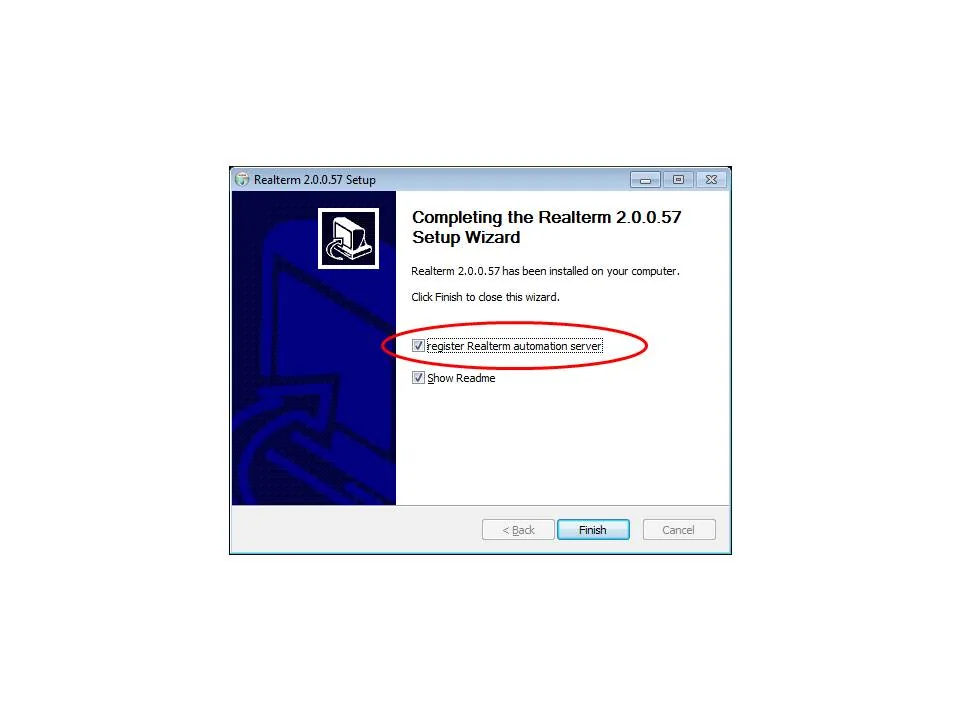
Figure 3‑1 register Realterm automation server
3.3. Windows Users – Change User Account Control Settings
Users of Windows need to disable the User Account Control Settings to allow Realterm to run with administrator privileges always. For Windows 7, in order To locate the User Account Control Settings control panel you should search for it in the Start Menu. The control panel is illustrated in Figure 3‑2. You need to set this control to Never Notify. You will need to restart your computer for the setting to take effect.
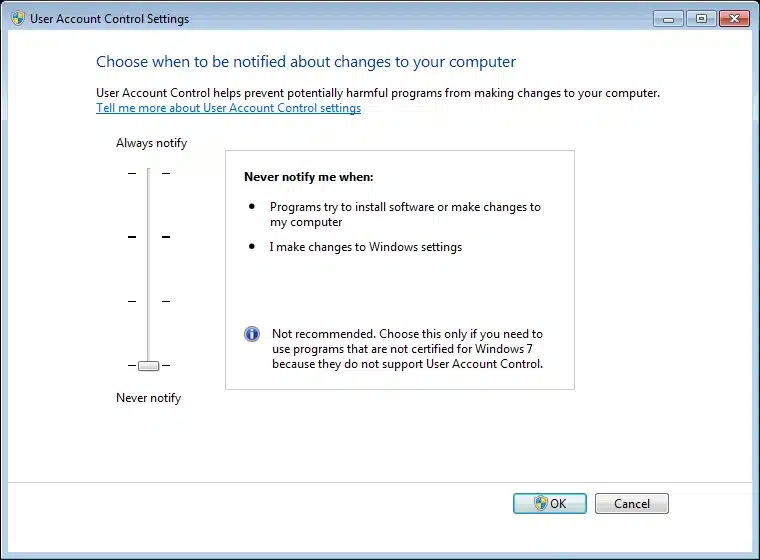
Figure 3‑2 User Account Control Settings (Windows 7)
4. Getting Started
Start MatlabTM and set the current working directory to the Shimmer MatlabTM Instrument Driver folder you downloaded previously. Next to this User Manual the folder contains the following files:
Readme.txt
ShimmerHandleClass.m
plotandwriteexample.m
orientation3Dexample.m
twoshimmerexample.m
plotandwriteemgexample.m
plotandwriteecgexample.m
plotandwriteexgtestsignalexample.m
ppgtoheartrateexample.m
ecgtoheartrateexample.m
FilterClass.m
ShimmerBiophysicalProcessingLibrary_Rev_X_Y.jar
ReadmeShimmerBiophysicalProcessingLibrary.txt
SetEnabledSensorsMacrosClass.m
plotandwriteecgleadoffdetectionexample
plotandwriteemgleadoffdetectionexample
Next to the files listed above the folder contains a directory with supporting functions for quaternion algebra and a directory that holds the Sampling Rate Table.
4.1. ShimmerHandleClass
The file ShimmerHandleClass.m contains the code for the class, ShimmerHandleClass, which can be used to create Shimmer objects in MatlabTM. In the command window, type doc ShimmerHandleClass to get an explanation of the properties and methods of the class.
4.2. FilterClass
FilterClass.m contains an implementation of a configurable Chebyshev filter, which does not rely on the Matlab toolboxes. See for instance plotandwriteemgexample.m, plotandwriteecgexample.m or ppgtoheartrateexample.m for examples that make use of the filter class.
4.3. SetEnabledSensorsMacrosClass
To enable/disable sensors it was necessary to enter strings as arguments of setenabledsensors as shown in the example below:
shimmer.setenabledsensors(‘Accel’,1,’Mag’,1,’Gyro’,1,’BattVolt’,1);
The class SetEnabledSensorsMacrosClass – introduced in Shimmer MatlabTM Instrument Driver v2.3 – supports easier enabling sensors, without the need of entering strings, changing the example above into:
SensorMacros = SetEnabledSensorsMacrosClass; % create an instance of the class
shimmer.setenabledsensors(SensorMacros.ACCEL,1,SensorMacros.MAG,1,…
SensorMacros.GYRO,1,SensorMacros.BATT,1);
It is still possible to enable sensors by entering strings, but we think typing errors are easier made that way.
Also introduced in Shimmer MatlabTM Instrument Driver v2.3 is the function disableallsensors – for disabling all sensors.
4.4. ShimmerBiophysicalProcessingLibrary
A Java Archive (.jar file) is provided with the Instrument Driver to extract Heart Rate from either Electrocardiogram (ECG) or photoplethysmogram (PPG, measured with an optical pulse sensor) data.
(This library was called ShimmerPPGtoHR_Rev_X_Y.jar for Shimmer MatlabTM Instrument Driver v2.2 and contained only an algorithm for converting PPG to Heart Rate, which did not require calibrated timestamp as input, see note below.)
To use this library in conjunction with the MATLAB ID, save the ShimmerBiophysicalProcessingLibrary_Rev_X_Y.jar file to a local directory on your PC (e.g. C:\Users\username\Documents\MATLAB\Shimmer Matlab Instrument Driver vx.y) and add it to the Java dynamic class path in Matlab, using the following command:
javaaddpath(‘C:\Users\username\Documents\MATLAB\Shimmer Matlab Instrument Driver vx.x\ ShimmerBiophysicalProcessingLibrary_Rev_X_Y.jar);
The examples ppgtoheartrateexample.m and ecgtoheartrateexample.m show how to use this functionality. A brief description of these examples can be found in section 4.5.
NOTE: The algorithms for estimating Heart Rate from ECG or PPG require the calibrated timestamp as input, which is demonstrated in the examples.
NOTE: The ShimmerBiophysicalProcessingLibrary update for Shimmer MatlabTM Instrument Driver v2.6 contains an improved ECGtoHR algorithm. For details refer to the ecgtoheartrateexample.m and the ReadmeShimmerBiophysicalProcessingLibrary.txt
For information on updating Java for MATLAB, see section 13.1.
4.5. Examples
The file, plotandwriteexample.m, contains a function which is used to demonstrate the use of the ShimmerHandleClass. Type help plotandwriteexample to get an explanation of the function.
The file, orientation3Dexample.m, contains a function which is used to demonstrate the ability of the ShimmerHandleClass to estimate the orientation of a Shimmer device in 3D and an example of how to visualise the orientation on screen. Type help orientation3Dexample to get an explanation of the function.
The file, twoshimmerexample.m, contains a function which is used to further demonstrate the use of the ShimmerHandleClass. Type help twoshimmerexample to get an explanation of the function.
The three ExG example files, plotandwriteemgexample.m, plotandwriteecgexample.m and plotandwriteexgtestsignalexample.m, demonstrate the ExG functionality for Shimmer3 in combination with the ExG Expansion Board. For more information refer to Section 11 of this document.
In ppgtoheartrateexample.m, photoplethysmogram (PPG) data from an optical pulse sensor is converted to heart rate. The PPG data is pre-filtered with a second order Chebyshev low pass filter (LPF) with a corner frequency of 5Hz, by using FilterClass.m. This example makes use of the ShimmerBiophysicalProcessing Library.
In ecgtoheartrateexample.m, ECG data is converted to heart rate. The ECG data is pre-filtered with a second order Chebyshev low pass filter (LPF) with a corner frequency slightly smaller than the Nyquist frequency and a second order Chebyshev high pass filter (HPF) with a corner freq of 0.5Hz, by using FilterClass.m. This example makes use of the ShimmerBiophysicalProcessing Library.
Examples plotandwriteecgleadoffdetectionexample.m, plotandwriteemgleadoffdetectionexample.m show how to configure the lead-off detection for ECG and EMG data. When lead-off detection is enabled and an electrode does not make contact with the body or the electrode cable is unplugged, the corresponding lead-off signal changes accordingly. Lead-off detection is explained in more detail in section 11.
The example plotandwritepressureandtemperatureexample.m demonstrates how to plot and write pressure and temperature data from the BMP180/BMP280 sensor on a Shimmer3 unit.
**
5. Using the Instrument Driver
5.1. Plotandwriteexample
The best way to start using the instrument driver is to go through the plotandwriteexample.m mentioned in the previous section. In this section, some key functions within the example which users should take note of when using the instrument driver are presented.
shimmer = ShimmerHandleClass(comPort);
- creates a ShimmerHandleClass which takes in a string value of the Com Port given as the input argument comPort; each Shimmer device which has been paired to the PC will have a Com port associated with it.
shimmer.connect;
- connects the PC over Bluetooth to the Shimmer device whose Com port was specified in the comPort field for the ShimmerHandleClass.
shimmer.setsamplingrate(51.2);
- transmits a command to set the sampling rate of the Shimmer device. A list of supported sampling rates can be found in the Resources folder.
shimmer.setinternalboard(‘9DOF’);
- specifies which daughter board is attached to the Shimmer device you have connected to; in the example, the Shimmer IMU 9DoF daughterboard is selected.
shimmer.setenabledsensors(SensorMacros.ACCEL,1,SensorMacros.MAG,1,…
SensorMacros.GYRO,1));
- transmits a command to the Shimmer device, telling it which sensors it should enable; in the example, the gyroscope, magnetometer and accelerometer are enabled. (SensorMacros is an instance of the class SetEnabledSensorsMacrosClass, see section 4.3).
shimmer.start;
- transmits a start streaming command to the Shimmer device.
shimmer.stop;
- transmits a stop streaming command to the Shimmer device.
shimmer.disconnect;
- disconnects the Bluetooth connection between the PC and the Shimmer device.
Readers should note that Timestamp data can be returned in a raw (RAW) and in a calibrated (CAL) format. RAW timestamp data is generated from the crystal oscillator on the Shimmer which has a frequency of 32768 Hz. It is a 16-bit value and will loop around 0 when it exceeds 65536. CAL timestamp data is in units of milliseconds.
5.2. List of commands
Table 5‑1 contains the list of commands available in the ShimmerHandleClass. The “Usage” column denotes the versions of Shimmer hardware with which each command is compatible: Shimmer2 (2), Shimmer2r (2r) and/or Shimmer3 (3).
| Command | Description | Usage |
|---|---|---|
| setsamplingrate | Set the sampling rate of the Shimmer. | 2/2r/3 |
| setenabledsensors | Enables/disables the sensors on the Shimmer. | 2/2r/3 |
| setconfigbyte0 | Set the config byte0 on the Shimmer. | 2/2r |
| setfivevoltreg | Set the 5 volt regulator bit on the Shimmer. | 2/2r |
| setpmux | Set the PMux bit on the Shimmer. | 2/2r |
| setledblink | Set which LED is blinking on the Shimmer. | 2/2r/3 |
| setaccelrange | Set the accelerometer range of the Shimmer. | 2/2r/3 |
| setgsrrange | Set the Gsr Range on the Shimmer. | 2/2r/3 |
| setmagrange | Set the Mag Range on the Shimmer. | 2/2r/3 |
| setmagrate | Set the Mag Data Rate on the Shimmer. | 2/2r/3 |
| setinternalboard | Sets the internal daughter board on the Shimmer. | 2/2r/3 |
| setexternalboard | Sets the external daughter board on the Shimmer. | 2/2r/3 |
| setgyroinusecalibration | Enable/disable gyro in-use calibration. | 2/2r/3 |
| setbuffersize | Set the number of samples sent in each data packet. | 2/2r/3 |
| setemgcalibrationparameters | Store the EMG calibration parameters on the Shimmer. | 2/2r/3 |
| setecgcalibrationparameters | Store the ECG calibration parameters on the Shimmer. | 2/2r/3 |
| getcomport | Get the Com Port of the Shimmer. | 2/2r/3 |
| getstate | Get the state of the Shimmer. | 2/2r/3 |
| getshimmerversion | Get the version number of the Shimmer. | 2/2r/3 |
| getsamplingrate | Get the sampling rate of the Shimmer. | 2/2r/3 |
| getconfigbyte0 | Get the config byte0 setting of the Shimmer. | 2/2r |
| getfivevoltreg | Get the 5 volt Regulator setting of the Shimmer. | 2/2r/3 |
| getpmux | Get the PMux setting of the Shimmer. | 2/2r |
| getaccelrange | Get the accelerometer range of the Shimmer. | 2/2r/3 |
| getgsrrange | Get the gsr range of the Shimmer. | 2/2r/3 |
| getmagrange | Get the mag range of the Shimmer. | 2/2r/3 |
| getconfigbytes | Get the config bytes setting (only config byte0 for Shimmer2 , Shimmer2r) | 2/2r/3 |
| getinternalboard | Get the internal board setting of the Shimmer. | 2/2r/3 |
| getexternalboard | Get the external board setting of the Shimmer. | 2/2r/3 |
| getcalibrationparameters | Get calibration parameters for Accel/Mag/Gyro. | 2/2r/3 |
| getenabledsignalnames | Get the names of the enabled sensor signals. | 2/2r/3 |
| getsignalname | Get the name of a sensor signal. | 2/2r/3 |
| getsignalindex | Get the index of a sensor signal. | 2/2r/3 |
| getdata | Get all available sensor data. | 2/2r/3 |
| getpercentageofpacketsreceived | calculate percentage of packets received. | 2/2r/3 |
| connect | Connect to the Shimmer over Bluetooth. | 2/2r/3 |
| start | Send start streaming command to the Shimmer. | 2/2r/3 |
| stop | Send stop streaming command to the Shimmer. | 2/2r/3 |
| toggleLED | Send command to the Shimmer to toggle the red LED. | 2/2r/3 |
| disconnect | Close serial connection with the Shimmer. | 2/2r/3 |
| setinternalexppower | Enable to power the external sensor when using the Shimmer GSR+ Expansion Board or Resistance input of Bridge Amplifier+ Expansion Board | 3 |
| getuncalibrateddata | Get uncalibrated data from the data buffer. Note: Deprecated function, use getdata instead. | 2/2r/3 |
| getexggain | Get the exg gain. | 3 |
| getexgrate | Get the exg rate. | 3 |
| getinternalexppower | Get the internal expansion power setting. | 3 |
| getpressureresolution | Get the pressure resolution. | 3 |
| getaccellpmode | Get acceleration low power mode setting | 3 |
| getaccelhrmode | Get acceleration high resolution mode setting | 3 |
| setaccelhrmode | Set acceleration high resolution mode | 3 |
| setaccellpmode | Set acceleration low power mode | 3 |
| setgyrorate | Set the data rate of the gyroscope. | 3 |
| setaccelrate | Set the data rate of the digital accelerometer. | 3 |
| setgyrorange | Set the range of the gyroscope. | 3 |
| setpressureresolution | Set the pressure resolution. | 3 |
| setconfigbytes | Set the config bytes. | 3 |
| setdefaultecgparameters | Set default ecg parameters. | 3 |
| setdefaultemgparameters | Set default emg parameters. | 3 |
| setexgconfiguration | Set the exg configuration. | 3 |
| setexggain | Set the exg gain. | 3 |
| setexgrate | Set the exg rate. | 3 |
| setexgtestsignalparameters | Set default exg testsignal parameters. | 3 |
| deprecatedgetdata | Get any type of available sensor data | 2/2r/3 |
| disableallsensors | Disable all sensors | 2/2r/3 |
| getbaudrate | Get baudrate setting | 3 |
| getexgleadoffcomparatorthreshold | Get lead-off comparator threshold setting | 3 |
| getexgleadoffdetectioncurrent | Get lead-off detection current setting | 3 |
| getexgleadoffdetectionmode | Get lead-off detection mode setting | 3 |
| getexgreferenceelectrodeconfiguration | Get ExG reference electrode configuration | 3 |
| getorientation3D | Get 3D orientation setting | 3 |
| setorientation3D | Set 3D orientation | 3 |
| getexpboardid | Get Expansion Board ID | 3 |
| getsdcarddirectoryname | Get SD card directoryname | 3 |
| getstatus | Get status | 3 |
| setbaudrate | Set baudrate | 3 |
| setexgleadoffcomparatorthreshold | Set ExG lead-off comparator threshold | 3 |
| setexgleadoffdetectioncurrent | Set ExG lead-off detection current | 3 |
| setexgleadoffdetectionmode | Set ExG lead-off detection mode | 3 |
| setexgreferenceelectrodeconfiguration | Set ExG reference electrode configuration | 3 |
| startdatalogandstream | Send start logging+streaming command to the Shimmer | 3 |
| resettodefaultconfiguration | Reset Shimmer configuration to default. | 3 |
| getrealtimeclock | Get Real Time Clock value set on the Shimmer | 3 |
| setrealtimeclock | Set Real Time Clock on Shimmer with PC System time | 3 |
| getbatteryvoltage | Get Shimmer Battery Voltage in Connected state | 3 |
| stopdatalogandstream | Send stop logging+streaming command to the Shimmer | 3 |
| startloggingonly | Send start logging only command to the Shimmer | 3 |
| stoploggingonly | Send stop logging only command to the Shimmer | 3 |
| disablevbattfreq | Disable sending battery voltage while streaming | 3 |
| enabletimestampunix | Enable PC system timestamps | 3 |
Table 5‑1 ShimmerHandleClass Commands
For further information on each command, either use the MatlabTM help function or directly refer to the ShimmerHandleClass.m file. To use MatlabTM help, select (highlight) the command and press F1 as shown in the example in Figure 5‑1.
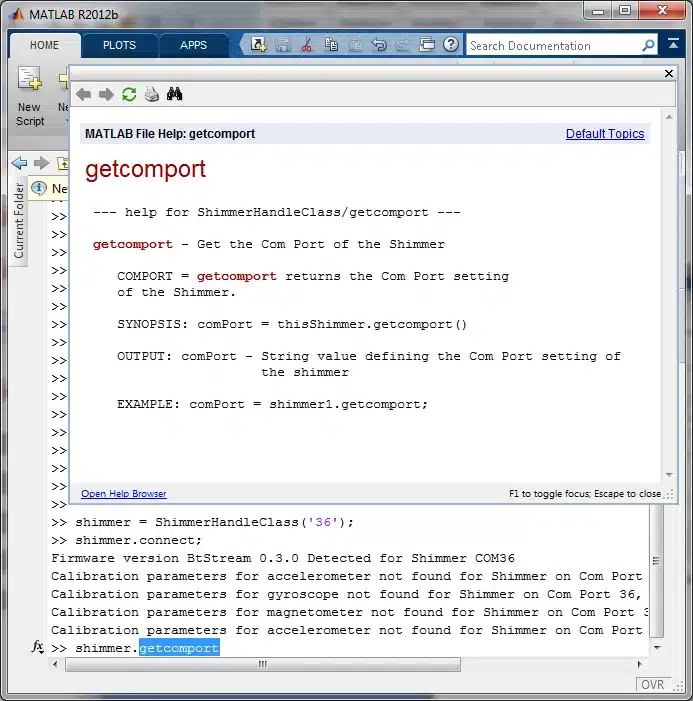
Figure 5‑1: Using Help
5.3. Shimmer State Machine
The Shimmer essentially behaves as a state machine. Figure 5‑2 illustrates the behaviour of the state machine.
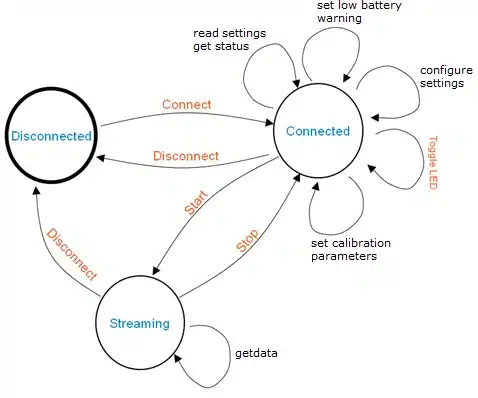
Figure 5‑2: Shimmer State Machine
The Shimmer state machine has 3 possible states, Disconnected, Connected and Streaming. The default state is Disconnected. Action Methods are used to transition from one state to another (apart from ToggleLed) as illustrated by the orange text in Figure 5‑2. These Action Methods are explained in more detail in Table 5‑2.
For setting calibration parameters, read or configure settings, get status updates or set the low battery warning the Shimmer needs to be in the Connected state.
To capture data with the getdata method the Shimmer needs to be in Streaming state.
A priori State |
Action Command |
A posteriori State |
Description |
|---|---|---|---|
Disconnected |
Connect |
Connected |
Establishes a connection with the COM Port/Shimmer defined at the input COM Port |
Connected |
Disconnect |
Disconnected |
Closes the connection with the COM Port/Shimmer defined at the input COM Port |
Connected |
Start / Startdatalogandstream |
Streaming |
Starts data streaming from the Shimmer device |
Connected |
Toggle LED |
Connected |
Toggles the red LED on the Shimmer |
Streaming |
Stop |
Connected |
Stops data streaming from the Shimmer device |
Streaming |
Disconnect |
Disconnected |
Stops data streaming and closes the connection with the COM Port/Shimmer defined at the input COM Port |
5.4. Data format
When the Action Method Connect is called to change the Shimmer state to Connected, see Table 5‑2 for details, the function inquiry is called that sends an Inquiry Command to the Shimmer. The Shimmer responds with an Inquiry Response in the form of a serial string array. This string array is parsed by means of the function parseinquiryresponse, which in turn calls the function interpretdatapacketformat to interpret the data packet format output of parseinquiryresponse. The data packet format is an array of bytes which identifies the sensor signals located in each channel in the data packet based on sensors currently enabled on the Shimmer. The different values associated with each signal are outlined in Table 5‑3 and Table 5‑4 for Shimmer2/2r and Shimmer3, respectively.
| Signal Name | Byte Value | Signal Datatype |
| Accelerometer X* | 0 | u12 |
| Accelerometer Y* | 1 | u12 |
| Accelerometer Z* | 2 | u12 |
| Gyroscope X* | 3 | u12 |
| Gyroscope Y* | 4 | u12 |
| Gyroscope Z* | 5 | u12 |
| Magnetometer X* | 6 | i16 |
| Magnetometer Y* | 7 | i16 |
| Magnetometer Z* | 8 | i16 |
| ECG_RA_LL | 9 | u12 |
| ECG_LA_LL | 0A | u12 |
| GSR Raw | 0B | u16 |
| GSR Res | 0C | u16 |
| EMG | 0D | u12 |
| AnEx A0 | 0E | u12 |
| AnEx A7 | 0F | u12 |
| Strain Gauge High | 10 | u12 |
| Strain Gauge Low | 11 | u12 |
| Heart Rate | 12 | u16 (u8 in legacy FW versions) |
Table 5‑3: Signal names, byte values and data types for possible sensor signals in the Data Packet Format array for Shimmer2/2r
| Signal Name | Byte Value | Signal Datatype |
| Low Noise Accelerometer X* | 0 | u12 |
| Low Noise Accelerometer Y* | 1 | u12 |
| Low Noise Accelerometer Z* | 2 | u12 |
| Battery | 3 | u12 |
| Wide Noise Accelerometer X* | 4 | i16 |
| Wide Noise Accelerometer Y* | 5 | i16 |
| Wide Noise Accelerometer Z* | 6 | i16 |
| Magnetometer X* | 7 | i16† |
| Magnetometer Y* | 8 | i16† |
| Magnetometer Z* | 9 | i16† |
| Gyroscope X* | A | i16† |
| Gyroscope Y* | B | i16† |
| Gyroscope Z* | C | i16† |
| External ADC 7 | D | u12 |
| External ADC 6 | E | u12 |
| External ADC 15 | F | u12 |
| Internal ADC 1 | 10 | u12 |
| Internal ADC 12 | 11 | u12 |
| Internal ADC 13 | 12 | u12 |
| Internal ADC 14 | 13 | u12 |
| BMP180 Temperature* | 1A | u16† |
| BMP180 Pressure* | 1B | u24† |
| GSR Raw | 1C | u16 |
| ExG Chip1 Status* | 1D | u8 |
| ExG1 Ch1* | 1E | i24† |
| ExG1 Ch2* | 1F | i24† |
| ExG Chip2 Status* | 20 | u8 |
| ExG2 Ch1* | 21 | i24† |
| ExG2 Ch2* | 22 | i24† |
| ExG1 Ch1 16bit* | 23 | i16† |
| ExG1 Ch2 16bit* | 24 | i16† |
| ExG2 Ch1 16bit* | 25 | i16† |
| ExG2 Ch2 16bit* | 26 | i16† |
| Bridge Amplifier High* | 27 | u12 |
| Bridge Amplifier Low* | 28 | u12 |
Table 5‑4: Signal names, byte values and data types for possible sensor signals in the Data Packet Format array for Shimmer3 († denotes MSB first; otherwise LSB first)
6. Usage Considerations
6.1. General
In Shimmer MatlabTM Instrument Driver v2.3 the function getdata was subject to a major overhaul and is now used to retrieve all available data from all the enabled sensors. The function returns either uncalibrated data, calibrated data or both uncalibrated and calibrated data for all enabled sensors and is called as like this for the object shimmer of ShimmerHandleClass:
shimmer.getdata(‘u’); % for uncalibrated data
shimmer.getdata(‘c’); % for calibrated data
shimmer.getdata(‘a’); % for all data, i.e. uncalibrated and calibrated data
6.2. Deprecatedgetdata
The getdata function from Shimmer MatlabTM Instrument Driver v2.2 and older is deprecated and is called deprecatedgetdata. The function relies on the capturedata function which reads data from the buffer. The user should note that once the capturedata function is completed, the buffer is cleared. Thus, to retrieve data from multiple sensors or in multiple formats, data retrieval functions should NEVER be used consecutively; instead, multiple arguments should be used in a single call to the data retrieval function. The figure below shows the wrong way (left) and the correct way (right) to retrieve calibrated gyroscope and accelerometer data.
Figure 6‑1: Retrieving Data
The deprecatedgetdata function returns four different arrays, e.g.:
[sensorData,signalName,signalFormat,signalUnit] = Shimmer1.deprecatedgetdata(‘accelerometer’,‘c’);.
The first array, sensorData, holds the sensor data, whilst the other three arrays describe the content of the data. The second array identifies the Property/Signal Name; this is the name of the signal (e.g. Timestamp, Accelerometer X, EMG, etc). The third array identifies the format of the data, (e.g. CAL or RAW). The fourth array identifies the units of the signal (e.g. degrees/s, millivolts, etc.).
Note: An asterisk after the Units indicates that default offset and sensitivity values from the sensor datasheet have been used to calibrate the sensor data (e.g. millivolts*).
6.3. Differences between Shimmer2r and Shimmer3
When using the Shimmer MatlabTM Instrument Driver, readers should take note of some fundamental differences between Shimmer2r and Shimmer3. The first is that the following two commands for Shimmer2r hardware are not available for Shimmer3:
SET_5V_REGULATOR_COMMAND (when using the External Expansion Board with Shimmer2r)
SET_PMUX_COMMAND (when monitoring battery voltage on Shimmer2r)
Inertial Sensors
In terms of accelerometers, the Shimmer3 has more than a single Accelerometer. Currently the Shimmer MatlabTM Instrument Driver supports the Low Noise analog accelerometer (KXRB5-2042) and the Wide Range Accelerometer (LSM303DLHC). Since Shimmer MatlabTM Instrument Driver v2.2 using the getdata method to retrieve accelerometer data, only inserts the Low Noise and Wide Range Accelerometer for Shimmer3 as shown in Figure 6‑2.
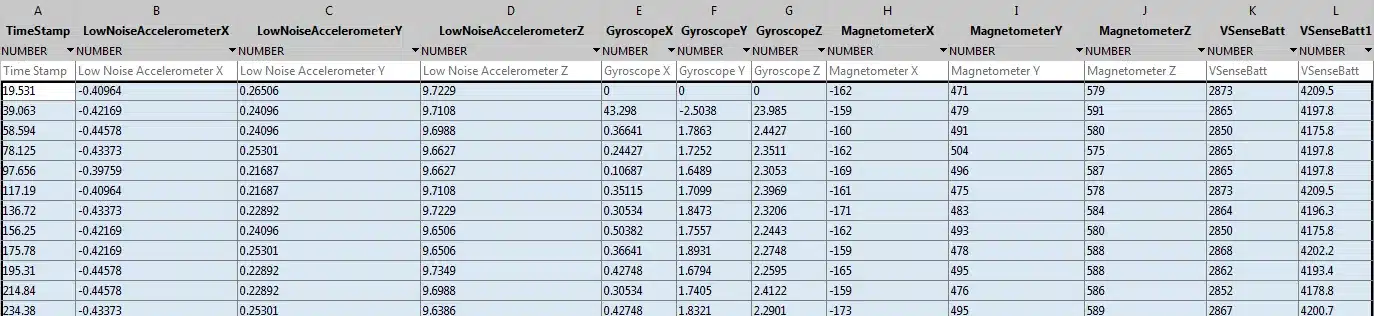
Figure 6‑2: Extra Fields for Accelerometer
In earlier versions of the instrument driver three extra fields: ‘Accelerometer X’, ‘Accelerometer Y’, ‘Accelerometer Z’) were inserted with duplicated values of either the Low Noise or Wide Range Accelerometer. These extra fields were included to maintain backwards compatibility in case ‘Accelerometer X’, ‘Accelerometer Y’, ‘Accelerometer Z’ were used by developers using the instrument driver.
Also, readers should note that the data rate of the gyroscope (MPU9150), accelerometer (LSM303DLHC) and magnetometer (LSM303DLHC) are configurable for the Shimmer3.
Pressure Sensor
The Shimmer3 also includes a Pressure sensor (BMP180). The pressure sensor’s resolution is configurable (ultra low power, standard, high resolution and ultra high resolution). Users should take note of the Max Conversion time when selecting the sampling rate and the resolution mode; further details can be found in the BMP180 data sheet.
Optical Pulse
There is an external sensor option when using the Shimmer GSR+ Expansion Board for Shimmer3, which is not available for Shimmer2r. Among other things, this can be used to measure photoplethysmogram (PPG) data, using the Shimmer Optical Pulse Sensor Probe. To measure PPG with a GSR+ Expansion Board, the following must be enabled:
Int ADC A13/PPG – The output of the sensor connected to the GSR+ Expansion Board is measured by the internal ADC A13
Internal Exp Power – To power the external sensor, e.g. PPG.
For example, when using the GSR+ Expansion Board, executing the following commands will enable the internal expansion power and the Internal ADC A13 channel:
SensorMacros = SetEnabledSensorsMacrosClass;
shimmer.setinternalboard(‘GSR’);
shimmer.setenabledsensors(SensorMacros.INTA13,1);
shimmer.setinternalexppower(1);
PPG data output will be under the signal name Internal ADC A13. For further information on the GSR+ Expansion Board, users are encouraged to read the GSR+ Expansion Board User Guide.
PPG data can also be measured on Shimmer3 via the PROTO3 Deluxe Expansion Board. For details on which channels should be enabled, please refer to the Optical Pulse Sensing Probe User Guide .
ECG and EMG
Support for using the ExG Expansion Board for Shimmer3 is incorporated in the instrument driver from v2.1 and later, allowing ECG or EMG data to be measured. In order to use the ExG Expansion Board with Shimmer3, the internalboard setting must be set to ‘EXG’, ‘ECG’ or ‘EMG’ and the relevant sensors need to be enabled. For Shimmer3, the ExG data resolution is either 16-bit or 24-bit. For Shimmer2/2r, the ECG/EMG data resolution is always 12-bit.
For example, executing the following commands:
SensorMacros = SetEnabledSensorsMacrosClass;
shimmer.setinternalboard(‘EMG’);
shimmer.setenabledsensors(SensorMacros.EMG,1);
sets the internalboard to ‘EMG’ and enables the sensor ‘EMG’.
In Section 11 of this document, the ExG functionality in the Shimmer MatlabTM Instrument Driver v2.1 is further explained. For further information on using the ExG Expansion Board in combination with Shimmer3, users are also encouraged to read the ExG User Guide for EMG and/or the ExG User Guide for ECG.
Bridge Amplifier+
The Bridge Amplifier+ Expansion Board for Shimmer3 has an extra input that can be used to measure resistance-based metrics, such as temperature. To use this input, the following must be enabled:
Int ADC A1 – The output of the sensor connected to the Bridge Amplifier+ Expansion Board is measured on the Internal ADC A1 Channel.
Internal Exp Power – To power the external sensor.
Users should refer to the Shimmer3 Bridge Amplifier+ User Guide for more details.
Get Expansion Board ID
New for Shimmer3 in Shimmer MatlabTM Instrument Driver v2.3 is the function getexpboardid that returns an array containing the Expansion Board ID bytes of the Expansion Board that is connect to the Shimmer:
ID Byte 0 – Board ID
ID Byte 1 – Board Rev
ID Byte 2 – Special revision
Configurable Baud Rate
Also included in Shimmer MatlabTM Instrument Driver v2.3 and later is the option to configure the baud rate between the processor and the Bluetooth module of the Shimmer. The default baud rate is 115200 kB/s. Alternative baud rates can be set using setbaudrate. Refer to the help of this function for a list of valid baud rates. The function getbaudrate can be used to check what the currently set baud rate is.
LogAndStream FW
The LogAndStream firmware for Shimmer3 is supported in Shimmer MatlabTM Instrument Driver v2.3 and later. This firmware support makes it possible to stream data over Bluetooth while logging the same data on the SD card. Please refer to the corresponding firmware user manual on our website for more information4.
Key functions enabling LogAndStream support are:
getsdcarddirectoryname – returns the currently active SD card directory on the SD card of the Shimmer.
getstatus – returns the status of the Shimmer3 that is connected: the status tell whether the Shimmer is docked/not docked, and actively sensing/not actively sensing. The ShimmerClass properties Docked and Sensing are updated accordingly.
startdatalogandstream – sends the command to the connected Shimmer to start logging and streaming at the same time.
stopdatalogandstream – sends the command to the connected Shimmer to stop logging and streaming at the same time. Since Shimmer MatlabTM Instrument Driver v2.6 the function stop() only stops streaming.
startloggingonly – sends the command to the connected Shimmer to start logging.
stoploggingonly – sends the command to the connected Shimmer to stop logging.
By means of the getstatus() function, Shimmer MatlabTM Instrument Driver v2.6 (and higher) detects whether a Shimmer is already logging data to its internal SD card when establishing a Bluetooth connection to this Shimmer.
NOTE: For LogAndStream v0.6.0 and logging by pressing the User Button can only be started when the Shimmer is not in the Disconnected state.
NOTE: For older versions of the Shimmer MatlabTM Instrument Driver, in combination with LogAndStream v0.5.0 or older, pressing the User Button on the Shimmer was not supported and the Shimmer would go back to its Connected state.
NOTE: The ExG sensors and Shimmer Dock share the same port, therefore no ExG signals can be acquired when the Shimmer is docked.
Reset the Shimmer configuration to default
For Shimmer3 the function resettodefaultconfiguration is added since Shimmer MatlabTM Instrument Driver v2.4 to reset the configuration of the Shimmer to its default values:
Sensors – (Only) WR Accel, Gyro, Mag, Battery Voltage are enabled.
Ranges – AccelRange = 0; GyroRange=1; MagRange=1; GsrRange=4; PressureResolution=0.
Rates – SamplingRate=51.2Hz; AccelWideRangeDataRate=5; GyroRate=155; MagRate=6.
ExG – Use setdefaultemgparameters/setdefaultecgparameters to set default parameters for EMG/ECG after resettodefaultconfiguration has been called, or use setexgconfiguration for setting custom ExG settings.
7. Synchronisation
In Shimmer MatlabTM Instrument Driver v2.6 synchronisation to the System Time of the PC has been introduced. With the function enabletimestampunix this functionality can be enabled. When enabled, the last sample in each serial buffer gets a system timestamp in Unix format. The function getdata will return an extra signal Time Stamp Unix containing the system timestamp in Unix format.
The most recent system timestamp is stored in the class property LastSampleSystemTimeStamp.
NOTE: Apart from added a timestamp to a common clock (System Time of the PC) the Shimmer MatlabTM Instrument Driver v2.6 does not facilitate in further synchronisation among multiple Shimmers.
8. Battery Monitoring and Low Battery Warnings
In the Shimmer MatlabTM Instrument Driver v1.4 and later, battery monitoring can be done by using the setenabledsensors function.
For Shimmer2/2r, battery monitoring is done via the same ADC channels that are used by ExpBoard A0 and ExpBoard A7; thus, while monitoring the battery you will be unable to use those ports. For Shimmer3, there is a dedicated battery monitoring channel.
There is also a low battery warning functionality built in, which will cause the green LED of the Shimmer device to turn yellow when the voltage has dropped below a specified value. By default, the value of the limit is set to 3.4 volt. This value can be specified via the function setbattlimitwarning. In order to use both battery monitoring and low battery notification on the Shimmer device, the battery voltage sensor has to be enabled prior to streaming. In the case of low battery, the warning is sent to the Shimmer device after the getdata is executed. When getdata is executed, the driver checks the battery data, and sends a command to change the LED on the Shimmer device if the battery value is below the limit. Users should note that after the warning is transmitted the ACK from the Shimmer device is only retrieved when getdata is executed again.
Note: Low battery notification is not supported on Shimmer3 devices since deprecation of BtStream firmware. Low battery and empty battery indications are now automatically handled in LogAndStream firmware.
9. 3D orientation estimation
In the Shimmer MatlabTM Instrument Driver v1.5 and later, the 3D orientation of the Shimmer device can be estimated; for Shimmer2/2r this requires that a Shimmer IMU 9DoF daughterboard be attached to the mainboard, that the internal board be set to 9DOF and that the accelerometer, gyroscope and magnetometer are all enabled.
The orientation estimates for each sample are calculated and output in quaternion format if the option, ‘quaternion’, is passed to the getdata() function. For an example of how this method is used, refer to the orientation3Dexample.m sample code, which allows the user to acquire data from the Shimmer, visualise the 3D orientation of the Shimmer and write the data to a file. The accelerometer, gyroscope and magnetometer should be calibrated prior to using the Shimmer orientation3Dexample.m; calibrate them in Consensys (see the IMU User Guide). For Shimmer, by default the low noise accelerometer is used for estimating the orientation. If this accelerometer is disabled, but the wide range accelerometer is enabled, the latter is used instead.
The orientation3Dexample displays a graphic representation of the 3D Orientation of the Shimmer, as shown in Figure 9‑1. The graphic consists of an object with the outlines of a Shimmer and its dock connector.
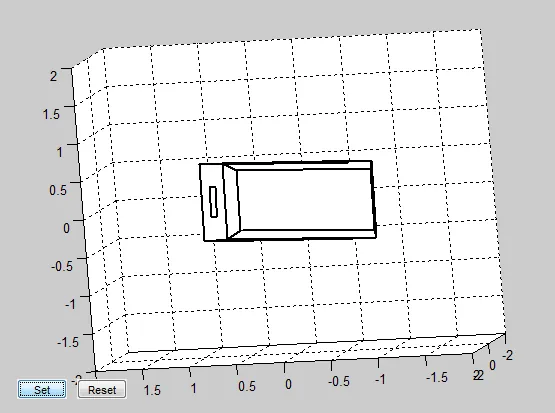
Figure 9‑1: Shimmer outline and dock connector
Because the screen on which the graphic is being displayed has an unknown orientation, the visualised device may not initially appear to be aligned with the physical Shimmer unit. In order to align the graphic with the physical device, the user should place the Shimmer on a flat surface facing away from the screen as shown in Figure 9‑2 and Figure 9‑3 for Shimmer3 and Shimmer2r, respectively. Then, the user should press the Set button.

Figure 9‑2:Orientation for aligning Shimmer3

Figure 9‑3:Orientation for aligning Shimmer2r + 9DoF daughterboard
After pressing the Set button, the orientation of the graphic will change to look like that in Figure 9‑4 with the dock connector on the left side for Shimmer3 and on the right side for the combination of Shimmer2r plus Shimmer IMU 9DoF daughterboard. This orientation should match that of the physical device and all further rotations of the device will be visualised relative to this orientation. To return to the initial orientation, simply press the Reset button.
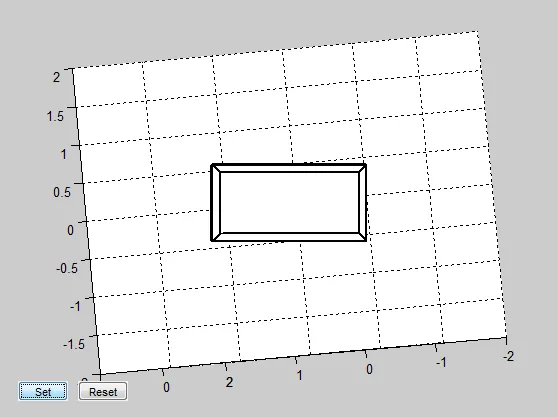
Figure 9‑4: Orientation of Shimmer outline after pressing set
Note: It may take the graphic up to 10 seconds to converge to its initial orientation estimate when streaming starts; it is advisable to leave the device motionless during this settling time. When the graphic object stops visibly rotating, the initial orientation estimate can be assumed to have converged.
In the Shimmer MatlabTM Instrument Driver v2.3 the function setorientation3D is introduced to enable 3D orientation and to allow getdata to output data in quaternion format. The function getorientation3D can be used to check if 3D orientation is enabled.
.
10. Gyroscope in-use calibration
In the Shimmer MatlabTM Instrument Driver v1.5 and later, the offset bias for the gyroscope on the Shimmer device can be estimated during use to improve calibration stability over time.
For Shimmer2r, this requires that a Shimmer IMU 9DoF or Shimmer IMU Gyro daughterboard be attached to the mainboard. The internal board needs to be set to 9DOF or Gyro and the gyroscope must be enabled. For Shimmer3, the 9DoF sensors are all contained on the mainboard.
The method is enabled by calling the function, setgyroinusecalibration, with an argument of 1. If this method is enabled, the uncalibrated gyroscope data is continuously buffered in a buffer of length 2 seconds, and the function, nomotiondetect, is called from the getdata function to determine if the device is moving or motionless. If the device remains motionless for 2 seconds, the gyroscope offset bias vector is updated. For an example of how this method is enabled, refer to the orientation3Dexample.m sample code.
Note: The updated value of the offset bias vector is used locally in the instrument driver only and is not sent to the Shimmer device.
11. ExG functionality for Shimmer3
Support for using Shimmer3 with the ExG Expansion Board is incorporated in the *ShimmerHandleClass.*m of Shimmer MatlabTM Instrument Driver v2.1 and later.
The following examples are provided to demonstrate this functionality:
plotandwriteemgexample.m.
plotandwriteecgexample.m.
plotandwriteexgtestsignalexample.m.
The first two examples explain how to plot and write EMG and ECG data, respectively. The third example shows how to use the ExG testsignal that is generated by the chips on the ExG Expansion Board; this is a square wave with a frequency of 1Hz and an amplitude of ±1mV.
11.1. Key Functions
Some key functions regarding ExG are highlighted below:
setinternalboard
- The internalboard can be set to ‘EXG’, ‘ECG’ or ‘EMG’.
setenabledsensors
The following ExG sensors can be set: EMG, ECG, EXG1, EXG2, EMG 16BIT, ECG 16BIT, EXG1 16BIT, EXG2 16BIT. If EMG, ECG, EMG 16BIT or ECG 16BIT is set, the default configuration parameters for ECG or EMG are automatically loaded, as appropriate; see setdefaultemgparameters, setdefaultecgparameters.
The ExG data output format can be either 16-bit or 24-bit. For 16-bit format ’16BIT’ needs to be appended to the name of the sensor, as shown above.
setexgtestsignalparameters(chipIdentifier)
- Sets the ExG configuration for the testsignal for SENSOR_EXG1 or SENSOR_EXG2 depending on the value of the chipIdentifier,which can have a value of either 1 or 2. If the testsignal for a sensor is enabled, the testsignal is fed to both channels of that sensor.
setdefaultemgparameters
When sensor ‘EMG’ or ‘EMG 16BIT’ is set (shimmer.setenabledsensors(‘EMG’,1) e.g.), the default configuration parameters for EMG are loaded automatically.
By default, the EMG data rate is set as close to the sampling rate of the Shimmer as possible and always higher than this sampling rate.
For details on the EMG parameters, refer to the ExG User Guide for EMG.
setdefaultecgparameters
When sensor ‘ECG’ or ‘ECG 16BIT’ is set (shimmer.setenabledsensors(‘ECG’,1) e.g.), the default configuration parameters for ECG are loaded automatically.
By default, the ECG data rate is set as close to the sampling rate of the Shimmer as possible and always higher than this sampling rate.
For details on the ECG parameters, refer to the ExG User Guide for ECG.
setexgconfiguration
- Sets the ExG configuration parameters. Refer to ExG User Guide for ECG / ExG User Guide for EMG for detailed information.
setexgreferenceelectrodeconfiguration
- Set the ExG reference electrode configuration. Valid values for this function are: 0..15. The supported standard values are for ECG: 0 – Fixed Potential and 13 – Inverse Wilson Central Terminal (default), and for EMG: 0 – Fixed Potential (default) and 3 – Inverse of Ch1. Refer to the datasheet of the ADS1292R for details on non-standard values.
setexggain
- Sets the ExG gain. Use the MatlabTM help function to check the valid gain settings.
setexgrate
- Sets the ExG rate. Use the MatlabTM help function to check the valid rate settings.
For more information on each command regarding the ExG functionality in the Shimmer MatlabTM Instrument Driver, either use the MatlabTM help function or directly refer to the ShimmerHandleClass.m file.
Users may also refer to the ExG User Guide for EMG and ExG User Guide for ECG for more information about the use of the ExG Expansion Board with Shimmer3.
11.2. Filtering
As described in the ExG User Guide for ECG / ExG User Guide for EMG filtering the ExG signals might be necessary in order to enhance the desired information by suppressing undesired frequency components.
In the plotandwriteemgexample.m and plotandwriteecgexample.m examples, filters are implemented. Please note that there are no functions for filtering in the ShimmerHandleClass. For filtering in the examples, functions of the class, FilterClass.m, are used.
In case of measuring EMG, we recommend the use of a high pass filter with a corner frequency of 5Hz. When measuring ECG in a diagnostic setting, we recommend setting the corner frequency of the high pass filter to 0.05Hz. For ECG monitoring applications, we recommend setting this corner frequency to 0.5Hz.
The band stop filter is used to suppress mains interference. If the mains frequency (power line frequency) in your area is 50Hz, set the corner frequencies of the band stop filter to 49Hz and 51Hz. For a mains frequency of 60Hz, set the corner frequencies to 59Hz and 61Hz. For details on the filter settings refer to FilterClass.m.
11.3. ExG lead-off detection
In Shimmer MatlabTM Instrument Driver v2.3 ExG lead-off detection is introduced. The following functions have been introduced to enable this functionality.
setexgleadoffdetectionmode – sets detection mode to off or to DC Current
setexgleadoffcomparatorthreshold – sets comparator threshold
setexgleadoffdetectioncurrent – sets detection current
The functions: getexgleadoffdetectionmode, getexgleadoffcomparatorthreshold and getexgleadoffdetectioncurrent return the active settings.
The lead-off detection information is incorporated in the ExG status bytes, which are included in the uncalibrated ExG data. When lead-off detection is enabled, by setting the lead-off detection mode to DC Current, the information inside the ExG status bytes is parsed out in lead-off detection bits, one for each electrode input. These lead-off detection bits are included in the calibrated data.
The comparator threshold and detection current that are set by default when the lead-off detection mode is set to DC Current are: lead-off detection current = 22nA, lead-off comparator threshold = Pos: 90% – Neg:10%. These values have been found to work well in testing, but can be changed by the user if desired.
In plotandwriteecgleadoffdetectionexample and plotandwriteemgleadoffdetectionexample, uncalibrated as well as calibrated data are retrieved, i.e. getdata(‘a’) is called, therefore the ExG status bytes and the lead-off detection bits are included in the data. (If only the calibrated data is acquired, i.e. getdata(‘c’) is called, then the ExG status bytes are not included.)
NOTE: Refer to the help of the functions, the provided examples, and the datasheet of the ADS1292R for more detailed information on ExG lead-off detection.
ECG
Figure 11‑1 – is created as a result of running plotandwriteecgleadoffdetectionexample and disconnecting the connectors one by one – shows where the lead-off detection bits of the first ExG status byte EXG1 STA are located and to which input they correspond. Figure 11‑2 shows the same but then for the second ExG status byte EXG2 STA.
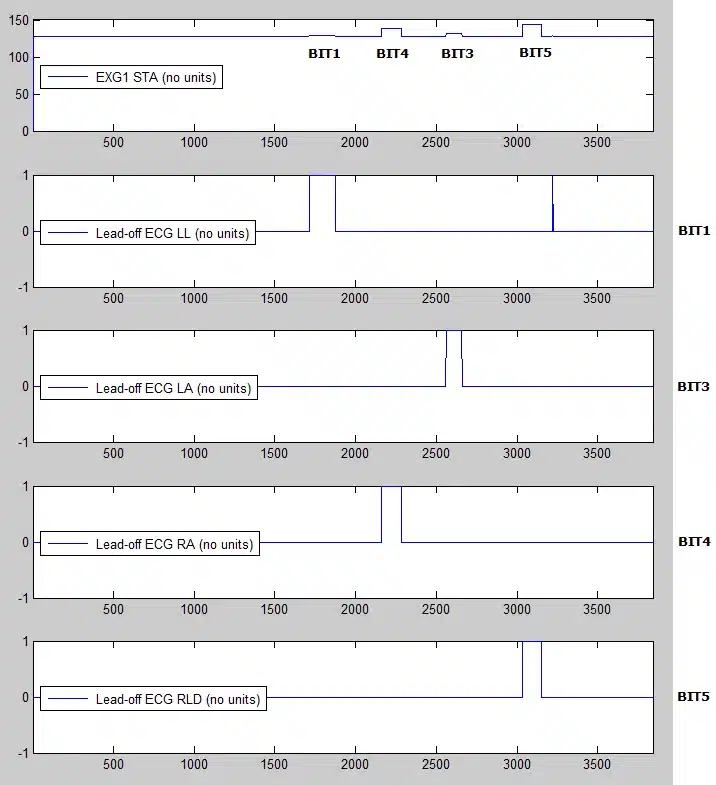
Figure 11‑1: ExG1 Status byte with parsed out lead-off detection bits (ECG).
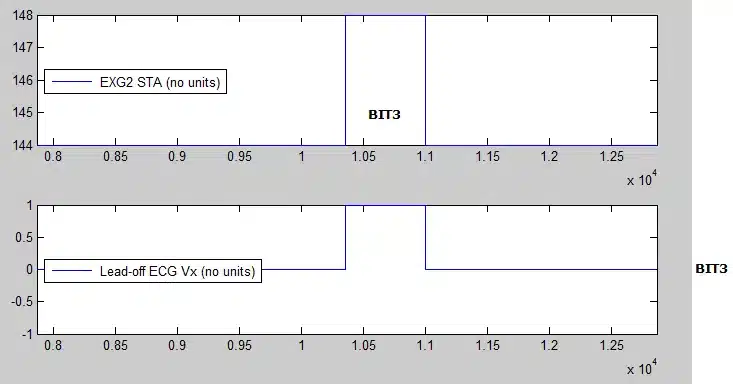
Figure 11‑2: ExG2 Status byte with parsed out lead-off detection bit (ECG).
**
EMG
Figure 11‑3 – shows where the lead-off detection bits of the first ExG status byte EXG1 STA are located and to which input they correspond for EMG. The same is shown for the second ExG status byte EXG2 STA in Figure 11‑4.
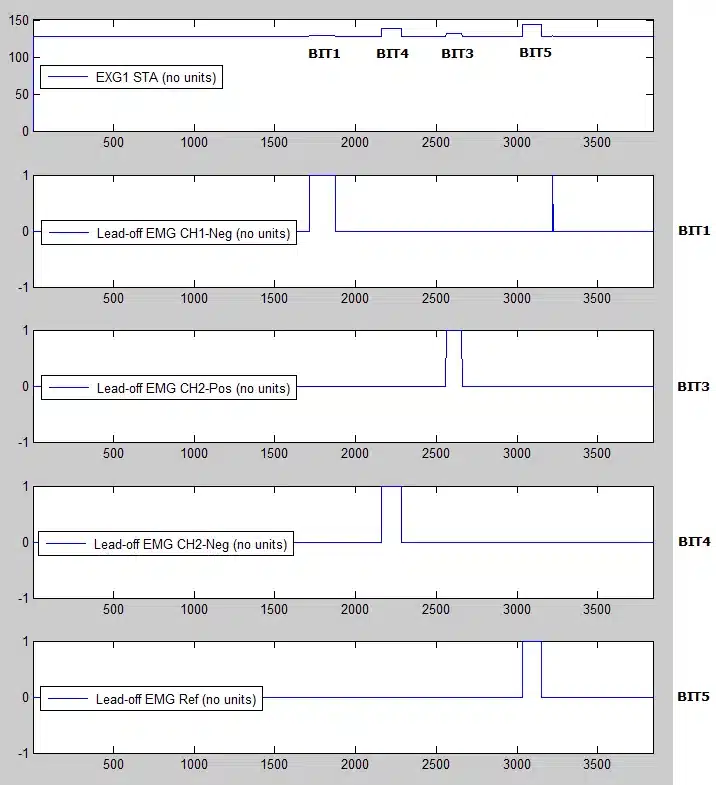
Figure 11‑3: ExG1 Status byte with parsed out lead-off detection bits (EMG).
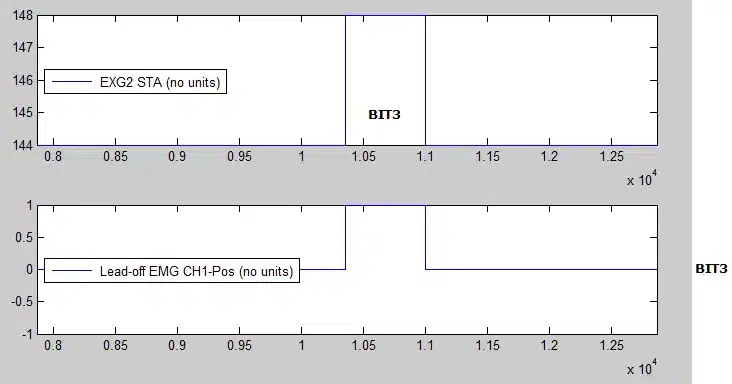
Figure 11‑4: ExG2 Status byte with parsed out lead-off detection bits (EMG).
NOTE: The EMG Ref lead-off detection only functions if the ExG reference electrode configuration is set to Inverse of Ch1 (not default).
12. Verisense
For further information please visit out GitHub repository. Moving forward this will replace the user guide as the primary means of providing information on Shimmer’s Matlab API.
13. Appendices
13.1. How to update Java for MATLAB
For updating the Java version for MATLAB, which might be necessary for using the ShimmerBiophysicalProcessingLibrary_Rev_X_Y.jar, refer to this link on the Mathworks website:
13.2. More than 7 Shimmers via Bluetooth on a Single Computer
If the user wishes to stream data from more than 7 Shimmers simultaneously on a single computer using Bluetooth a solution is proposed here. The solution requires the use of 2 or more Bluetooth dongles (a dongle is required for every 7 Shimmers) with each Bluetooth dongle having its own Bluetooth Driver. This method has been verified in-house using a Toshiba driver and a Microsoft driver.
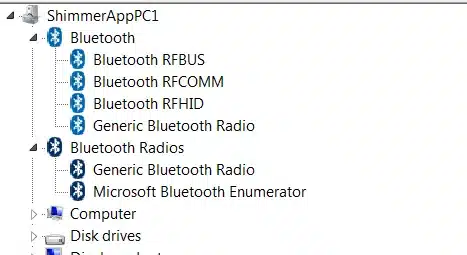
Figure 13‑1: Multiple Bluetooth Driver
Figure 5 shows an example of what the device manager will show when two Bluetooth dongles with different stacks are used simultaneously. The top one uses a Bluetooth Toshiba driver while the bottom one uses a Microsoft driver.
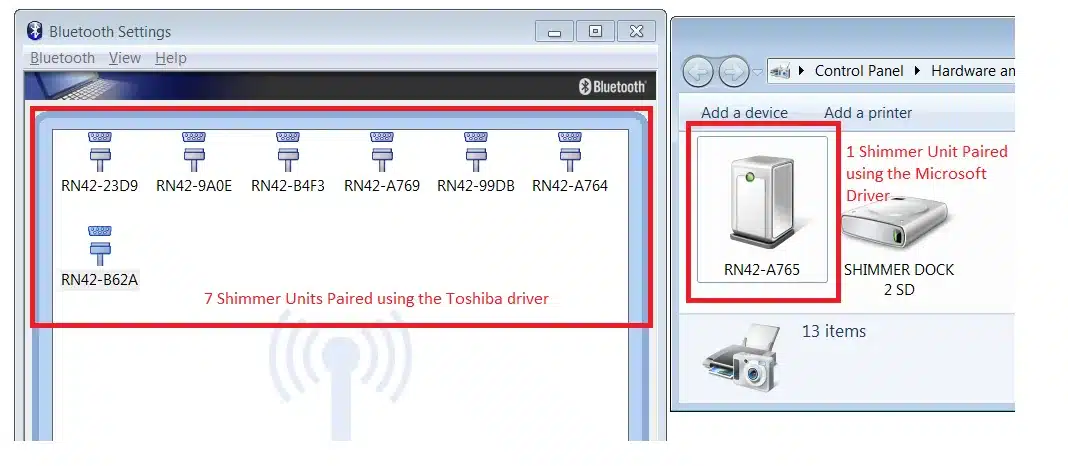
Figure 13‑2: Pairing with Multiple Bluetooth Dongles
When using more than 7 Shimmer units ensure that a maximum of 7 are paired and used with one driver and the others are paired and used with the other driver. To avoid confusion it is advised that each device is paired with only one driver as demonstrated in Figure 13‑2.
13.3. Known Bugs
See Readme.txt for known/fixed bugs.
13.4. Troubleshoot
I/O Error 103
Problem: Every time I run example functions I receive an I/O error 103 as illustrated below.
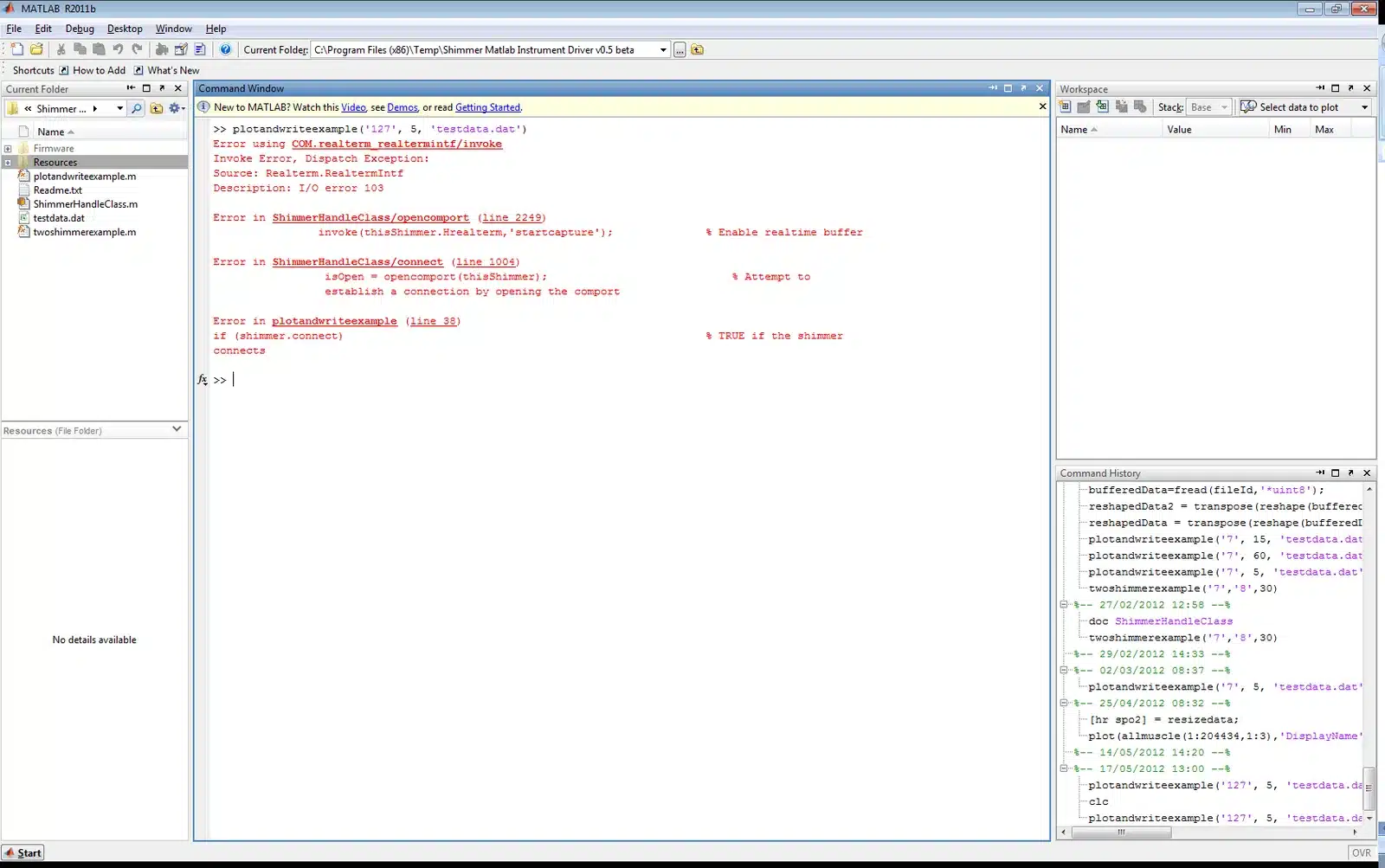
Solution: Ensure that your current working directory contains a folder called realtermBuffer and that you have permission to write to that folder.
http://www.shimmersensing.com/support/wireless-sensor-networks-documentation/↩︎
The MathWorks Inc., 3 Apple Hill Drive, Natick, MA 01760-2098, USA.↩︎
http://www.shimmersensing.com/support/wireless-sensor-networks-download/.↩︎
http://www.shimmersensing.com/support/wireless-sensor-networks-documentation/category/11↩︎
Legal notices
Legal Notices and Disclaimer
Redistribution IS permitted provided that the following conditions are met:
Redistributions must retain the copyright notice, and the following disclaimer. Redistributions in electronic form must reproduce the above copyright notice, this list of conditions and the following disclaimer in the documentation and/or other materials provided with the document.
Neither the name of Shimmer Research, or Realtime Technologies Ltd. nor the names of its contributors may be used to endorse or promote products derived from this document without specific prior written permission.
THIS DOCUMENT IS PROVIDED BY THE COPYRIGHT HOLDERS AND CONTRIBUTORS “AS IS” AND ANY EXPRESS OR IMPLIED WARRANTIES, INCLUDING, BUT NOT LIMITED TO, THE IMPLIED WARRANTIES OF MERCHANTABILITY AND FITNESS FOR A PARTICULAR PURPOSE ARE DISCLAIMED. IN NO EVENT SHALL THE COPYRIGHT OWNER OR CONTRIBUTORS BE LIABLE FOR ANY DIRECT, INDIRECT, INCIDENTAL, SPECIAL, EXEMPLARY, OR CONSEQUENTIAL DAMAGES (INCLUDING, BUT NOT LIMITED TO, PROCUREMENT OF SUBSTITUTE GOODS OR SERVICES; LOSS OF USE, DATA, OR PROFITS; OR BUSINESS INTERRUPTION) HOWEVER CAUSED AND ON ANY THEORY OF LIABILITY, WHETHER IN CONTRACT, STRICT LIABILITY, OR TORT (INCLUDING NEGLIGENCE OR OTHERWISE) ARISING IN ANY WAY OUT OF THE USE OF THIS DOCUMENT, EVEN IF ADVISED OF THE POSSIBILITY OF SUCH DAMAGE.
**